PC and Windows errors
Fixes for Windows 10 and 11, hardware, networks and performance. Every guide explains the cause and takes you from the simplest steps to the most advanced.
- Windows & system errors 19
- Hardware & peripheral problems 10
- Network & internet problems 4
- Software, games & performance 4
PC faults almost always come from one of four places: the operating system (damaged files, updates, services), the drivers (graphics, audio, network or chipset), the hardware (RAM, drive, power supply, temperatures) or the network. We've organised the guides the same way so you go straight to the right section.
Windows & system errors
 Windows
Blue screen (BSOD) in Windows
A blue screen always leaves a clue: the stop code. How to read it even if the PC restarts quickly, what the timing tells you (at boot, while gaming, at random) and which guide to follow for each code. Windows
100% disk usage in Windows
100% disk almost always has a named culprit. How to find it in Task Manager and Resource Monitor, what to do with each one, how to check if the drive is failing, and why an SSD solves it. Windows
 Update shows error 0x80070422
0x80070422 means "the service is disabled". Set Windows Update, BITS and Cryptographic Services to Manual or Automatic, start them and restart. If they get switched off again, find the "optimiser" or update blocker doing it. Windows
 takes ages to boot
Startup has three parts and each is fixed differently: BIOS, Windows loading and desktop. How to tell which is slow using Windows itself, and what to do in each case, including moving to an SSD. Windows
CPU at 100% while doing nothing
First find out which process is using the CPU. Depending on which it is (System Interrupts, Defender, updates or a strange name), the fix changes. Includes how to spot a hidden miner. Windows
RAM at 100% or low memory warning
High RAM isn't always bad: Windows uses free memory as cache. When it really is a problem, what's using it and how to fix it: browser, page file and leaks. Windows
Error 0xc000007b: the application was unable to start
The program tries to load a library of the wrong architecture. Fixed by installing the official x86 and x64 Visual C++ and DirectX packages, removing hand-copied DLLs and repairing the game or Windows. Windows
 Automatic Repair loop
Windows can't boot and enters repair over and over. From Advanced options: uninstall updates, System Restore, chkdsk, sfc and bootrec, and how to copy your files to a USB stick before resetting. Windows
Local Disk C: Full (Red Bar)
First see what takes space with a visual tool. Then tackle the biggest items: system file cleanup, Windows.old, hibernation, temp files, Downloads, games and caches. And turn on Storage Sense. Windows
MEMORY_MANAGEMENT blue screen
MEMORY_MANAGEMENT is almost always memory: a faulty stick, an unstable XMP profile or a slot. A step-by-step test plan with what each result means, and what to do if the RAM passes. Windows
CRITICAL_PROCESS_DIED blue screen
An essential Windows process stopped working, almost always due to damaged system files, the disk or a recent change. Two paths: from the desktop, or from recovery when Windows won't even boot. Windows
IRQL_NOT_LESS_OR_EQUAL blue screen
A driver tried to use memory it shouldn't have. The .sys file name tells you which one: Wi-Fi, network, GPU, antivirus, RGB or anti-cheat. How to find it and what to do with each. Windows
VIDEO_TDR_FAILURE blue screen
Windows gives the GPU a few seconds to respond; if it doesn't and the reset fails, you get this blue screen. The causes change depending on when it happens: one game, any graphics load or the desktop. Windows
Error 0x80004005 in Windows ("Unspecified error")
0x80004005 doesn't say what failed, only that something did. Identify where it appears (Windows Update, compressed files, network folders or copying/deleting files) and follow that case's section. Windows
Error 0x80070570: file corrupted or unreadable
The file gets damaged somewhere along the way: source, cable or port, RAM or destination. Test each point in order: download or copy again, change port and USB drive, run chkdsk and, if it fails everywhere, check the RAM. Windows
DPC_WATCHDOG_VIOLATION blue screen
Windows watches that drivers respond quickly; if one takes too long, this blue screen appears. A checklist ordered by frequency: SSD firmware, storage controller, drivers, peripherals and BIOS. Windows
WHEA_UNCORRECTABLE_ERROR blue screen
A component reported an error to Windows that couldn't be corrected. The WHEA-Logger entry says which: CPU core, cache, memory or PCI Express bus. What to check in each case, starting with the settings you pushed yourself. Windows
Error 0x80070002 in Windows Update
0x80070002 means Windows Update can't find files it should have downloaded. Check time and space, rebuild the download cache with a few commands and, if it persists, install the update manually from the Microsoft Update Catalog. Windows
SYSTEM_SERVICE_EXCEPTION blue screen
A system service or driver did something it shouldn't. The fastest clue is the date: what you installed or updated just before. How to find it with Reliability History, undo it, and Driver Verifier as a last resort.
Hardware & peripheral problems
 Hardware
PC turns on but the screen stays black
If you don't even see the motherboard logo, it's hardware (cable, RAM, BIOS). If you see the logo and then black, it's Windows or the driver. A guide based on when the picture disappears. Hardware
Windows doesn't detect the second monitor
It's almost always the wrong port, the monitor input or the projection mode. A checklist from hardware to software, and what to do if it's detected but looks wrong.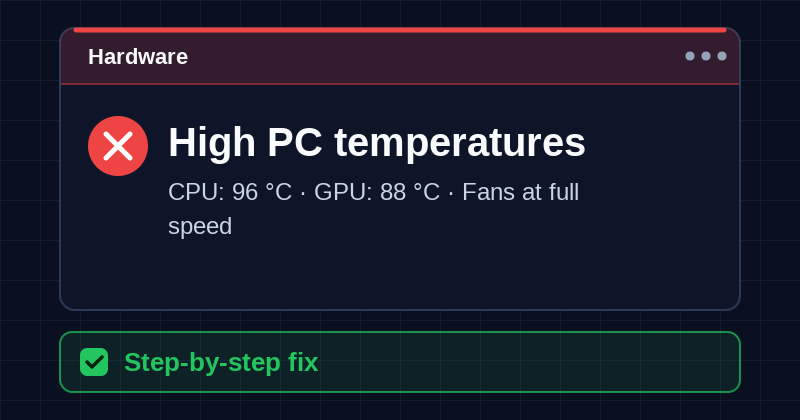 Hardware
High CPU or GPU temperatures
First, measure properly: many modern CPUs run at 90 °C by design. Then, fixes from free to costly: dust, fan direction, fan curve, FPS cap, undervolt and thermal paste. Hardware
Microphone not working in Windows or Discord
If Windows' level bar moves when you speak, the mic works and the app is at fault. If it doesn't, it's Windows or the hardware. Privacy permissions, default input, pink or combo jack, and Discord step by step. Hardware
PC shuts down or restarts while gaming
Switching off suddenly is not the same as restarting. The type of shutdown and the Windows log point to the power supply, temperature or a blue screen you never get to see. Hardware
No sound on Windows
A red X, an empty device list or sound coming out of the monitor are different problems. How to read the speaker icon and fix each case: output, jack, services, enhancements and driver. Hardware
Error: "USB device not recognized"
Three quick tests tell you whether the culprit is the cable, the port, the device or Windows. Then the fix for each case: rear ports, USB power, reinstalling controllers and chipset. Hardware
Keyboard types numbers or the wrong symbols
Letters that come out as numbers, @ and " swapped, or a # that won't appear: each symptom has a different cause. A quick test and the fix for each case. Hardware
Windows doesn't recognise the external hard drive
Disk Management tells you what's wrong with the drive. No letter is a one-minute fix; Unallocated or RAW may need data recovery before formatting; if it doesn't appear, it's the cable, power or the drive itself. Hardware
PC won't turn on but has power
A dead PC, one that starts and shuts off, and one that spins with no picture are different problems. What to check in each case: PSU switch, power drain, button, 24 and 8-pin connectors, CMOS, RAM and debug LEDs.
Network & internet problems
 Network
Connected to Wi-Fi but no internet
The globe with a yellow triangle can be the router's fault, the ISP's or just the PC's. The phone test tells you which, and each case has its fix: router, IP, DNS, network reset or adapter. Network
Error: Unidentified network over Ethernet
An IP starting with 169.254 means the PC isn't getting an address from the router. Cable and port tests, renewing the IP, a temporary static IP, reinstalling the adapter and turning off power saving. Network
Bluetooth disappears or finds nothing
Three different faults with three different fixes: the toggle is gone, it can't find devices, or it pairs but cuts out. First, check your PC really has Bluetooth. Network
DNS_PROBE_FINISHED_NXDOMAIN error
The browser can't translate the site's name into an address. If one site fails, it's usually the site or the name; if all fail, your DNS. How to clear Chrome's and Windows' DNS cache, change DNS and check hosts, VPN and extensions.
Software, games & performance
 Software
MSVCP140.dll or VCRUNTIME140.dll is missing
These DLLs come in Microsoft's Visual C++ package. Install both versions (x64 and x86) or repair them and verify the game. Never download the loose DLL: it's the easiest way to get a virus.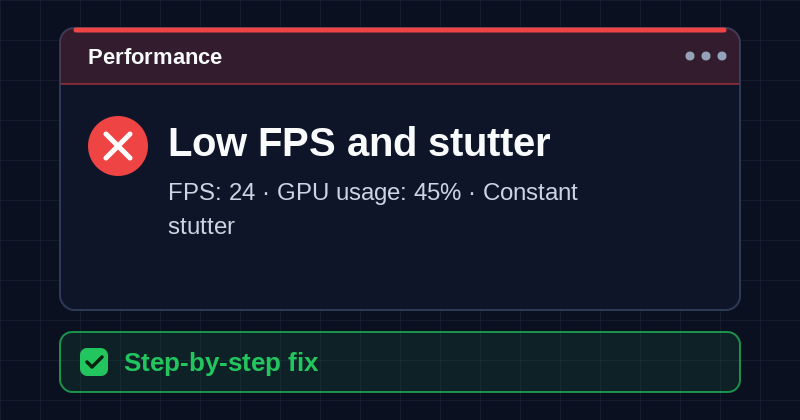 Performance
FPS drops and stuttering
Low FPS and stutter aren't the same and aren't fixed the same way. How to read GPU and CPU usage and frametime to see what's limiting you, and what to do in each case: GPU at 99%, CPU maxed out, slow RAM or shader stutter. Performance
App blocked from accessing graphics hardware
Windows resets the GPU if it takes more than 2 seconds to respond and blocks the app. Work out whether it's the driver (after an update, in one game) or hardware (everywhere, with heat or overclocks). Do a clean driver install with DDU and, only if needed, raise TdrDelay. Software
Discord stuck on "RTC Connecting"
Each Discord message (RTC Connecting, No Route, ICE Checking, Awaiting Endpoint) points to a different place. How to tell whether it's your PC, your network or the voice server, and fix it.
How to know where to start
If you're not sure which guide fits your case, these clues will point you in the right direction:
- The fault shows a code or a blue screen: write down the code and search for it above. Stop codes like
MEMORY_MANAGEMENTorWHEA_UNCORRECTABLE_ERRORalready tell you whether the problem is software or hardware. - The PC is slow for no reason: open Task Manager (Ctrl + Shift + Esc) and see which column is at 100%: CPU, memory or disk. Each has its own guide.
- It shuts down or restarts by itself: it's almost always temperature or the power supply. Measure temperatures before changing anything.
- No picture, sound or internet: always start with the physical side (cables, ports, another device) before touching drivers or settings.
Windows tools you'll use often
Many guides use the same built-in Windows tools. It's worth knowing what each one does:
- SFC and DISM (
sfc /scannowandDISM /Online /Cleanup-Image /RestoreHealth): check and repair system files. Run them in Command Prompt as administrator. - Device Manager (right-click Start): shows the hardware and its drivers; a yellow triangle indicates a problem.
- Event Viewer (
eventvwr.msc): logs errors with date and time. Under "Windows Logs > System" you'll see what failed just before a restart. - Reliability Monitor (type "reliability" in Start): a very visual timeline of program and system crashes.
Before touching the registry, the BIOS or formatting, create a restore point (type "Create a restore point" in Start) and save your important files to another drive or the cloud.