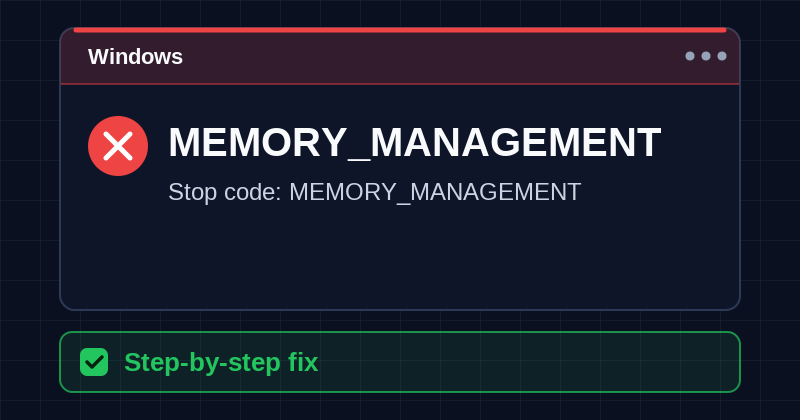
MEMORY_MANAGEMENT: a test plan to find the culprit
Blue screen MEMORY_MANAGEMENT? Follow an ordered test plan: XMP/EXPO off, MemTest86, one stick at a time and slots, and how to read each result to know whether to replace the RAM, lower the speed or repair Windows.
Turn off the XMP/EXPO profile in the BIOS and use the PC normally for a few days: if the blue screen doesn't return, the RAM can't handle that speed. If it returns, run MemTest86 from a USB stick and test the sticks one at a time. If the memory passes perfectly, repair Windows with DISM and sfc.
Why it's almost always memory
Code 0x1A means Windows found data in memory that made no sense. Causes, from most to least common:
- Unstable XMP/EXPO profile: the RAM runs above its base speed and the CPU or board can't fully keep up.
- A faulty or poorly seated stick.
- Mixed sticks (brand, speed or size).
- Damaged Windows files or page file.
More on other codes in the general blue screen guide.
The test plan
| Test | How | If it passes | If it fails |
|---|---|---|---|
| 1. No XMP/EXPO | BIOS → disable XMP/EXPO/DOCP → use the PC for 2-3 days | The RAM can't handle that speed: see "If it was XMP" | Go to test 2 |
| 2. MemTest86 | Write MemTest86 to a USB stick, boot from it and let it run 4 passes | The RAM is healthy: see "If the RAM passes" | There's a bad stick: test 3 |
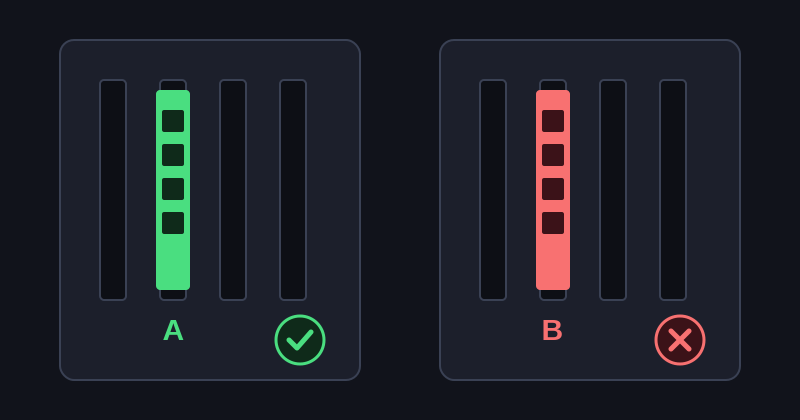
| 3. Stick by stick | Leave one stick in the recommended slot (usually the 2nd) and repeat MemTest86 with each | That stick is fine | That stick is bad: replace it (warranty) |
| 4. Slot | Put a stick that passed into another slot | The slot is fine | The slot or board is faulty |
Windows Memory Diagnostic (type it in Start) is fine for a first look, but it misses many faults. MemTest86 is far more reliable: even a single error means there's a problem.
If it was XMP
- Update the BIOS: boards improve RAM compatibility with each version, especially for DDR5.
- Drop one step: instead of full XMP, set the speed one step lower (e.g. 5600 instead of 6000) keeping the timings.
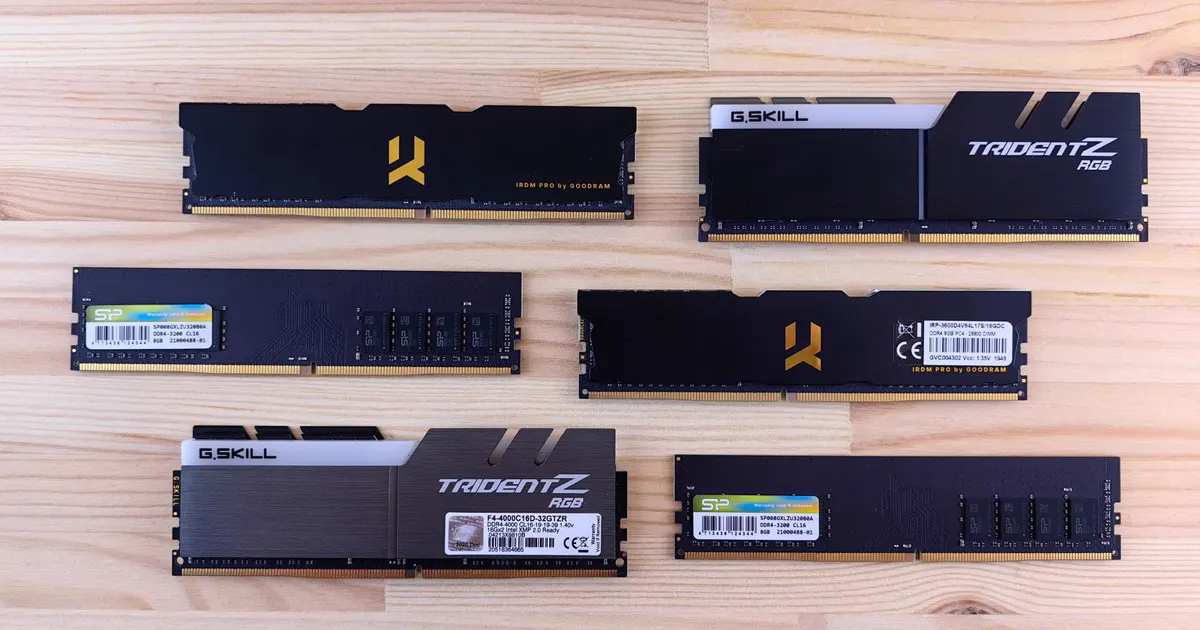
- Don't mix kits: two 2 × 16 GB kits bought separately often won't run together at XMP speed. The safe option is a 4-stick kit or sticking with 2.
If the RAM passes
- Repair Windows: Command Prompt as administrator →
DISM /Online /Cleanup-Image /RestoreHealththensfc /scannow. - Rebuild the page file: Win + R →
sysdm.cpl→ Advanced → Performance → Settings → Advanced → Virtual memory → Change → "No paging file" → restart → back to "System managed size" → restart. - Graphics driver: if the blue screen happens while gaming, reinstall it clean with DDU.
- Disk: check SSD health with CrystalDiskInfo.
Frequently asked questions
How long does MemTest86 take?
One pass with 16-32 GB takes 30 minutes to 2 hours. Ideally let it do 4 passes, for example overnight.
Do I lose performance without XMP?
Some, especially in games on Ryzen CPUs. But a stable PC matters more. After a BIOS update, try XMP again.
Can a bad stick be repaired?
No. RAM usually has a long warranty (lifetime for many brands): ask the maker for a replacement.
If MemTest86 shows errors and you don't know which stick it is, tell us how many you have and in which slots via the contact page.
Still not fixed?
Email us at glitchfixesp@gmail.com with your device model, the exact error message and what you have already tried from this guide. We reply personally (in English or Spanish) and, if the issue keeps coming up, we add the new fix to the guide.