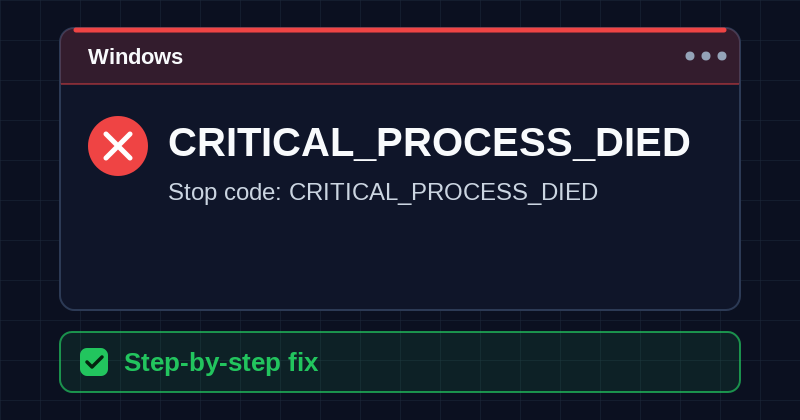
CRITICAL_PROCESS_DIED: the fix depends on whether Windows boots
Blue screen CRITICAL_PROCESS_DIED? A vital Windows process died. Two paths depending on your case: if you reach the desktop (DISM, sfc, disk, undo changes) or if it won't boot (recovery environment, uninstall updates, safe mode, restore).
If you reach the desktop: run DISM /Online /Cleanup-Image /RestoreHealth and sfc /scannow, check the disk and undo the last driver or update. If Windows won't boot: enter the recovery environment, uninstall the latest update, try System Restore or safe mode.
What it means
Windows has processes it can't run without (the one handling sign-in, services, the Windows subsystem…). If one of them suddenly dies, Windows stops with this blue screen. Mainly caused by:
- Damaged system files (from a power cut, a half-finished update or a disk with errors).
- A disk or SSD starting to fail.
- A recent driver or program interfering with those processes.
If you're after another code, see the general blue screen guide.
Do you reach the desktop?

| Your case | Go to |
|---|---|
| Windows boots and the blue screen appears now and then | "Path A: from the desktop" |
| The blue screen appears at boot and you can't use Windows | "Path B: from recovery" |
Path A: from the desktop
- Repair Windows: open Command Prompt as administrator and run, in order,
DISM /Online /Cleanup-Image /RestoreHealthandsfc /scannow. Restart. - Check the disk:
chkdsk C: /scanand its health with CrystalDiskInfo. If it says "Caution" or "Bad", copy your files now. - Undo the last change: Settings → Windows Update → Update history → Uninstall updates; or roll back the last driver you installed (Device Manager → Properties → Driver → Roll Back).
- Remove recent programs that hook deep into the system: third-party antivirus, "optimisers", RGB or VPN software.
- Update everything: Windows, chipset drivers and the BIOS.
Path B: from recovery

- Enter recovery: turn the PC off with the button while Windows loads, three times in a row; the fourth time "Automatic Repair" appears → Advanced options.
- Troubleshoot → Advanced options → Uninstall Updates: remove the latest quality update first, then the feature update.
- System Restore to a point before the problem (doesn't delete your files).
- Startup Settings → 4 (safe mode): if it boots in safe mode, uninstall the suspect driver or program from there and run DISM and sfc.
- Command Prompt:
chkdsk C: /fandsfc /scannow /offbootdir=C:\ /offwindir=C:\Windows.
If none of this works, the Automatic Repair loop guide explains how to save your files and reset Windows without losing them.
Frequently asked questions
Do I have to reinstall Windows?
Almost never. DISM, sfc and undoing the last change fix most cases. "Reset this PC" with "Keep my files" is the last resort.
It appears when the PC wakes from sleep. Why?
Usually a driver that doesn't recover well (graphics, network, storage). Update chipset and graphics drivers, and try turning off hybrid sleep.
Could it be a virus?
Possible but uncommon. If in doubt, run a full Microsoft Defender scan, including the "Offline scan".
If you can't even get into recovery, tell us what you see when you power on via the contact page.
Still not fixed?
Email us at glitchfixesp@gmail.com with your device model, the exact error message and what you have already tried from this guide. We reply personally (in English or Spanish) and, if the issue keeps coming up, we add the new fix to the guide.