Blue screen in Windows: from stop code to fix
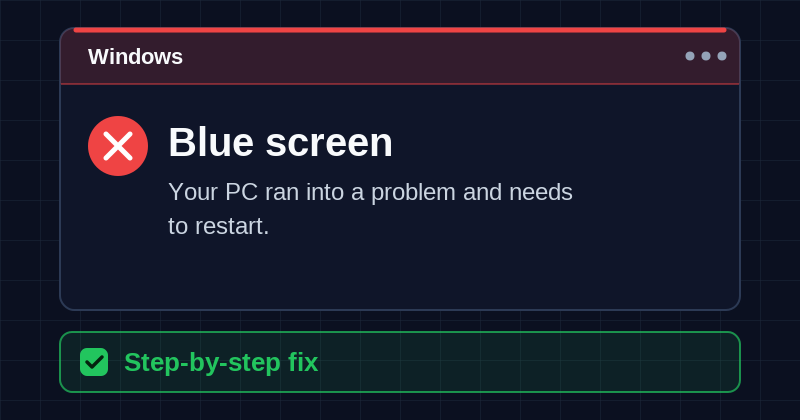
Windows restarts with a blue screen and a sad face? How to read the stop code (even after the restart), what it means depending on when it appears, and a table of the most common codes with their specific guide: MEMORY_MANAGEMENT, IRQL, VIDEO_TDR, WHEA and more.
Note the stop code shown on the "Stop code" line (for example MEMORY_MANAGEMENT) and find its guide in the table below. If the PC restarts before you can read it, turn off automatic restart or check it afterwards in Event Viewer or with BlueScreenView. What fixes most blue screens: a clean graphics driver, removing overclock and XMP to test, and checking RAM and disk.
Step 1: get the stop code

The blue screen shows a stop code in capitals and sometimes, below it, "What failed:" with a .sys file. That file is gold: it tells you which driver caused it.
- Take a photo with your phone. It's the quickest way.
- If it restarts first: press Win + R, type
sysdm.cpl→ Advanced → Startup and Recovery → Settings → untick Automatically restart. The next blue screen will stay on screen. - After the restart: open Event Viewer → Windows Logs → System and look for a BugCheck event (ID 1001): it includes the code. Or install BlueScreenView or WhoCrashed (free), which read the dump files in
C:\Windows\Minidumpand point to the guilty driver.
Step 2: when does it appear?
The timing tells you almost as much as the code:
| It appears… | Main suspect | Try first |
|---|---|---|
| Only while gaming or with the GPU maxed out | Graphics driver, temperature, PSU | Clean driver with DDU, temperatures, remove GPU overclock |
| While Windows boots, before the desktop | Disk, storage driver, half-installed update | Startup Repair, chkdsk, uninstall the latest update |
| At random, even when idle | RAM, XMP/EXPO, overclock | Disable XMP to test, memory test |
| Right after installing something (driver, antivirus, program) | Whatever you just installed | Uninstall it or go back to a restore point |
| When plugging in a specific device | That device's driver | Unplug it and update or remove its software |
Step 3: the most common codes
| Stop code | Usually means | Guide |
|---|---|---|
| MEMORY_MANAGEMENT | RAM, XMP or page file | See guide |
| IRQL_NOT_LESS_OR_EQUAL | A driver accessing memory incorrectly | See guide |
| VIDEO_TDR_FAILURE | The GPU stopped responding | See guide |
| WHEA_UNCORRECTABLE_ERROR | Hardware error: CPU, voltages, overclock | See guide |
| DPC_WATCHDOG_VIOLATION | Disk or SSD driver, firmware | See guide |
| CRITICAL_PROCESS_DIED | A vital Windows process died: system files or disk | See guide |
| SYSTEM_SERVICE_EXCEPTION | A failing driver or system service | See guide |
| INACCESSIBLE_BOOT_DEVICE | Windows can't see the boot drive (SATA/NVMe mode, disk, update) | Repair loop |
| KERNEL_SECURITY_CHECK_FAILURE, PAGE_FAULT_IN_NONPAGED_AREA | Damaged driver or RAM | General steps below |
Step 4: what fixes most blue screens
- Clean graphics driver: download DDU, restart into safe mode, remove the driver with DDU and install the latest from NVIDIA, AMD or Intel.
- Remove overclock and XMP to test: in the BIOS, load defaults (Load Optimized Defaults). If the blue screens stop, the overclock or the RAM at XMP speed was unstable.
- Repair Windows: in Command Prompt as administrator, run
DISM /Online /Cleanup-Image /RestoreHealthand thensfc /scannow. - Check the disk:
chkdsk C: /scanand its health with CrystalDiskInfo. - Test the RAM: type "Windows Memory Diagnostic" in Start → Restart now and check. For something more reliable, MemTest86 from a USB stick.
- Update the BIOS and chipset if they're old: many RAM and new-CPU incompatibilities are fixed this way.
If the blue screens won't even let you reach the desktop, boot into safe mode: on the sign-in screen, hold Shift and click Restart → Troubleshoot → Advanced options → Startup Settings → 4.
Frequently asked questions
Does a blue screen mean something is broken?
Not always. Most are drivers or settings. But if you get a different code each time, at random, suspect the RAM, the PSU or overclocking.
What do I do if a .sys file appears under "What failed"?
Look up the name: nvlddmkm.sys is the NVIDIA driver, amdkmdag.sys AMD's, rtwlane.sys or netwtw.sys the Wi-Fi, and so on. Update or reinstall that specific driver.
Do I lose my files with a blue screen?
Usually not. You may lose whatever wasn't saved at that moment. If they happen often, back up in case the disk is the cause.
If you don't know what your code means, send us a photo of the blue screen via the contact page.
Still not fixed?
Email us at glitchfixesp@gmail.com with your device model, the exact error message and what you have already tried from this guide. We reply personally (in English or Spanish) and, if the issue keeps coming up, we add the new fix to the guide.