SYSTEM_SERVICE_EXCEPTION: review what changed and undo it
Blue screen SYSTEM_SERVICE_EXCEPTION? It almost always starts after a change: a driver, an antivirus, a program or an update. How to review what changed last, undo it, and use Driver Verifier if you can't find the culprit.
Type "View reliability history" in Start and see what was installed just before the first blue screen. Uninstall that program or roll back that driver. The usual culprits are third-party antivirus, graphics and webcam/audio drivers, and RGB or VPN software. If the blue screen names a .sys, start with it.
Why the date is the best clue
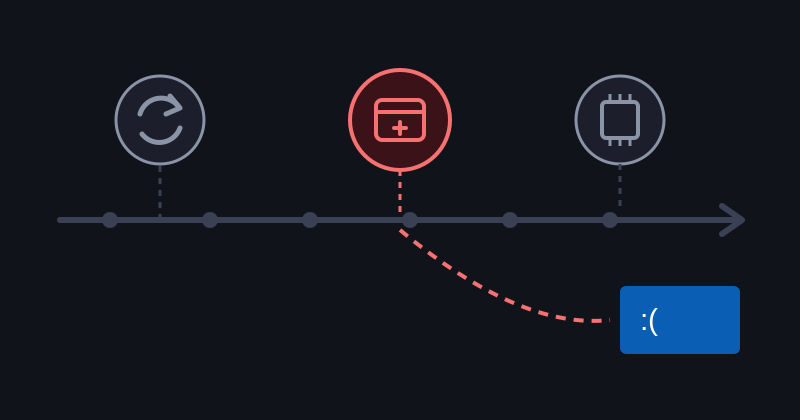
SYSTEM_SERVICE_EXCEPTION appears when a Windows service or driver performs a forbidden operation. It hardly ever comes out of nowhere: it usually starts right after something changed on the PC. So rather than trying things at random, review what changed.
Step 1: check Reliability History
- Type "View reliability history" in the Start menu and open it.
- Find the day of the first blue screen (shown as a red critical error).
- Look at the previous days on the Informational row: program, driver and update installs show up there.
Step 2: undo what you find
| If the last thing that changed was… | Do this |
|---|---|
| A driver (graphics, audio, webcam, network) | Device Manager → Properties → Driver → Roll Back. For graphics, better reinstall the previous version with DDU |
| A third-party antivirus | Uninstall it with its official removal tool and test with just Microsoft Defender |
| RGB, VPN, controller emulator or "optimiser" software | Uninstall it and restart |
| A Windows update | Settings → Windows Update → History → Uninstall updates |
| A new peripheral | Unplug it and uninstall its software |
If the blue screen says "What failed:" with a file, use it: win32kfull.sys and win32k.sys are usually graphics or programs that draw over windows; ks.sys, webcam or audio; nvlddmkm.sys, NVIDIA.
Step 3: if nothing changed

- Repair Windows:
DISM /Online /Cleanup-Image /RestoreHealthandsfc /scannow. - RAM and overclock: load BIOS defaults and test the memory (see the MEMORY_MANAGEMENT guide).
- Drivers Windows updated silently: in Settings → Windows Update → History → Driver updates you'll see which changed.
Last resort: Driver Verifier
For experienced users only. Driver Verifier deliberately triggers blue screens to catch the guilty driver, and can leave Windows in a loop. Create a restore point first and note how to turn it off.
- Type
verifierin Start and run it as administrator. - Choose Create standard settings → Automatically select unsigned drivers (or drivers not from Microsoft) → Finish → restart.
- Use the PC normally. When the blue screen hits, BlueScreenView tells you which driver it was.
- To turn it off: Command Prompt as administrator →
verifier /reset→ restart (from safe mode if it won't boot).
Frequently asked questions
Is it the same as IRQL_NOT_LESS_OR_EQUAL?
They're similar (both are usually drivers), but SYSTEM_SERVICE_EXCEPTION points more at services and programs that hook into the system. If you get the other one, see the IRQL guide.
Where do I see older blue screens?
In Reliability History (critical errors) and in C:\Windows\Minidump with BlueScreenView.
It appears when opening a specific game
Check the game's anti-cheat (reinstall it) and overlays. Update the graphics driver.
If you can't find what changed, send us a Reliability History screenshot via the contact page.
Still not fixed?
Email us at glitchfixesp@gmail.com with your device model, the exact error message and what you have already tried from this guide. We reply personally (in English or Spanish) and, if the issue keeps coming up, we add the new fix to the guide.