Error 0x80070002 in Windows Update: redo the download from scratch
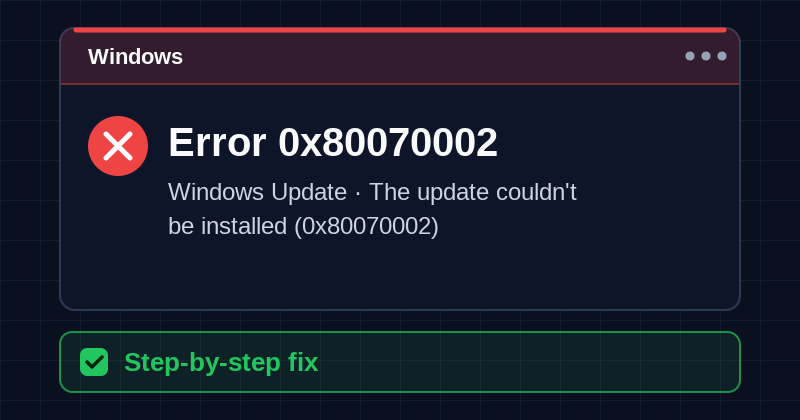
Windows Update fails with 0x80070002 ("the system cannot find the file specified")? Download files are missing. Correct time, free space, troubleshooter, rebuilding the SoftwareDistribution folder with commands, DISM and sfc, and installing the update manually.
Set date and time to automatic, free at least 20 GB on C: and rebuild the Windows Update cache: stop the wuauserv, bits and cryptsvc services, rename the SoftwareDistribution folder and start them again. If it still fails, download the update (KB) from the Microsoft Update Catalog and install it manually.
What it means
0x80070002 is Windows' code for "file not found". Windows Update downloaded the update but, when installing it, files are missing: the download was cut short, something was removed from the temporary folder, or the cache information no longer matches.
So the fix is making it download everything again, cleanly.
First: time and space
- Date and time: Settings → Time & language → Date & time → turn on Set time automatically and click Sync now. A wrong clock breaks download security checks.
- Space: big updates need 20 GB or more free on C:. If you're tight, follow our guide to freeing space on drive C:.
- Troubleshooter: Settings → System → Troubleshoot → Other troubleshooters → Windows Update → Run.
Rebuild the Windows Update cache
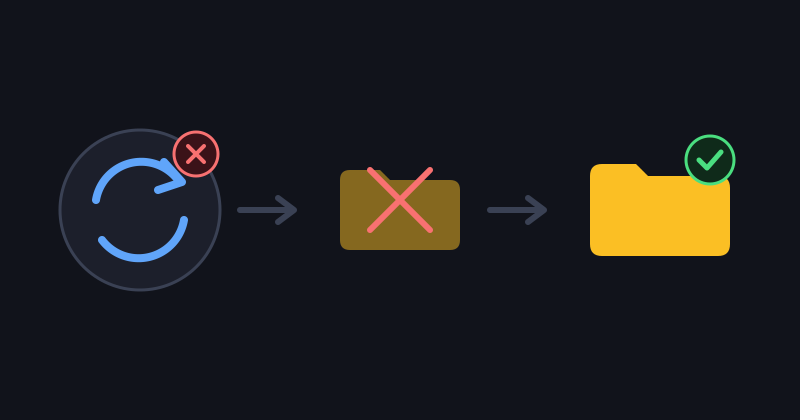
Open Command Prompt as administrator and type, one at a time:
net stop wuauservnet stop bitsnet stop cryptsvcren C:\Windows\SoftwareDistribution SoftwareDistribution.oldren C:\Windows\System32\catroot2 catroot2.oldnet start cryptsvcnet start bitsnet start wuauserv
Restart and Check for updates again. The first check takes longer because it downloads everything anew.
If any ren says "Access is denied", a service didn't stop. Repeat the matching net stop, or restart in safe mode and do it there.
If it persists: repair and install manually

- Repair Windows:
DISM /Online /Cleanup-Image /RestoreHealththensfc /scannow. - Note the KB code of the failing update (shown in Windows Update, e.g. KB5030000).
- Search for that KB in the Microsoft Update Catalog (catalog.update.microsoft.com), download the version for your Windows (x64 or ARM64) and install it by double-clicking.
- Version upgrade (e.g. 23H2 → 24H2): use the Windows 11 Installation Assistant from Microsoft's website.
Frequently asked questions
Can I delete SoftwareDistribution.old?
Yes, once updates are working. It only holds old downloads and history; Windows doesn't need it.
Do I lose anything by renaming SoftwareDistribution?
The update history shown in Windows Update is cleared, but updates already installed stay installed.
What about errors 0x80070003 or 0x80073712?
They're relatives: they also indicate missing or damaged files or paths. The same steps usually fix them.
If the update keeps failing, tell us its KB code via the contact page.
Still not fixed?
Email us at glitchfixesp@gmail.com with your device model, the exact error message and what you have already tried from this guide. We reply personally (in English or Spanish) and, if the issue keeps coming up, we add the new fix to the guide.