Drive C: full: the ranking of what takes space and how to free it
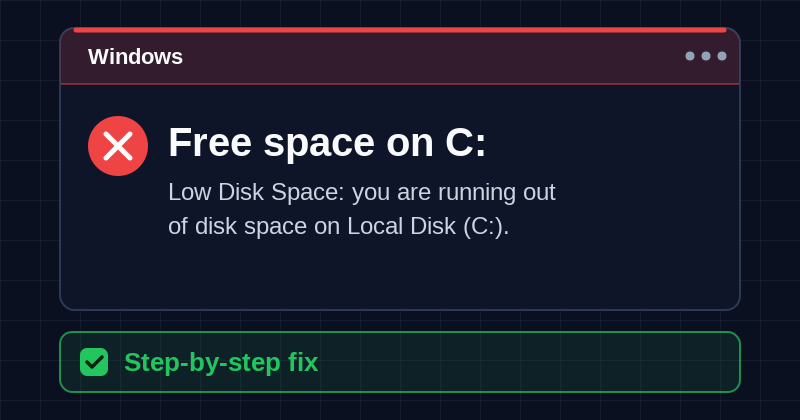
Is drive C: in the red? A ranking of what takes up space without you knowing (Windows.old, temp files, hibernation, downloads, games, browser caches), how much each usually takes and how to free it safely, plus Storage Sense so it doesn't happen again.
Open Settings → System → Storage → Temporary files, tick everything except "Downloads" and click Remove. If you've just updated Windows, you can also delete Previous Windows installation(s) there (several GB). Then use WizTree or WinDirStat to see which folders take the most and move games to another drive.
First, see what takes the space
Deleting blindly does little. Download WizTree (free and fast) or WinDirStat, scan C: and you'll get a map of the biggest folders. In a minute you know where the problem is.
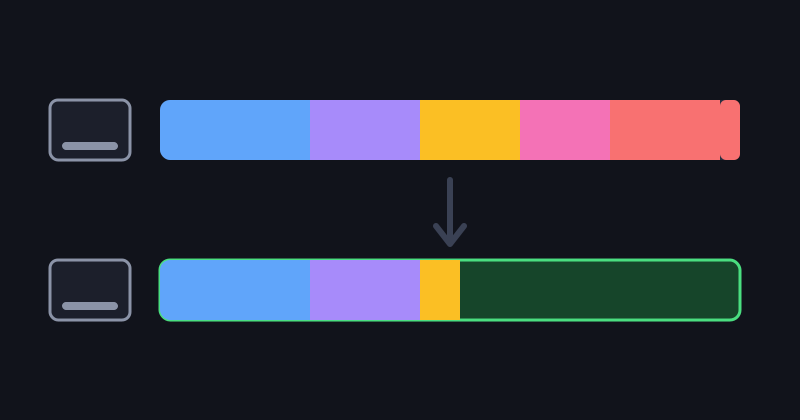
The ranking of what takes the most
| What it is | Typical size | Can I delete it? | How |
|---|---|---|---|
| Games (Steam, Epic, Xbox) | 50-150 GB each | Move to another drive | Steam: Storage → Move; Epic and Xbox: from their options |
| Windows.old (previous version) | 10-30 GB | Yes, if all is well after updating | Temporary files → Previous Windows installation(s) |
| Hibernation (hiberfil.sys) | 40-75% of your RAM | Yes, if you don't use hibernate | powercfg /h off in CMD as administrator |
| Downloads | Whatever has piled up | Check first | Sort by size and delete old installers |
| Temp files and Windows Update cache | 2-15 GB | Yes | Settings → Storage → Temporary files |
| Browser, Discord, Spotify caches | 1-10 GB | Yes | From each program's settings |
| Restore points | 2-10 GB | You can limit them | System Protection → Configure → lower max usage |
| GPU shader cache | 1-10 GB | Yes (it rebuilds) | Temporary files → DirectX Shader Cache |
Don't manually delete anything inside C:\Windows, WinSxS, Program Files or pagefile.sys. Always use Windows' tools for those folders.
System file cleanup
- Type Disk Cleanup in Start and choose C:.
- Click Clean up system files (more options appear).
- Tick "Windows Update Cleanup", "Temporary files", "Windows upgrade log files" and, if you no longer need it, "Previous Windows installation(s)".
Keep it from filling up again
- Storage Sense: Settings → System → Storage → turn it on and set it to delete temp files and empty the Recycle Bin monthly.
- Install games on another drive: create a Steam or Epic library on the second drive and make it the default.
- Change where things save: Settings → Storage → Advanced storage settings → Where new content is saved.
- OneDrive "Files On-Demand": keeps files you don't use in the cloud and frees local space.
Frequently asked questions
How much free space should I leave on C:?
At least 10-15% or around 20-30 GB. Windows needs room for updates, the page file and temp files; without it everything slows down and updates fail.
Is it safe to turn off hibernation?
Yes. You only lose the hibernate option and Fast Startup. If you use a laptop and like hibernating, keep it on.
Do "cleaner" programs help?
Windows' tools do the same without risk. Many cleaners delete things they shouldn't or stay in the background using resources.
If you don't know what a huge folder in WizTree is, send us its path via the contact page.
Still not fixed?
Email us at glitchfixesp@gmail.com with your device model, the exact error message and what you have already tried from this guide. We reply personally (in English or Spanish) and, if the issue keeps coming up, we add the new fix to the guide.