CPU at 100%: find the guilty process and fix it
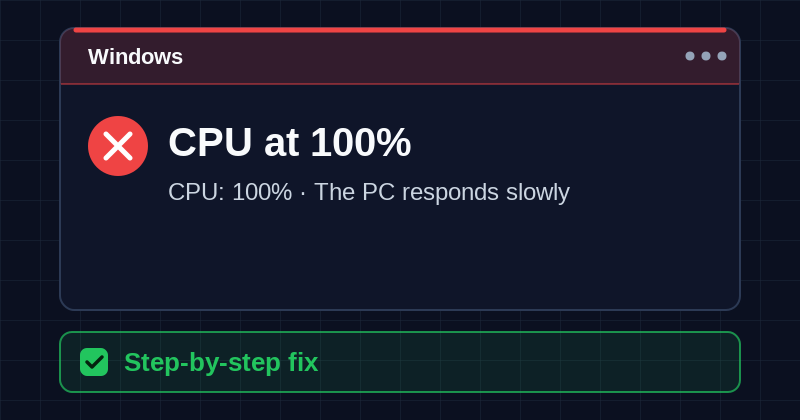
CPU at 100% with nothing open and fans roaring? How to find the process using it in Task Manager, what to do with System Interrupts and Defender, and how to spot a hidden crypto miner.
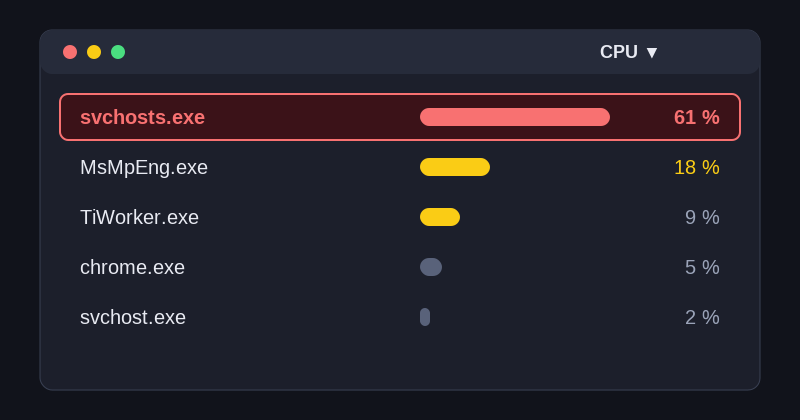
Open Task Manager (Ctrl + Shift + Esc), click the CPU column to sort and see what's at the top. If it's System Interrupts, it's a driver or a USB device. If it's Antimalware Service Executable, Defender is scanning. If it's a strange name or almost identical to a Windows one, scan the PC: it may be a miner.
Step 1: find the process using it
- Press Ctrl + Shift + Esc.
- On the Processes tab, click the CPU column header. The heaviest process moves to the top.
- To see the real file name, go to the Details tab and sort by CPU too.
Step 2: what to do depending on the process
| Process at the top | What it is | What to do |
|---|---|---|
| System interrupts | A device or its driver is misbehaving | Unplug peripherals and update drivers (below) |
| Antimalware Service Executable (MsMpEng.exe) | Microsoft Defender scanning | Let it finish; if it's constant, see the Defender section |
| Windows Modules Installer Worker (TiWorker.exe) | Windows installing updates | Let it finish and restart |
| Chrome, Edge or another browser | A tab or extension | Press Shift + Esc in the browser and close the heaviest one |
| Strange name, no description or almost identical to a Windows one | Possible malware (miner) | Defender offline scan (below) |
System interrupts
It's not a program: it's Windows telling you that a device or its driver keeps "interrupting" it.
- Unplug everything USB except keyboard and mouse: headsets, controllers, mics, drives, hubs. If CPU usage drops, plug them back one by one until you find the culprit.
- Update drivers for the motherboard (chipset), sound and network from your motherboard or laptop maker's website.
- If you can't find the culprit, use LatencyMon (free): it shows which driver takes longest to respond.
If Defender always uses a lot
It's normal for it to scan for a while, but if it's always maxed out it may be stuck on a file:
- Open Windows Security → Virus & threat protection → Scan options.
- Run a Full scan once, leaving the PC on.
- If you use another antivirus as well as Defender, uninstall one of them: two antiviruses at once scan each other.
How to spot a hidden miner
Miners are viruses that use your processor or graphics card to earn cryptocurrency for someone else. Typical signs:
- CPU jumps to 100% right when you close Task Manager and drops when you open it.
- Fans are loud even when you're doing nothing.
- You recently installed "cracked" games or programs or activators.
What to do:
- In Windows Security → Virus & threat protection → Scan options, choose Microsoft Defender Antivirus (offline scan). The PC restarts and scans before Windows loads, where the miner can't hide.
- For a second opinion, run free Malwarebytes.
- In Task Manager, right-click the suspicious process → Open file location. If it's in an odd folder (inside AppData or Temp), that's a bad sign.
Frequently asked questions
Is 100% CPU normal while gaming?
In some games, yes, especially with processors with few cores. What's unusual is 100% while doing nothing, or stuttering.
Could it be temperature?
Yes. If the processor gets too hot, it lowers its speed and anything pushes it to 100%. Check temperatures with HWiNFO and clean out the dust.
Does reinstalling Windows fix it?
Almost always, but it's the last resort. First find the process: if it's a driver or a USB device, the problem will come back even after reinstalling.
If you don't recognise the process at the top, send us its exact name via the contact page.
Still not fixed?
Email us at glitchfixesp@gmail.com with your device model, the exact error message and what you have already tried from this guide. We reply personally (in English or Spanish) and, if the issue keeps coming up, we add the new fix to the guide.