RAM at 100% or low memory: how to tell if it's a problem and fix it
Windows says your computer is low on memory or RAM sits at 90-100%? What usage is normal, how to see what's using it, the browser, virtual memory (page file) and how to spot a memory leak.
Open Task Manager (Ctrl + Shift + Esc) and sort by Memory. If it's the browser, turn on its memory saver. If you get the "low on memory" warning, make sure the page file is set to automatic. If memory keeps climbing, a program has a leak: update it or remove it.
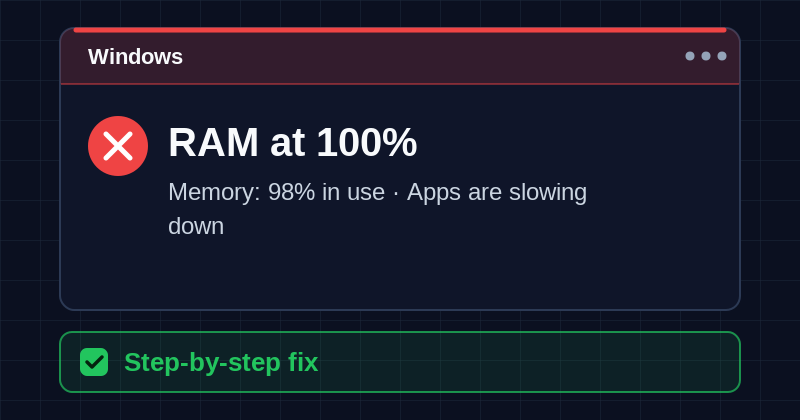
Is it a problem or normal?
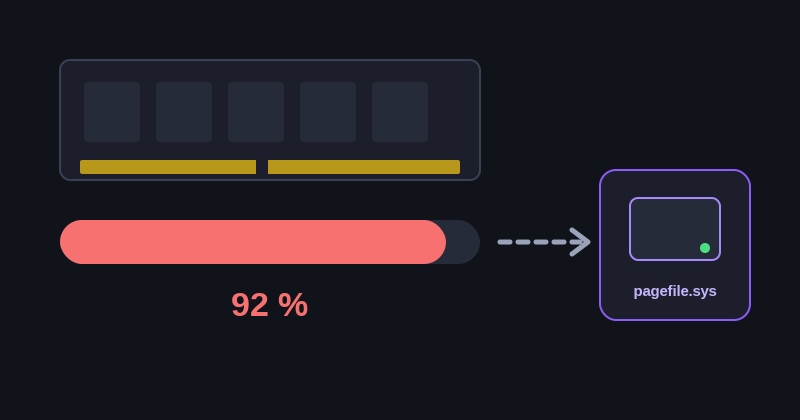
Windows uses spare memory as cache so things load faster, and releases it as soon as a program needs it. So a high number isn't always bad:
| What you see | Is it a problem? |
|---|---|
| 60–70% with nothing open | Normal: it's cache Windows frees when needed |
| 80–90% gaming with browser and Discord open | Normal with 8–16 GB; you're close to the limit |
| 90–100% with the disk maxed out too, everything stutters | Yes: you've run out of RAM and Windows is using the disk |
| "Close programs to prevent information loss" warning | Yes: not enough memory or the page file is misconfigured |
| Keeps climbing over time even if you open nothing | Yes: there's a memory leak |
Step 1: see what's using it
- Open Task Manager and, on Processes, click the Memory column.
- Look at the top three. If it's the browser, go to step 2. If it's a specific game or program that keeps growing, go to "Memory leaks".
- On the Startup apps tab, disable anything you don't need opening at boot (launchers, RGB software, cloud clients…).
Step 2: the browser
Chrome, Edge and similar create a process per tab and extension. With many tabs they eat several GB:
- Chrome: Settings → Performance → turn on Memory Saver. Tabs you're not using "sleep" and release RAM.
- Edge: Settings → System and performance → turn on Sleeping tabs.
- Remove extensions you don't use: each one uses memory even if you don't see it.
- Turn off "Continue running background apps" so closing the browser frees all its memory.
Step 3: virtual memory (page file)
The "low on memory" warning often appears because someone disabled the page file to "save space". Without it, programs close when RAM fills up:
- Type View advanced system settings in the Start menu.
- Under "Performance", click Settings → Advanced → Change (under "Virtual memory").
- Tick Automatically manage paging file size for all drives. Click OK and restart.
If you have an SSD and a hard drive, keep the page file on the SSD: when Windows has to use it, it'll be much less slow.
Memory leaks
A leak is a program that asks for memory and never gives it back, so its usage grows non-stop:
- In Task Manager, Details tab, right-click the column headers → Select columns and add Commit size.
- Leave it open a few minutes and watch which process keeps growing.
- If it's a game or program, update it. If it's a driver (sound, network, RGB), update the driver from the maker's website.
Do you need more RAM?

- 8 GB: enough for browsing and work. Too little for gaming with the browser and Discord open.
- 16 GB: the recommended amount for gaming today.
- 32 GB: for video editing, emulators, virtual machines or very demanding games with lots open.
Before buying, check in Task Manager (Performance → Memory) how many slots are free and what type you use (DDR4 or DDR5). Ideally, add identical modules in pairs.
Frequently asked questions
Do "RAM cleaner" programs work?
No. They force programs to release memory they then ask for again, making everything slower. Windows already manages memory well.
Can I add more virtual memory instead of buying RAM?
It avoids crashes and warnings, but the disk is much slower than RAM. It's a patch, not a fix.
Why does Windows show less RAM than I bought?
With integrated graphics, part of the RAM is reserved for it. It can also happen if a module is badly seated: check how many slots are in use on the Performance tab.
If you don't know which process is using your memory, send us a Task Manager screenshot via the contact page.
Still not fixed?
Email us at glitchfixesp@gmail.com with your device model, the exact error message and what you have already tried from this guide. We reply personally (in English or Spanish) and, if the issue keeps coming up, we add the new fix to the guide.