Slow Windows boot: find which part is slow and fix it
Windows takes more than a minute to start, or the desktop is sluggish at first? Measure which part of startup is slow (BIOS, loading screen or desktop) and apply the fix for that part: startup apps, Fast Startup, updates and the hard drive.
In Task Manager → Startup apps, disable everything you don't need at power-on. If Windows is on a mechanical hard drive (HDD), that's the big bottleneck: moving to an SSD fixes it at once. If the delay is before the Windows logo, the problem is in the BIOS.
First, measure which part is slow
"Slow to boot" can mean three different things. Time it with your phone from the moment you press the button:
| Part | From… to… | Normal | If it's slow, see |
|---|---|---|---|
| 1. BIOS | Press the button → Windows logo appears | 5-15 s | "If it's slow before the logo" |
| 2. Windows loading | Logo → sign-in screen | 5-20 s with SSD | "If it's slow with the spinning dots" |
| 3. Desktop | You sign in → you can use the PC smoothly | 5-20 s | "If the desktop is sluggish at first" |
Windows also tells you how long part 1 takes: Task Manager → Startup apps, top right shows Last BIOS time.
If it's slow before the logo
- Unplug USB devices you don't use (drives, flash drives, hubs): the BIOS checks them one by one.
- In the BIOS, make the Windows drive the first boot option and enable Fast Boot if available.
- If you just changed RAM or updated the BIOS, the first boot can take a minute or more while it "trains" the memory. It only happens once.
If it's slow with the spinning dots
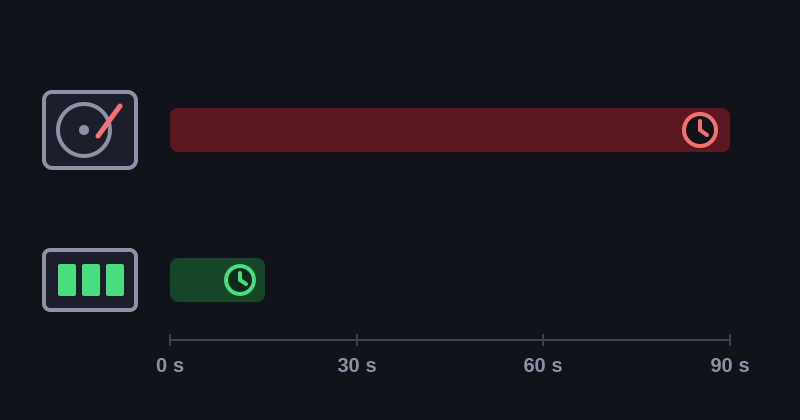
- Check which drive you have: Task Manager → Performance → Disk 0. If it says HDD, that's the problem. A SATA SSD is cheap and makes more difference than any tweak.
- Finish pending updates: Settings → Windows Update. If an update is half-installed, Windows tries to finish it on every boot.
- Try turning off Fast Startup: Control Panel → Power Options → Choose what the power buttons do → "Change settings that are currently unavailable" → untick Turn on fast startup. Sometimes it gets corrupted and does the opposite. If it doesn't help, turn it back on.
- Check system files: open Command Prompt as administrator and run
sfc /scannow. It repairs damaged Windows files.
If the desktop is sluggish at first
These are the programs that open on their own when you sign in. They all want to start at once:
- Press Ctrl + Shift + Esc → Startup apps.
- Sort by Startup impact.
- Right-click → Disable on anything you don't need right at power-on.
| Safe to disable | Better left on |
|---|---|
| Steam, Epic Games, EA app, Battle.net, Ubisoft Connect | Your antivirus |
| Discord, Spotify, Teams, Skype | Audio drivers (Realtek, Nahimic) if you use them |
| Microsoft Edge (background startup) | Touchpad software on laptops |
| Adobe, Java and Google updaters | OneDrive, if you sync important files |
These programs still work when you open them yourself: they just stop launching on their own.
If none of this is enough
- Disk at 100% for minutes after booting: normal on an HDD. On an SSD, check in Task Manager which process is using it.
- Little RAM: with 8 GB or less and lots of startup programs, Windows leans on the page file. Disabling startup apps helps a lot.
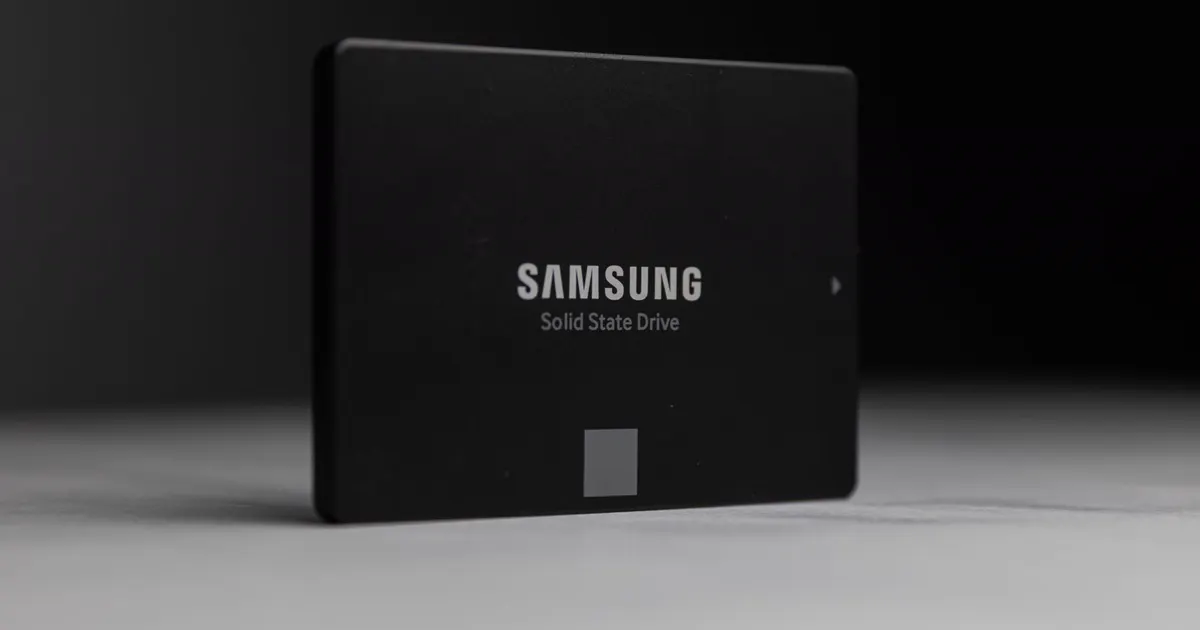
- Clone to an SSD: with a USB-SATA adapter and the SSD maker's tool (Samsung Magician, Crucial, WD…) you copy Windows as-is, without reinstalling.
Frequently asked questions
How long should Windows take to boot?
With an SSD, 10 to 30 seconds from the button to a usable desktop. With a mechanical hard drive, one or two minutes is common, and it gets worse over the years.
Is it bad to turn off Fast Startup?
No. It only makes cold boots a bit slower if they were already fine. On the other hand, it avoids problems with updates and drivers. If everything works with it on, leave it.
Do "optimiser" or "cleaner" programs help?
Not for this. Many add themselves to startup and make it slower. Everything you need is built into Windows.
If your PC is still slow, tell us how long each of the three parts takes and which drive you have via the contact page.
Still not fixed?
Email us at glitchfixesp@gmail.com with your device model, the exact error message and what you have already tried from this guide. We reply personally (in English or Spanish) and, if the issue keeps coming up, we add the new fix to the guide.