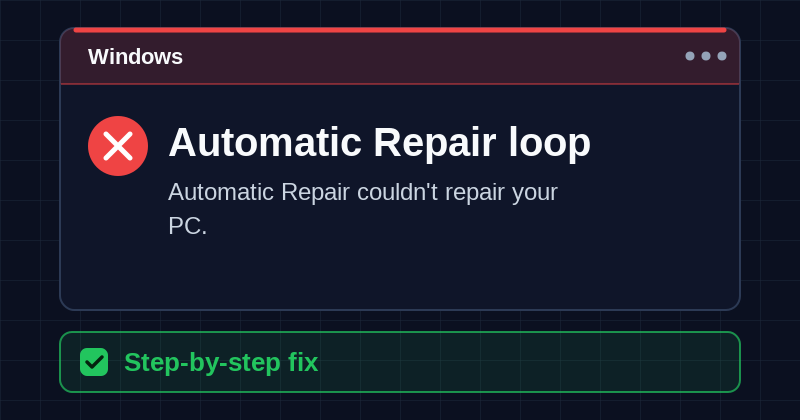
Automatic Repair loop: get out of it in order, from safest to most drastic
Windows keeps showing "Preparing Automatic Repair" or "Automatic Repair couldn't repair your PC"? How to reach Advanced options, what to try in order (from what changes nothing to what erases) and how to save your files before resetting.
On the repair screen, click Advanced options → Troubleshoot → Advanced options. Try in this order: Uninstall Updates, System Restore, and in Command Prompt chkdsk C: /f and bootrec /rebuildbcd. Before resetting Windows, copy your files to a USB stick from that same Command Prompt.
How to get out of the loop to the tools

- When you see "Automatic Repair" or "Automatic Repair couldn't repair your PC", click Advanced options.
- Go to Troubleshoot → Advanced options.
- If that screen doesn't even appear: turn the PC off by holding the button three times while Windows loads; the fourth time it enters the recovery environment.
Try in this order
| Order | Option | Does it erase anything? | When it helps |
|---|---|---|---|
| 1 | Uninstall Updates (latest quality update, then feature update) | No | If it started after a Windows update |
| 2 | System Restore | No files, but removes programs installed afterwards | If you have restore points |
| 3 | Command Prompt: chkdsk, sfc, bootrec | No | Disk errors or damaged boot |
| 4 | Startup Settings → Safe Mode | No | To remove a driver or program blocking boot |
| 5 | Reset this PC → Keep my files | Removes programs, keeps documents | If nothing above works |
The commands, one by one
In Advanced options → Command Prompt:
- Find the Windows drive letter: type
dir C:\. If you don't see the Windows folder, trydir D:\. In recovery the letter can change. - Check the disk:
chkdsk C: /f(change the letter if needed). It can take a while on a large disk. - Repair Windows files without booting:
sfc /scannow /offbootdir=C:\ /offwindir=C:\Windows - Rebuild the boot:
bootrec /fixmbrbootrec /fixboot(if it says "Access is denied" on UEFI PCs, carry on with the next one)bootrec /rebuildbcd
- Type
exitand choose Continue to boot Windows.
Save your files before resetting
- Plug in a USB stick or external drive.
- In Command Prompt type
notepadand press Enter. - In Notepad, File → Open, and set "Files of type" to All files. That window works like a file explorer: browse to
C:\Users\YourUser, right-click folders such as Documents or Pictures → Copy, and paste them onto the USB stick.
If the disk doesn't show up
- If
dircan't find Windows on any letter or recovery can't see the disk, enter the BIOS and check the disk is listed and the storage mode (AHCI / RAID / VMD) hasn't changed after a BIOS update. - On recent Intel laptops, if you switched to AHCI or turned off VMD, Windows stops seeing the disk and shows INACCESSIBLE_BOOT_DEVICE: switch back to the original option.
- If the BIOS can't see the disk either, it's physical (connection or failed disk).
Frequently asked questions
How long should I wait for Automatic Repair?
If it's unchanged after 15-20 minutes or starts again, it won't fix itself. Exit through Advanced options.
Is "Reset this PC" with "Keep my files" safe?
It keeps documents, photos and desktop, but removes installed programs and games. Still, copy the important stuff first in case the disk fails during the process.
What if it asks for a BitLocker key?
Find it at aka.ms/myrecoverykey with your Microsoft account, from another device. Without it you can't access the disk.
If the loop continues after these steps, tell us what message appears and what each command returns via the contact page.
Still not fixed?
Email us at glitchfixesp@gmail.com with your device model, the exact error message and what you have already tried from this guide. We reply personally (in English or Spanish) and, if the issue keeps coming up, we add the new fix to the guide.