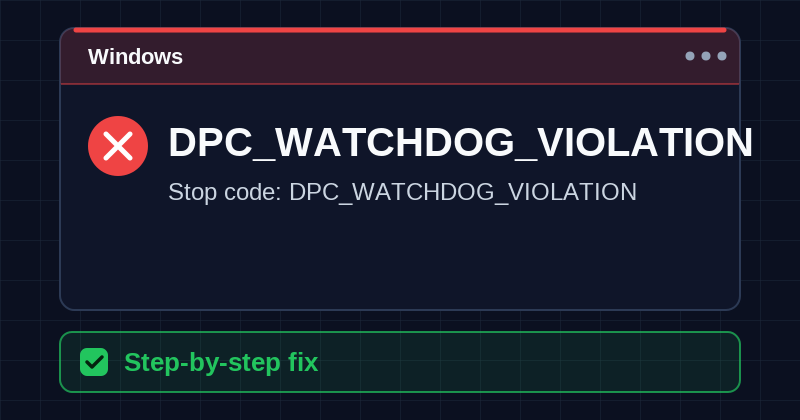
DPC_WATCHDOG_VIOLATION: tick the list and find the slow driver
Blue screen DPC_WATCHDOG_VIOLATION? A driver waited too long. Checklist: SSD firmware, Standard SATA AHCI Controller (iaStorA.sys), graphics, network and chipset drivers, peripherals and programs that install drivers.
Update the SSD firmware with its brand's tool. If the blue screen mentions iaStorA.sys, switch the SATA controller to "Standard SATA AHCI Controller". Then update chipset, graphics and network drivers, and unplug unusual USB peripherals to test.
What the "watchdog" watches
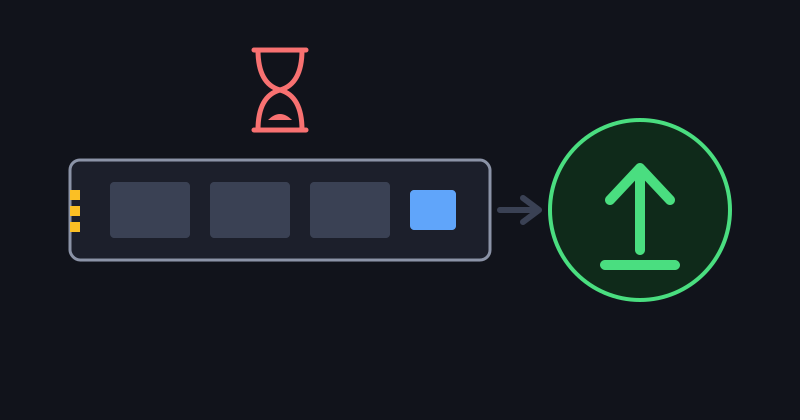
Windows has a "watchdog" that checks drivers finish their tasks in time. If a driver waits too long (usually for a disk or a device that doesn't respond), the watchdog stops the system. That's why disks and their controllers are the prime suspects.
The checklist
Tick in this order. After each item, use the PC for a while to see if it returns.
☐ 1. Which file appears on the blue screen?
If a .sys appears, that's your first suspect: iaStorA.sys or storahci.sys → disk controller; nvlddmkm.sys → NVIDIA GPU; ndis.sys or network drivers → network card. If nothing shows, use BlueScreenView (explained in the general guide).
☐ 2. SSD firmware
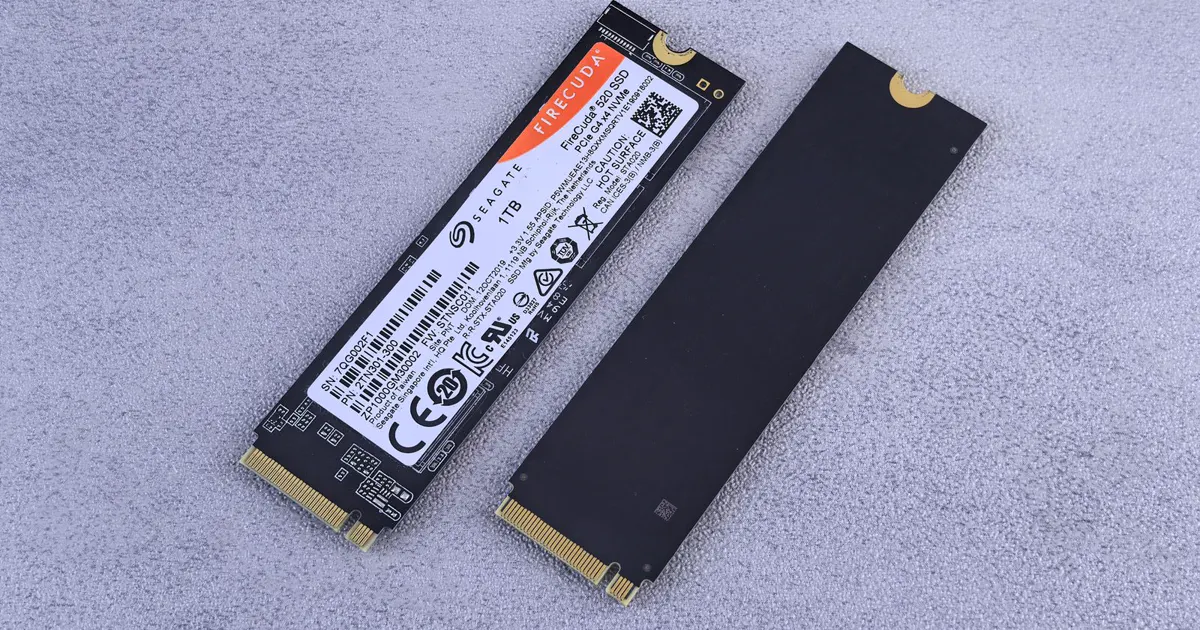
Install the maker's tool (Samsung Magician, Crucial Storage Executive, WD Dashboard, Kingston SSD Manager…) and apply any firmware update. Back up first.
☐ 3. Standard SATA controller
- Device Manager → IDE ATA/ATAPI controllers.
- If you see an Intel controller (SATA AHCI or RST), right-click → Update driver → Browse my computer → Let me pick from a list → Standard SATA AHCI Controller.
- Restart.
☐ 4. Chipset, graphics and network drivers
Chipset from AMD or Intel; graphics clean with DDU; network from the motherboard or laptop maker.
☐ 5. Peripherals and programs with drivers
- Unplug anything that isn't keyboard, mouse and monitor: capture cards, hubs, external drives, generic controllers.
- Uninstall, to test, programs that install drivers: RGB, VPN, controller emulators, third-party antivirus.
☐ 6. Windows and the disk
DISM /Online /Cleanup-Image /RestoreHealth, sfc /scannow and chkdsk C: /scan. Check SSD health with CrystalDiskInfo.
☐ 7. BIOS and hardware
Update the BIOS. If you have another SSD, try Windows on it. If the blue screen goes away, the original SSD is the culprit.
Frequently asked questions
Is switching to "Standard SATA AHCI Controller" safe?
Yes, it's Microsoft's generic driver and works with all SATA disks. You only lose Intel RST features most people don't use. If you have a RAID set up, don't change it.
Do I lose data updating SSD firmware?
Normally no, but a power cut during the update can be serious. Back up first and keep a laptop plugged in.
It only happens when I plug in an external drive. Why?
That drive or its USB enclosure is responding slowly. Try another cable or port, or copy everything elsewhere in case it's failing.
If you don't know which SSD brand you have, tell us via the contact page and we'll say which tool to use.
Still not fixed?
Email us at glitchfixesp@gmail.com with your device model, the exact error message and what you have already tried from this guide. We reply personally (in English or Spanish) and, if the issue keeps coming up, we add the new fix to the guide.