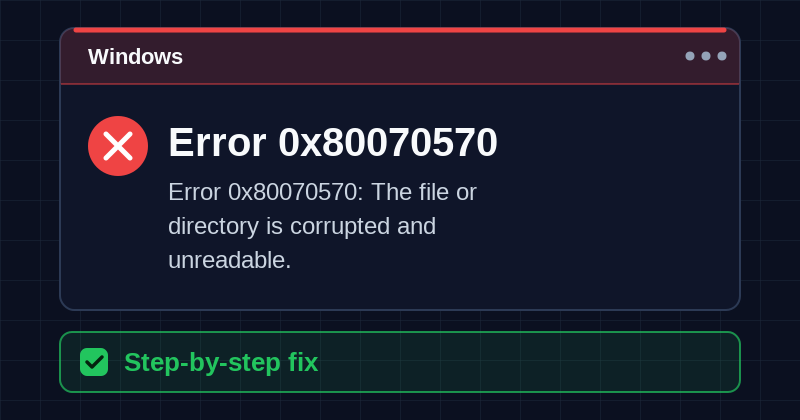
Error 0x80070570: where does the data get damaged?
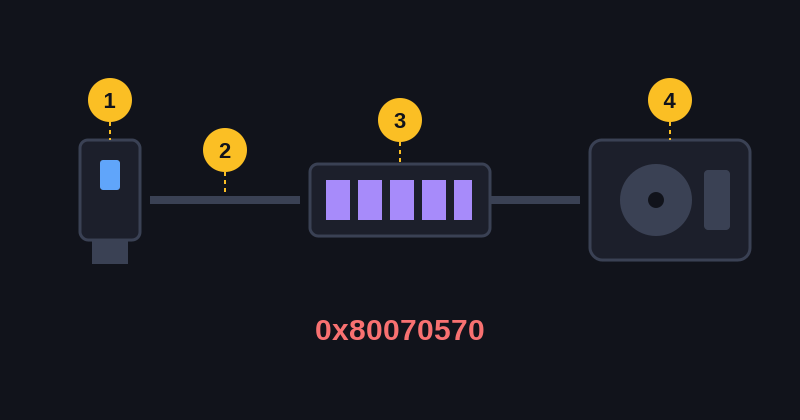
0x80070570 appears when copying files, installing Windows or updating. Data gets damaged at one of 4 points: the source, the cable or port, the RAM or the destination. How to test each one in order, with chkdsk, another USB drive, Windows Update and the memory test.
Windows read a file and the data didn't add up. Test in order: download or copy the file again; switch to a rear USB port and another flash drive; run chkdsk X: /f on the source and destination drives. If it shows up in different places for no reason, test the RAM: faulty memory damages data as it passes through.
The 4 points where data gets damaged
| Point | Clue | Test |
|---|---|---|
| 1. Source (flash drive, disk, download) | Always fails with the same file | Download or copy again; chkdsk on the source |
| 2. Cable or port | Fails on a front port or hub, not on others | Rear port, another cable, no hub |
| 3. RAM | Fails with different files in different places, sometimes with blue screens | Memory diagnostic |
| 4. Destination | Fails when saving to one particular drive | chkdsk and SMART on the destination; copy to another drive |
Point 1: the source
- Downloads: download again, preferably over cable rather than Wi-Fi. If the website lists a SHA-256 hash, compare it: in PowerShell,
Get-FileHash file.iso. - Flash drive or disk: Command Prompt as admin →
chkdsk E: /f(replace E with its letter).
Point 2: the cable or port
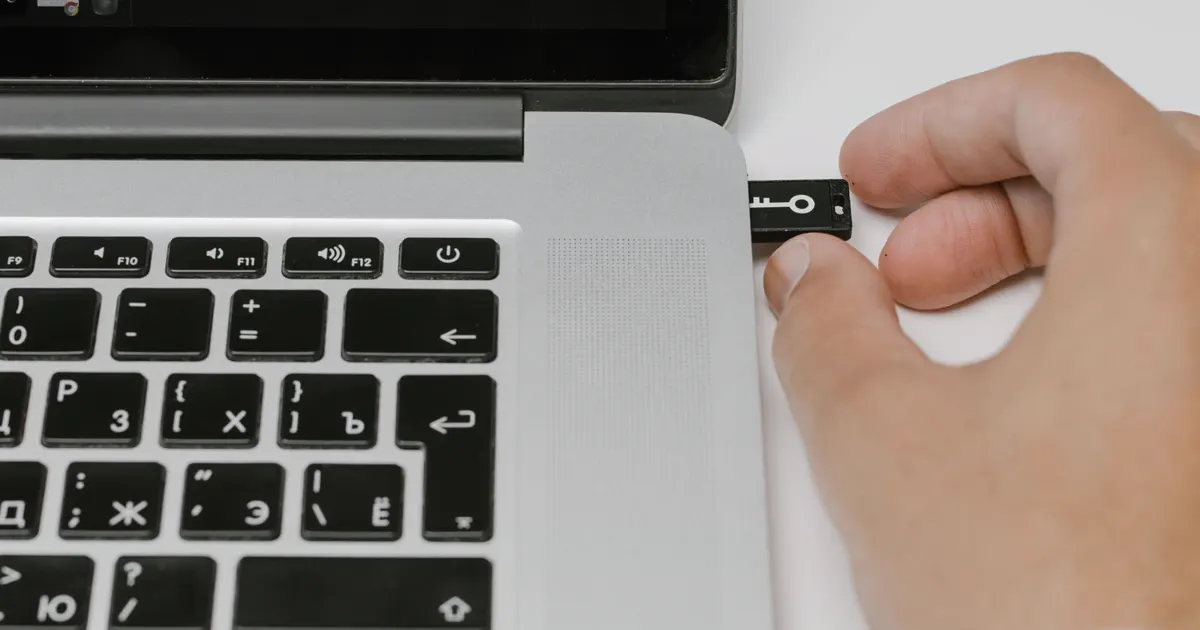
- Use a rear port (straight to the motherboard), no hub or extension.
- With external drives, try another cable: worn USB cables cause read errors without disconnecting the drive.
- If the external drive sometimes disappears, see external drive not recognised.
Point 3: the RAM
- Search for Windows Memory Diagnostic → Restart now and check.
- If it finds errors, or you also get blue screens, test the modules one by one: MEMORY_MANAGEMENT explains how.
- If you use XMP/EXPO or overclocked RAM, disable it to test.
Point 4: the destination
- Run
chkdsk C: /f(it runs at restart if it's the system drive). - Check drive health with CrystalDiskInfo (free): if it says "Caution" or "Bad", copy your important files now.
- Try saving to another drive: if that works, the destination has bad sectors.
If it appears while installing Windows or in Windows Update
- Installing Windows from USB: recreate the drive with Microsoft's Media Creation Tool (or Rufus with the official ISO), on another flash drive and a rear port. If it fails at the same percentage, test the RAM.
- In Windows Update: reset its components and repair the system as in 0x80004005 (case 1): rename SoftwareDistribution, DISM and SFC.
If chkdsk reports bad sectors or the drive makes noises, stop testing: copy the important stuff elsewhere first.
Frequently asked questions
Can I recover the damaged file?
If the original is fine elsewhere, just copy it again. If the only copy is on a drive with bad sectors, tools like Recuva or TestDisk can save part of it, but not always.
Is it the same as 0x80004005?
No. 0x80004005 is an "unspecified error"; 0x80070570 clearly says the data is damaged or unreadable.
Can a new flash drive cause this?
Yes. Fake drives that claim more capacity than they have corrupt files once they fill up. Check with H2testw.
If chkdsk or the memory diagnostic gives a result you don't understand, send it to us via the contact page.
Still not fixed?
Email us at glitchfixesp@gmail.com with your device model, the exact error message and what you have already tried from this guide. We reply personally (in English or Spanish) and, if the issue keeps coming up, we add the new fix to the guide.