External hard drive not recognised: the fix based on how it appears
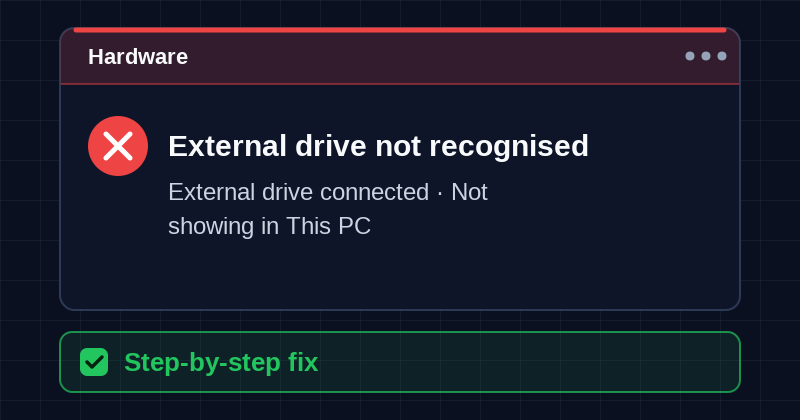
External drive not showing in "This PC"? Open Disk Management and see how it appears: no letter, Unallocated, RAW, Not Initialized or not there at all. Each case has its fix, and some shouldn't be touched if you want your data back.
Right-click Start → Disk Management and find your drive by its size. If it shows without a letter, assign one. If it says RAW, Unallocated or Not Initialized and holds important data, don't format it: recover the files first. If it doesn't appear, change cable and port, and plug it in at the back without a hub.
Open Disk Management and see how it shows
Right-click Start → Disk Management. Identify your drive by its size (for example "Disk 2 — 931 GB" is a 1 TB drive).

| How it appears | What it means | What to do |
|---|---|---|
| Healthy partition but no letter | Windows sees it but hasn't given it a letter | Assign a letter (below). Nothing is lost |
| RAW | The file system is damaged or Windows can't read it (e.g. a Mac format) | Don't format if it has data. Try chkdsk or recovery |
| Unallocated | No partition (new drive or lost partition table) | If new: create a volume. If it had data: recover first |
| Not Initialized / "Unknown" | New drive or serious read failure | If new: initialise it. If it had data: don't initialise |
| Doesn't appear | It's not reaching the PC: cable, power, USB enclosure or drive | Go to "If it doesn't appear" |
If it has no letter
- Right-click the partition → Change Drive Letter and Paths.
- Add → choose a free letter (e.g. E:) → OK.
- It now appears in "This PC".
If it shows RAW, Unallocated or Not Initialized
If the drive held important files, don't format it, don't initialise it and don't create a volume: any of those makes recovering the data harder.
- Mac drive: if you used it on a Mac, it may be APFS or HFS+, which Windows can't read. The data is fine: open it on a Mac.
- RAW with data: first try
chkdsk E: /f(change the letter if it has one). If it has none or that fails, use data recovery software to copy the files to another drive. - New drive: no worries. Not Initialized → right-click → Initialize Disk (GPT). Unallocated → right-click → New Simple Volume → format as exFAT if you'll also use it on a Mac, TV or console, or NTFS if it's Windows only.
If it doesn't appear
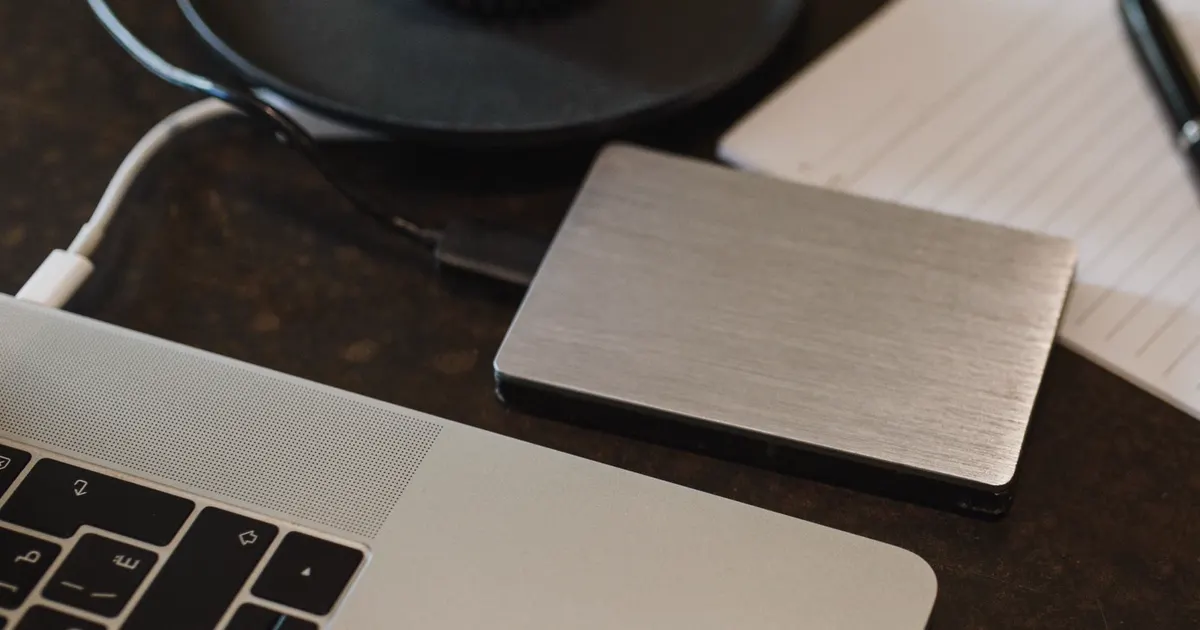
- Cable: external drive cables (micro-USB 3.0 or USB-C) wear out a lot. Try another.
- Port: on a desktop, plug in at the back, without a hub or extension.
- Power: 3.5" (desktop) drives need their power adapter connected.
- Another PC: if it doesn't appear there either, the drive or its USB enclosure has failed.
- Noises: if it makes repeated clicks, beeps or doesn't spin, unplug it. Using it more can worsen the damage. If the data matters, take it to a recovery service.
- Driver: in Device Manager → Disk drives, if it shows a warning, uninstall it and reconnect.
Frequently asked questions
Which format should I use for the external drive?
exFAT if you'll use it on Windows, Mac, TVs or consoles. NTFS if it's Windows only. FAT32 only for small drives or old devices, because it doesn't allow files over 4 GB.
Windows asks me to format the drive when I plug it in. Should I?
Only if it's empty or you don't care about the data. If it has important files, click Cancel and follow the RAW steps.
Can I take the drive out of its enclosure to test it?
Yes, many external drives are a normal drive inside a USB enclosure. Connecting it directly to a PC or another enclosure shows whether the drive or the enclosure has failed, but it may void the warranty.
If you're not sure what state Disk Management shows, send us a screenshot via the contact page.
Still not fixed?
Email us at glitchfixesp@gmail.com with your device model, the exact error message and what you have already tried from this guide. We reply personally (in English or Spanish) and, if the issue keeps coming up, we add the new fix to the guide.