"USB device not recognized": find what's failing and fix it
Windows says "USB device not recognized" with a flash drive, controller, mouse or drive? First find out whether the cable, port, device or Windows is at fault, then apply the fix for that case: rear ports, selective suspend, USB controllers and chipset.
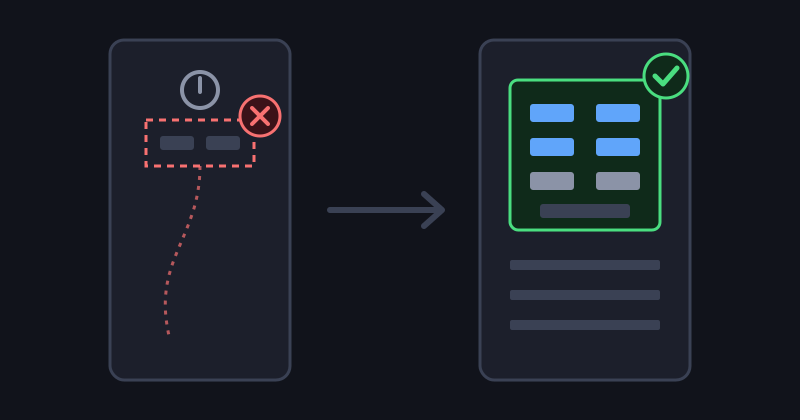
Try the device in a rear port on the PC (straight into the motherboard) and with another cable. If it doesn't work on another PC either, the device is faulty. If it only fails on your PC, disable USB selective suspend and uninstall the Universal Serial Bus controllers in Device Manager so Windows reinstalls them on restart.
The 3 tests that tell you where the fault is
Before touching Windows, spend two minutes on this. It saves a lot of time:
| Test | If it works… | If it still fails… |
|---|---|---|
| 1. Plug it into a port at the back of the PC | The front port or hub was the problem | Go to test 2 |
| 2. Use another cable (if it has one) | The cable was damaged or charge-only | Go to test 3 |
| 3. Plug it into another PC or laptop | The problem is your Windows: keep reading | The device is broken |
Watch out for "charge-only" cables: many USB cables bundled with headphones, controllers or cheap chargers lack data wires. They charge, but the PC sees nothing. If the controller charges but Windows doesn't recognise it, this is almost certainly why.
If it only fails on your PC
1. Turn off USB power saving
Windows switches off USB ports it thinks aren't in use. With some devices it gets it wrong:
- Press Win + R, type
powercfg.cpland press Enter. - On your active plan, Change plan settings → Change advanced power settings.
- Expand USB settings → USB selective suspend setting and set it to Disabled.
- In Device Manager, on each USB Root Hub, Power Management tab, untick "Allow the computer to turn off this device".
2. Reinstall the USB controllers
- Unplug every USB device except keyboard and mouse.
- Right-click Start → Device Manager → expand Universal Serial Bus controllers.
- If you see an Unknown USB Device or one with a yellow triangle, right-click → Uninstall device.
- Do the same with each USB Root Hub (mouse and keyboard will stop for a moment: that's normal).
- Restart. Windows reinstalls them clean.
3. Fully drain the motherboard
Shut down, unplug from the wall and hold the power button for 30 seconds. USB ports sometimes get "stuck" after a power spike, and this resets them.
4. Install the chipset driver
USB ports are managed by the motherboard chipset. Download the chipset driver from your motherboard or laptop maker's website (or AMD/Intel) and restart. If the BIOS is very old, updating it also often fixes USB faults.
Specific cases
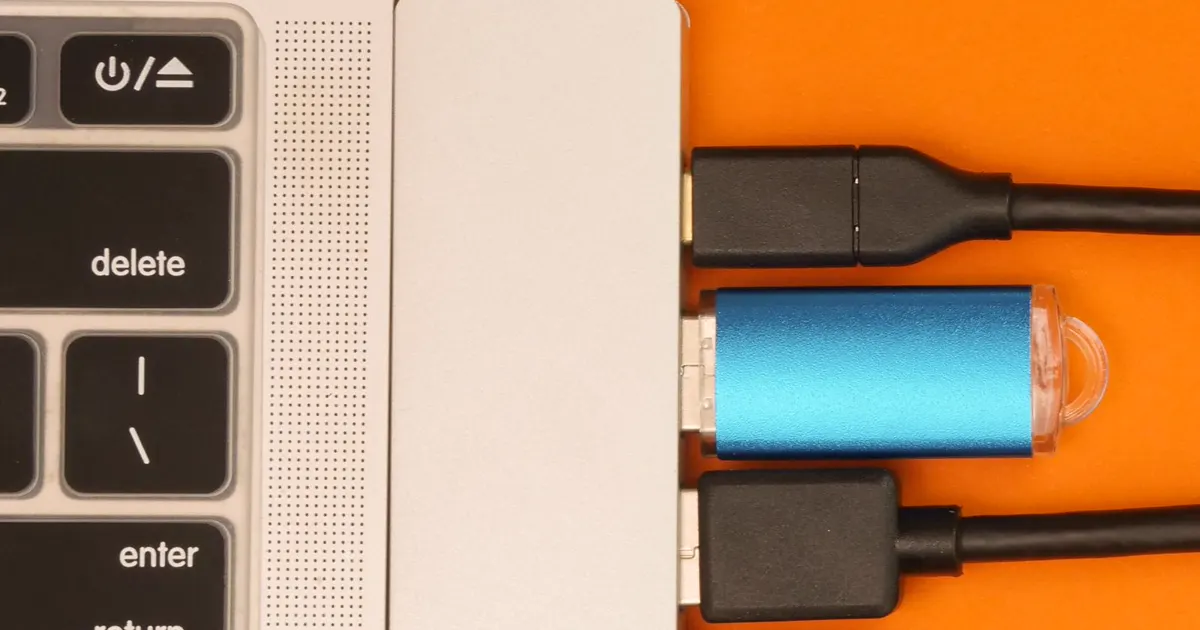
- External drive that clicks or disconnects: it lacks power. Plug it in at the back, without a hub, or use a powered hub.
- Flash drive in Device Manager but not in "This PC": open Disk Management (right-click Start). If it has no letter, right-click → Change Drive Letter and Paths → Add.
- PS5 or Xbox controller: use a data cable (a good USB-C one) and try another port before reinstalling anything.
- "Device Descriptor Request Failed": almost always cable or port. The three tests at the top solve most cases.
Frequently asked questions
Can a USB port break?
Yes, from knocks or a short circuit in a device. If one specific port recognises nothing while the others do, stop using it: it may be damaged.
Why does it work on USB 2.0 but not USB 3.0?
Some older devices or poor cables struggle at USB 3.0 speed. Use the black (2.0) port for that device and update the chipset driver.
Will I lose the data if I format the flash drive?
Yes. Before formatting, try another PC. If none recognises it and the data matters, recovery services exist, but they aren't cheap.
If nothing works, tell us what the device is and what happens in the three tests via the contact page.
Still not fixed?
Email us at glitchfixesp@gmail.com with your device model, the exact error message and what you have already tried from this guide. We reply personally (in English or Spanish) and, if the issue keeps coming up, we add the new fix to the guide.