Keyboard typing the wrong characters: find the cause in 10 seconds and fix it
Laptop keyboard typing numbers instead of letters, @ and " swapped or # and £ mixed up? A 10-second test to find what's wrong and how to fix it in Windows.
If numbers appear instead of letters, press Fn + Num Lk. If symbols are swapped (for example Shift + 2 gives " instead of @), Windows has switched keyboard layout: press Win + Space until the right one (ENG UK or ENG US) shows next to the clock, then remove the layout you don't use. Your keyboard is almost certainly not broken.
The 10-second test
Open Notepad and press these keys. What appears on screen tells you exactly what's going on:
| You press | You get | What's happening |
|---|---|---|
| U I O | 4 5 6 | Num Lock is on (laptops only) |
| Shift + 2 | " instead of @ | UK layout active on a US keyboard |
| Shift + 2 | @ instead of " | US layout active on a UK keyboard |
| Shift + 3 | £ or #, the opposite of what's printed | Wrong layout (UK vs US) |
| W A S D | Move the cursor like arrows | The keyboard's gaming mode is on |
| Holding a key | Doesn't repeat, or appears late | Filter Keys (accessibility) |
| Any key | Nothing on some keys | Dirt, liquid or a broken key (last section) |
Numbers instead of letters: Num Lock
Laptops without a number pad on the right "hide" it inside the letter keys. Look at your keys: many have a small number in another colour, usually blue. When Num Lock is on, those letters type their number.
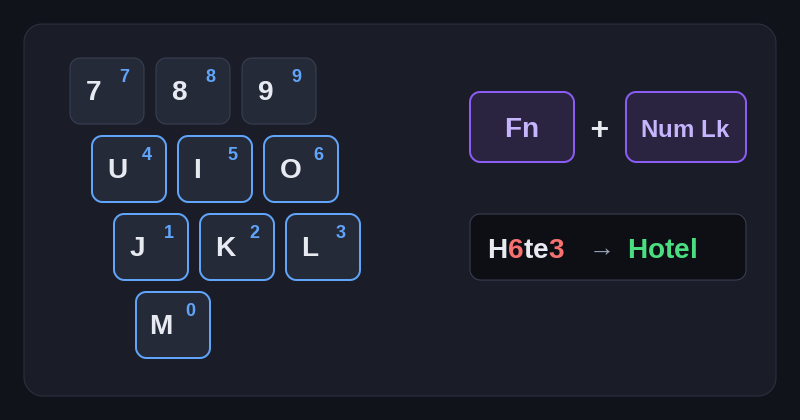
- Find the Fn key, bottom left, between Ctrl and the Windows key.
- Find the Num Lock key. It may say Num Lk, NumLock or show a padlock with a number. It's usually on F11, F12, Insert or in the top-right corner.
- Hold Fn and press that key once. Run the test again: U should type U.
If it turns on by itself every time you start the laptop, go into the BIOS (usually F2 or Del at startup) and look for NumLock or Boot Up NumLock State: set it to Off.

@ and " swapped, or £ instead of #: the keyboard layout
UK and US keyboards look almost the same, but several symbols are in different places. Windows can have both layouts installed and switches between them with two shortcuts that are very easy to hit while gaming: Alt + Shift and Win + Space.
- Look next to the Windows clock: if it says ENG with UK or US underneath, check it matches your keyboard.
- Press Win + Space. A list of installed layouts appears; pick the right one.
- To stop it happening again, remove the extra one: Settings → Time & language → Language & region, click the three dots next to your language → Language options and, under "Keyboards", remove the layout you don't use.
- If you have a second language installed that you don't use, remove it too. With a single layout installed, the shortcuts do nothing.
A quick way to tell them apart: a UK keyboard has a tall Enter key and a £ on the 3 key. A US keyboard has a wide, flat Enter key and # on the 3 key.
W, A, S, D act like arrow keys
Many gaming keyboards have a mode that swaps WASD with the arrow keys, meant for old games. It's turned on with a keyboard shortcut, usually Fn + W. Press it again to turn it off. If that doesn't work, search your keyboard model plus "WASD swap" in the manual or the maker's software (Logitech G HUB, Razer Synapse, Corsair iCUE…).
Related: if the Windows key does nothing, the keyboard's game mode is on, which blocks it so it can't kick you out of a game. It usually has a controller or padlock icon; turn it off with its key or Fn + Win.
Keys don't repeat, lag or "stick"
These are accessibility features that switch on when you press Shift 5 times in a row or hold it for 8 seconds (very easy in some games):
- Sticky Keys: Shift, Ctrl or Alt stay "pressed" after you let go.
- Filter Keys: ignore quick or repeated presses.
Turn them off in Settings → Accessibility → Keyboard. Inside each one, also turn off its keyboard shortcut so they don't switch on again by themselves.
Some keys do nothing
- Type "on-screen keyboard" in the Start menu and open it. Press the physical keys: the ones that work light up on screen.
- If it's a USB keyboard, try another port and another PC. If it fails the same way on another PC, it's the keyboard.
- On a mechanical keyboard, carefully pull off the keycap (with a keycap puller or two paper clips) and blow underneath with compressed air.
- If you spilled liquid, unplug it or turn the laptop off and leave it upside down for 48 hours before trying. Don't switch it on wet.
Frequently asked questions
Why does the keyboard layout change by itself?
Because you have more than one layout installed and you accidentally press Alt + Shift or Win + Space. With a single layout installed, it can't change.
How do I type @ on a UK keyboard?
With Shift + ' (the key next to Enter). On a US keyboard it's Shift + 2.
Could it be a virus?
Practically never. The symptoms in this guide are Windows or keyboard settings. A virus that types for you is extremely rare and would show other signs, such as programs opening by themselves.
If your case isn't in the test, tell us which key you press and what appears on screen via the contact page.
Still not fixed?
Email us at glitchfixesp@gmail.com with your device model, the exact error message and what you have already tried from this guide. We reply personally (in English or Spanish) and, if the issue keeps coming up, we add the new fix to the guide.