No sound on Windows: fix it based on what the speaker icon shows
PC has no sound, a red X on the speaker, or audio going to the wrong place? What the icon tells you, how to pick the right output, the right jack, the audio services and the sound driver.
Click the speaker icon next to the clock and pick the right output (your headphones or speakers, not the monitor). If there's a red X or no device appears, restart the Windows Audio service and reinstall the sound driver from Device Manager. On a desktop PC, use the green jack at the back.
Look at the speaker icon
The speaker icon next to the clock already tells you a lot. Click it and check:
| What you see | What's happening | Go to |
|---|---|---|
| Volume looks fine, but nothing plays | Sound is going to another device (monitor, controller, headset turned off) | "Pick the right output" |
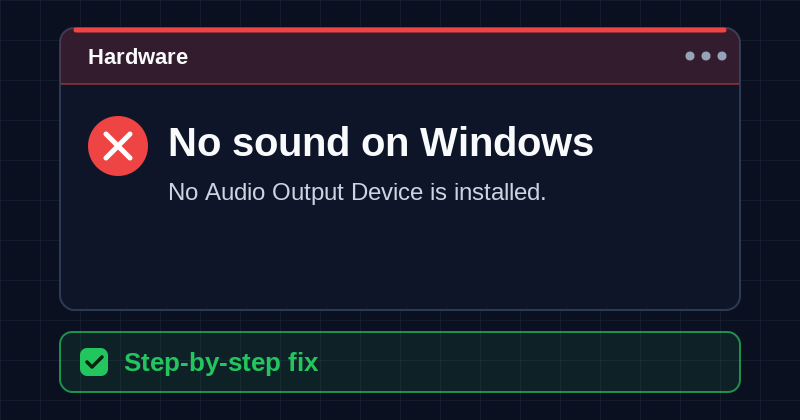
| A red X or "No audio output device is installed" | Windows can't find the sound card: driver or service | "If there's a red X" |
| Everything plays except one program or game | That program is muted or uses another output | "If only one program fails" |
| It plays, but cuts out, echoes or is very quiet | The "audio enhancements" | "Turn off audio enhancements" |
Pick the right output
When you connect a monitor over HDMI, a controller or a USB headset, Windows sometimes sends the sound there without telling you:
- Click the speaker icon. On Windows 11, click the > arrow next to the volume slider; on Windows 10, the device name above the slider.
- Pick your headphones or speakers. The motherboard ones are usually called Realtek Audio or Speakers (High Definition Audio).
- Play a video and try each one until you hear it.
If your monitor's name appears in the list (for example "LG HDR" or "NVIDIA High Definition Audio"), the sound is going through the HDMI or DisplayPort cable. Many monitors have no speakers, so you hear nothing.
Use the right jack

- On a desktop, plug headphones or speakers into the green jack at the back (the motherboard one). The front ones on the case fail more often because they rely on an internal cable.
- If you use USB or wireless headphones, unplug and replug them, and check they're charged and turned on.
If there's a red X
- Restart the audio services: press Win + R, type
services.mscand find Windows Audio and Windows Audio Endpoint Builder. Right-click → Restart on both, and check their startup type is Automatic. - Reinstall the driver: right-click Start → Device Manager → expand Sound, video and game controllers. Right-click your card (Realtek Audio or similar) → Uninstall device and restart. Windows reinstalls it on its own.
- If it still doesn't work, download the audio driver from your motherboard or laptop maker's website (not a generic one) and install it.
- If the sound card doesn't appear in Device Manager, enter the BIOS and check that onboard audio ("HD Audio" or "Onboard Audio") is enabled.
If only one program fails
- Right-click the speaker → Volume mixer: make sure that program isn't at zero or muted.
- Many games use whichever output was active when they opened. Pick the right output first, then open the game.
- Check the audio output inside the game's own settings or in Discord.
Turn off audio enhancements
Some sound effects from Realtek, Nahimic or the laptop maker cause cutouts or silence after an update. In Settings → System → Sound, open your output device and turn off Enhance audio.
Frequently asked questions
Why is there no sound after updating Windows?
Windows Update sometimes installs a generic driver. Install the audio driver from your motherboard or laptop maker's website.
Could the sound card be broken?
If nothing plays with any headphones or speakers, on any jack, and the driver is fine, it may be damaged. A cheap USB sound card fixes it in minutes.
Why does the microphone work but not the sound?
Because they're separate devices. Most likely a different output is selected: check the list under the speaker icon.
If your PC is still silent, tell us what appears when you click the speaker icon via the contact page.
Still not fixed?
Email us at glitchfixesp@gmail.com with your device model, the exact error message and what you have already tried from this guide. We reply personally (in English or Spanish) and, if the issue keeps coming up, we add the new fix to the guide.