Microphone not working: use the level bar to find where it fails
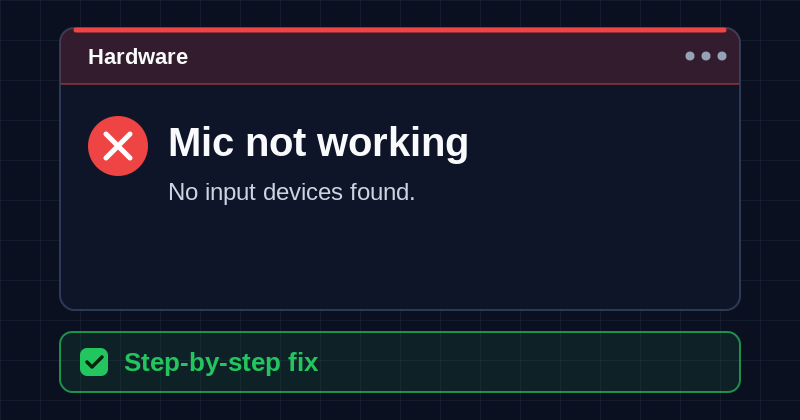
Nobody can hear you on Discord, in game or on calls? Windows' microphone level bar tells you whether the fault is Windows or the app. Privacy permissions, input device, volume, jack and Discord settings.
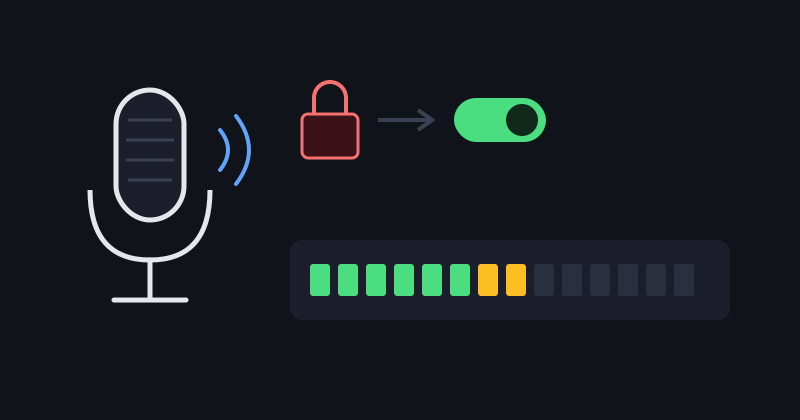
Go to Settings → System → Sound, pick your mic under Input and speak: if the level bar moves, Windows hears you and the app is at fault (check its input device). If it doesn't move, turn on access in Privacy & security → Microphone, raise the input volume and check the jack.
The test that settles it: the level bar
- Open Settings → System → Sound.
- Under Input, choose your microphone.
- Speak: watch the Input volume bar or "Test your microphone".
| Result | The fault is in | Go to |
|---|---|---|
| The bar moves | The app (Discord, game, browser) | "If Windows hears you but the app doesn't" |
| The bar doesn't move | Windows or the microphone | "If Windows doesn't hear you" |
| The mic isn't in the list | Connection, driver or privacy | "If the mic doesn't appear" |
If Windows doesn't hear you
- Privacy: Settings → Privacy & security → Microphone. Turn on "Microphone access", "Let apps access your microphone" and also "Let desktop apps access your microphone" (Discord and games are desktop apps).
- Volume and mute: in the mic's properties, raise input volume to 80-100%. Check there's no mute switch on the cable or headset, or a mic key on the laptop (usually a crossed-out mic icon).
- Format: in the classic sound panel (
mmsys.cpl) → Recording → your mic → Properties → Advanced, try another format (e.g. 48000 Hz) and untick "Allow applications to take exclusive control".
If the mic doesn't appear
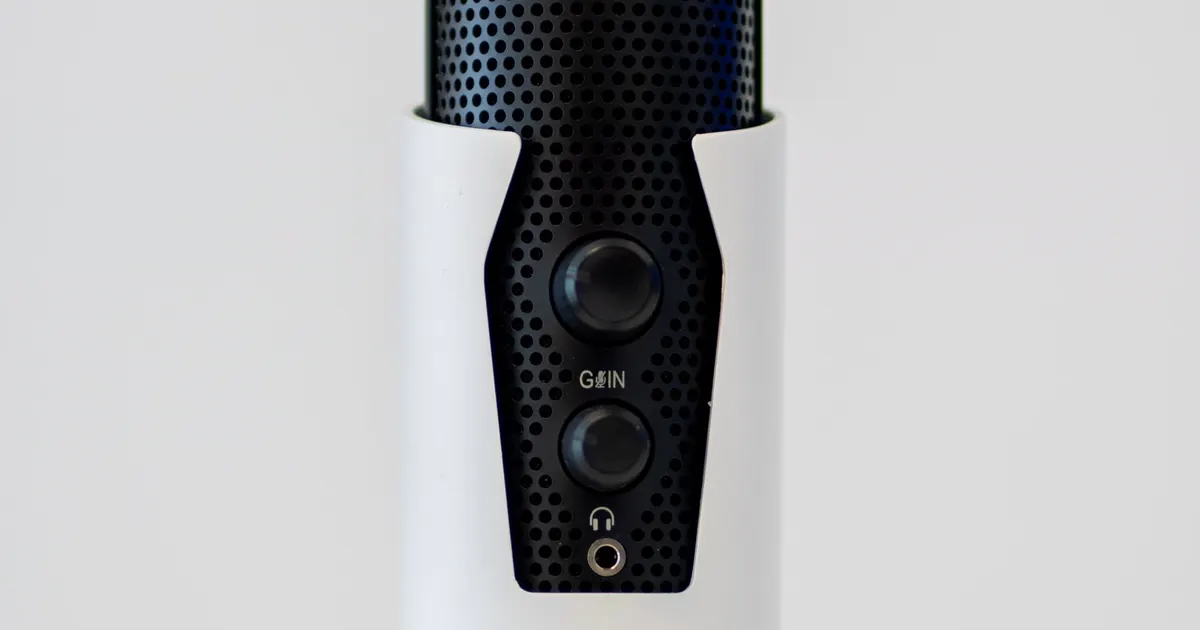
- Headsets with a single (4-pole) jack: on a desktop with separate jacks (pink and green), you need a Y splitter; otherwise the PC only sees the audio. On laptops with a single combo jack, they plug straight in.
- Pink jack on a desktop: the rear one is better than the front.
- USB or wireless mic: unplug and replug, try another port and, if wireless, make sure it's charged and on.
- Disabled devices: in
mmsys.cpl→ Recording, right-click → Show Disabled Devices; if your mic appears greyed out, right-click → Enable. - Driver: reinstall the audio driver (Device Manager → Audio inputs and outputs → your mic → Uninstall → restart).
If Windows hears you but the app doesn't
In Discord:
- User Settings → Voice & Video → Input Device: pick your microphone (not "Default").
- Use Let's Check to see if Discord hears you.
- Turn off "Automatically determine input sensitivity" and lower the threshold if you cut out.
- If it still fails, scroll to the bottom and click Reset Voice Settings.
In games and browsers: find the game's own "Input device" or "Microphone" setting, and in the browser check the permission under the padlock icon in the address bar.
Frequently asked questions
Why did it stop working after a Windows update?
Big updates sometimes reset privacy permissions or change the default device. Check Privacy → Microphone and the selected input.
People hear me but very quietly or with noise. What do I do?
Raise input volume without going past 90%, turn off "Audio enhancements" for the mic and enable noise suppression in Discord. Move the mic closer to your mouth.
Do Bluetooth headphones work as a mic?
Yes, but using the mic drops sound quality (call mode). For voice chat while gaming, a headset with a USB receiver or a cable is better.
If it still doesn't work, tell us what kind of mic you use and whether the level bar moves via the contact page.
Still not fixed?
Email us at glitchfixesp@gmail.com with your device model, the exact error message and what you have already tried from this guide. We reply personally (in English or Spanish) and, if the issue keeps coming up, we add the new fix to the guide.