High CPU or GPU temperatures: what's normal and how to lower them
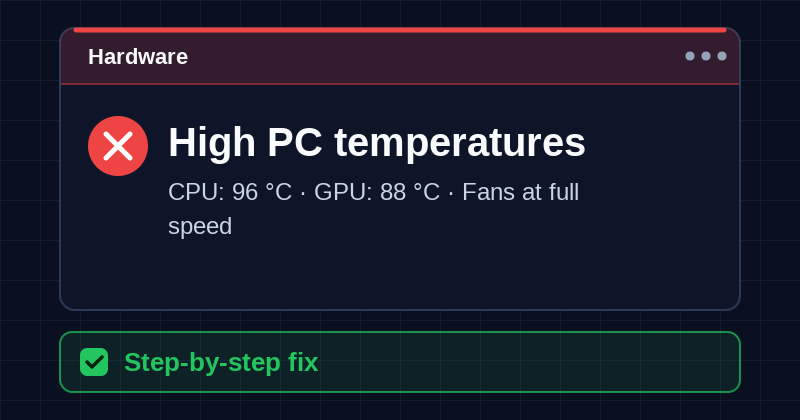
CPU or GPU above 90 °C, fans roaring or performance dropping while gaming? Which temperatures are normal, how to measure them properly and fixes ordered from free to costly: dust, airflow, FPS cap, undervolt and thermal paste.
Measure with HWiNFO after 15 minutes of gaming. If the CPU stays above 90 °C or the GPU above 85 °C, start with the free fixes: clean the dust, check fans pull air in at the front and push it out at the back, and cap your FPS. If that's not enough, undervolt; change the thermal paste only if the PC is over 3-4 years old.
Step 0: measure properly before touching anything
Many people panic over a one-second spike. What matters is the sustained temperature while gaming:
- Install HWiNFO (free) and open it in Sensors only mode.
- Play the problem game for 15 minutes with HWiNFO open.
- Look at the Average column, not just Maximum: for the CPU, "CPU Package" or "Tctl/Tdie"; for the GPU, "GPU Temperature" and "GPU Hot Spot".
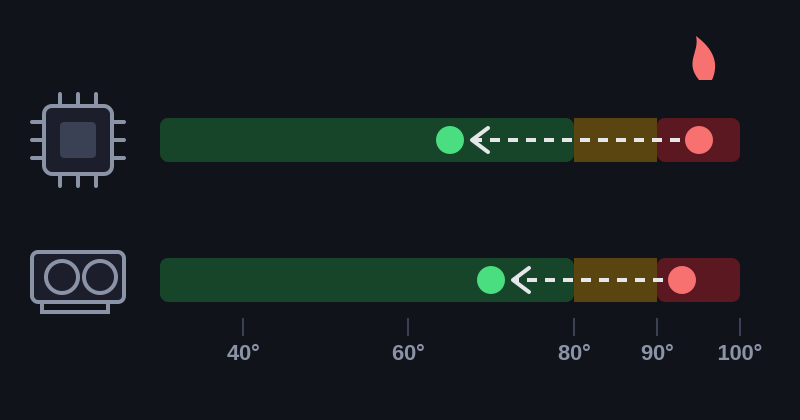
| Component | Idle | Gaming (normal) | Worrying if sustained |
|---|---|---|---|
| CPU | 30-50 °C | 60-85 °C | Over 90-95 °C |
| GPU | 30-50 °C | 60-80 °C | Over 85-88 °C |
| GPU Hot Spot | — | Up to 15-20 °C above GPU | Over 105 °C or a 30 °C gap |
| NVMe SSD | 30-50 °C | 40-65 °C | Over 70 °C |
Note on Ryzen 7000/9000 and Intel 13th/14th gen: they're designed to run up to about 95-100 °C under heavy load to use that headroom. If they get there without losing performance, that's normal. The problem is when FPS drops as the temperature rises (thermal throttling).
Fixes, from free to costly
1. Remove the dust
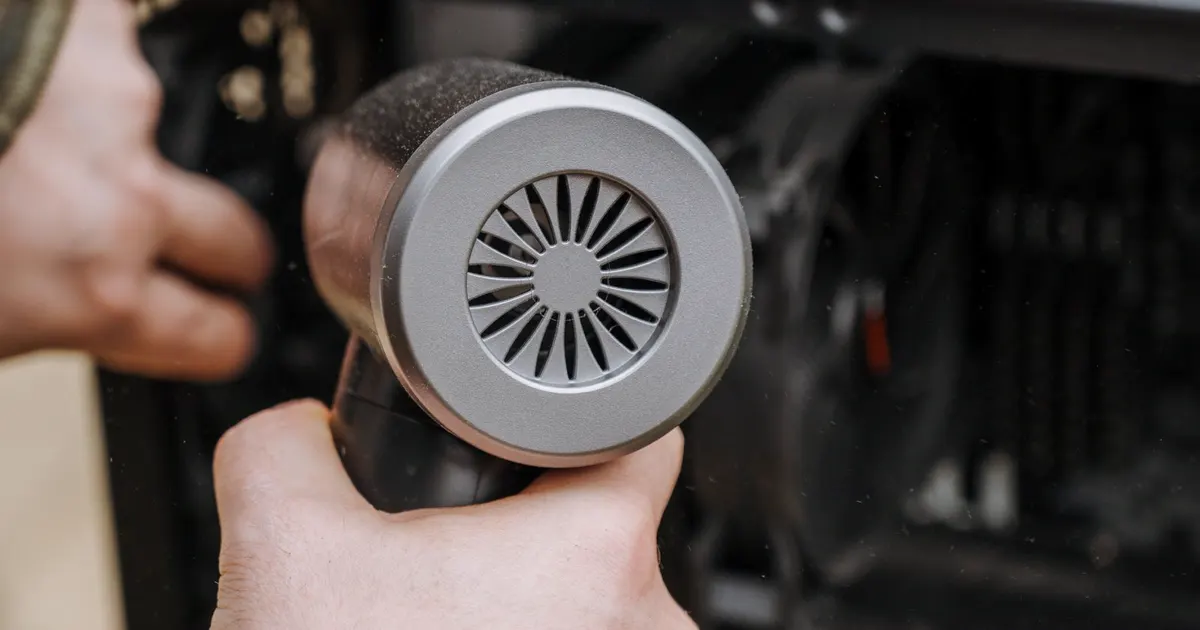
- Shut down, unplug and take the PC somewhere ventilated.
- Clean the front and bottom dust filters: many cases have magnetic or slide-out ones.
- Blow compressed air or a blower through the fins of the CPU cooler and the graphics card, from inside out.
- Hold the fan blades with a finger while blowing: spinning too fast without power can damage them.
2. Check which way each fan blows
Fans have two small arrows on the frame: one shows rotation and the other where the air goes. The right flow is:
- Front and bottom: pulling cool air in.
- Back and top: pushing hot air out.
- Slightly more intake than exhaust, so less dust gets in.
If your case has a closed glass front, try this: play with the side panel off. If temperatures drop by more than 8-10 °C, the case can't breathe and a mesh-front case would help.
3. Adjust the fan curve
Many motherboards ship with fans in "silent" mode. In the BIOS (Q-Fan, Smart Fan or Fan Control) choose the Standard or Performance profile. For the GPU, MSI Afterburner or AMD Adrenalin let you raise its curve.
4. Cap your FPS
If your monitor is 144 Hz and the game runs at 300 FPS, the GPU works at 100% for frames you never see. Set a cap just below your refresh rate (for example 141 FPS on a 144 Hz monitor) in the game or in the NVIDIA/AMD control panel. It can drop GPU temperature by 10 °C or more.
5. Undervolt
Manufacturers supply more voltage than needed "just in case", and that extra becomes heat. Lowering it a little costs no performance:
- AMD GPU: AMD Adrenalin → Performance → Tuning → lower the voltage.
- NVIDIA GPU: voltage curve in MSI Afterburner (lock the clock at a lower voltage).
- Ryzen: negative Curve Optimizer in the BIOS.
- Intel: negative voltage offset in the BIOS, if your board allows it.
Go in small steps and test a game after each change. If it crashes or restarts, go back one step.
6. Replace the thermal paste
Only worth it if the PC is over 3-4 years old or temperatures jumped for no reason. Remove the cooler, clean the old paste with isopropyl alcohol, put a pea-sized dot in the centre and reassemble, tightening the screws crosswise. Don't open a GPU under warranty: send it for service.
If it's a laptop
- Never use it on a bed, sofa or your lap: you block the bottom vents.
- Raise the back 2-3 cm (a stand, a book): it helps several degrees.
- Use the maker's software (Armoury Crate, Lenovo Vantage, Omen Gaming Hub…) to choose the fan mode.
- If it's several years old and runs very hot, an internal clean at a repair shop often makes a big difference.
Frequently asked questions
At what temperature does a CPU break?
It doesn't break: at its limit (Tj max, usually 95-105 °C) it slows down, and if it keeps rising the PC shuts off to protect itself. Constant high heat does shorten its life in the long run.
Can undervolting damage anything?
No. Lower voltage means less heat and power. If you go too far, the worst that happens is a game crash or a restart; go back to defaults and you're done.
Why is the GPU at 80 °C but the Hot Spot at 110 °C?
A gap of more than 25-30 °C usually means the GPU's thermal paste or pads are badly spread or dried out. If it's under warranty, ask for a repair.
If you don't feel confident replacing thermal paste or have a laptop, send us your HWiNFO temperatures via the contact page and we'll tell you if they're normal.
Still not fixed?
Email us at glitchfixesp@gmail.com with your device model, the exact error message and what you have already tried from this guide. We reply personally (in English or Spanish) and, if the issue keeps coming up, we add the new fix to the guide.