Windows doesn't detect the second monitor: check these in order
Second monitor says "No signal" or Windows won't detect it? Check in order: GPU port, monitor input, cable, Win + P, Detect, driver and, on laptops, USB-C. Plus how to fix it if it's blurry or stuck at 60 Hz.
Plug both monitors into the graphics card (the lower ports), pick the right input with the monitor's buttons, press Win + P → Extend and, in Settings → Display, click Detect. If it still doesn't appear, change the cable and update the graphics driver.
The checklist
Go from top to bottom. Most of the time it's fixed within the first three points.
1. Is it in the right port?
If your PC has a graphics card, look at the back: there are video ports at the top (on the motherboard, next to the USB ports) and lower down (on the graphics card, horizontal). Both monitors go on the graphics card. The motherboard usually disables its video ports when a graphics card is installed.
2. Is the monitor on the right input?
Using the monitor's own buttons, open the Input / Source menu and pick the one you use (HDMI 1, HDMI 2, DisplayPort). Turn off "Auto Input" if it keeps jumping between inputs.
3. Is Windows in the right mode?
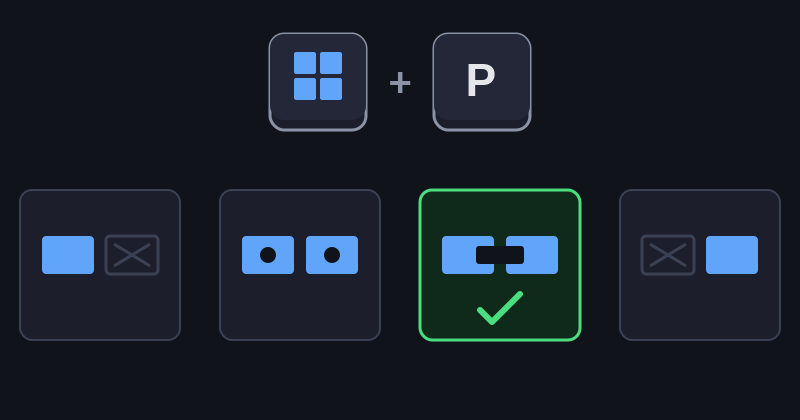
- Press Win + P.
- Choose Extend. If it was on "PC screen only", the second monitor was deliberately off.
- Still no picture: right-click the desktop → Display settings → Multiple displays → Detect.
4. Does the cable work?
- Test the cable and monitor with another device (a console, another PC) or swap the cables between the two monitors.
- Adapters are a classic source of trouble: a DisplayPort → HDMI adapter works, but HDMI → DisplayPort needs an "active" one (with USB power). Same with VGA or DVI.
5. Is the graphics driver OK?
- Right-click Start → Device Manager → Display adapters.
- If it says Microsoft Basic Display Adapter instead of your GPU's name, you have no driver.
- Download the official driver from NVIDIA, AMD or Intel, install it and restart.
6. If it's a laptop
- USB-C only outputs video if it supports DisplayPort Alt Mode or Thunderbolt (usually a screen or lightning icon next to it).
- On gaming laptops, HDMI is often wired to the dedicated GPU and USB-C to the integrated one. If one doesn't work, try the other.
- Some laptops have a function key for projecting (with a screen icon): it does the same as Win + P.
Detected, but looks wrong
| Problem | Fix |
|---|---|
| Blurry, or text with coloured edges | Settings → Display → select that monitor → the resolution marked (Recommended) |
| Stuck at 60 Hz | Settings → Display → Advanced display → select the monitor → raise the refresh rate. If it's not offered, the cable can't do more: use DisplayPort or HDMI 2.0/2.1 |
| The mouse "leaves" on the wrong side | In Settings → Display, drag the rectangles to match your desk. "Identify" shows which is which |
| Games open on the wrong monitor | Select your main monitor and tick Make this my main display |
| Flickers or goes black for a few seconds | Change the cable, turn off the monitor's eco mode and, if they have different refresh rates, try matching them |
Frequently asked questions
Can I plug one monitor into the motherboard and one into the GPU?
Sometimes, by enabling integrated graphics in the BIOS, but it can cause stutter in games. It's best to connect both to the graphics card.
How many monitors does my graphics card support?
Modern cards usually support 3 or 4 at once. Check your model's spec sheet on the maker's website.
Why does it stop being detected after the PC wakes from sleep?
Some DisplayPort monitors "disconnect" when they go to standby. Turn off power saving in the monitor's menu or update the graphics driver.
If it's still not detected, tell us your GPU, the ports you use and whether it's a laptop via the contact page.
Still not fixed?
Email us at glitchfixesp@gmail.com with your device model, the exact error message and what you have already tried from this guide. We reply personally (in English or Spanish) and, if the issue keeps coming up, we add the new fix to the guide.