PC turns on but no display: what to do depending on when it goes black
PC turns on, fans spin but the monitor says "No signal" or stays black? It depends on when: before the logo it's hardware (cable, RAM, BIOS), after it it's Windows. How to tell which and fix it.
First: if you have a graphics card, the monitor cable must go into the graphics card (lower down), not the motherboard (higher up). If you still don't even see the logo at startup, it's hardware: check which motherboard LED stays lit (CPU, DRAM, VGA or BOOT), reseat the RAM and reset the BIOS. If you see the logo and then black, it's Windows: press Win + Ctrl + Shift + B or boot into Safe Mode.
When does it go black?
This question decides everything. Turn on the PC and watch closely:
| What you see | Where the problem is | Go to |
|---|---|---|
| Nothing from the start. The monitor says "No signal" or turns off | Hardware: cable, RAM, graphics card, BIOS | "No logo at all" |
| The motherboard logo (ASUS, MSI, Gigabyte…) appears, then black | Windows or the graphics driver | "Logo, then black" |
| You get into Windows but the screen is black with a cursor | The Windows desktop didn't load | "Black screen with a cursor" |
| No fans and no lights | No power reaching it | Check the socket, power strip and PSU switch |
Before opening the case: 3 one-minute checks
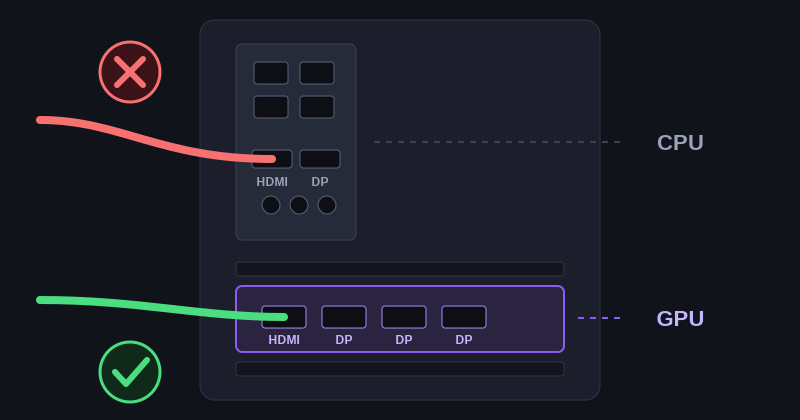
- Cable in the graphics card. It's the most common mistake after building or moving a PC. If you have a graphics card, the outputs at the top (on the motherboard) give no picture. Move the cable to one of the horizontal outputs lower down.
- Monitor input. Press the monitor's menu or "Input/Source" button and choose the input where the cable is (HDMI 1, HDMI 2, DisplayPort…). Many monitors don't switch automatically.
- Another cable or screen. If you have a TV nearby, try the PC there. If it works on the TV, the problem is the monitor or the cable.
No logo at all: it's hardware
If nothing appears with the cable in the right place, the motherboard isn't finishing its startup check. Almost all modern motherboards have 4 small LEDs next to the RAM or the large power connector (called EZ Debug LED, Q-LED or similar). The one that stays lit tells you which part is failing:
| LED lit | What it means | What to do |
|---|---|---|
| CPU | Processor has no power or isn't recognised | Check the 8-pin CPU cable (top left of the board). If you just changed the processor, the BIOS may need updating |
| DRAM | Problem with the RAM | Reseat the RAM (below). It's the most common one |
| VGA | The graphics card isn't responding | Check the graphics card power cables and that it's fully seated |
| BOOT | Hardware is fine but Windows isn't found | Check the drive is connected and first in the BIOS boot order |
If you just built the PC or changed the RAM, wait up to 5 minutes. On the first boot, the motherboard "trains" the memory with a black screen and the DRAM LED on. It's very common with DDR5 on AMD AM5 boards. If you turn it off early, it starts over.
Reseat the RAM
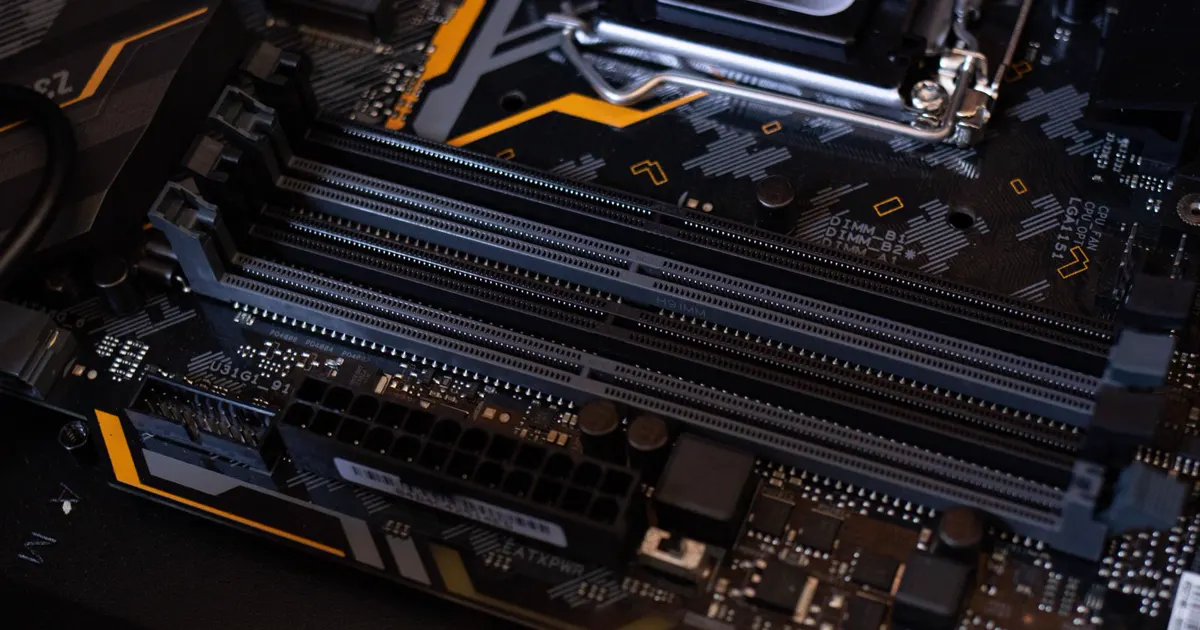
- Turn off the PC, unplug the power cable and press the power button for 5 seconds to drain it.
- Touch a metal part of the case to get rid of static.
- Open the slot clips and remove all the modules.
- Insert a single module in the slot the manual gives for one module (almost always the second one from the processor, A2). Press both ends until you hear both clips click.
- Turn on. If you get a picture, turn off and add the second module in the slot the manual gives for two (usually A2 and B2).
- If one module gives no picture, try the other. That tells you whether a module is faulty.
Reset the BIOS (clear CMOS)
If you changed something in the BIOS (XMP/EXPO profile, overclock) or updated the BIOS and it no longer boots, restore factory settings:
- With the PC unplugged, find the round coin battery on the motherboard. Remove it, wait 5 minutes and put it back.
- Or find two pins labelled CLR_CMOS (or JBAT1) and short them for 10 seconds with a screwdriver. Some boards have a "Clear CMOS" button at the back.
- The first boot afterwards takes longer and will ask you to enter the BIOS. That's normal.
Logo, then black: it's Windows
If you see the motherboard logo, the hardware works. The problem is Windows or the graphics driver:
- Press Win + Ctrl + Shift + B. It restarts the graphics driver: you'll hear a beep and the screen will flicker. The picture often comes back.
- Press Win + P and then Enter a couple of times: Windows may be sending the picture to a screen you no longer have.
- If nothing works, enter Safe Mode: turn the PC off by holding the button 3 times in a row while Windows loads. The third time, automatic repair appears → Advanced options → Startup Settings → Restart → 5.
- In Safe Mode, uninstall the graphics driver (ideally with DDU) and install the latest version from NVIDIA, AMD or Intel.
Black screen with a cursor
If you get into Windows but only see the cursor, the desktop (the "Windows Explorer" process) didn't start:
- Press Ctrl + Shift + Esc to open Task Manager.
- Click Run new task, type
explorer.exeand confirm. - If the desktop comes back, restart normally. If it happens again, open Command Prompt as administrator from the same button and run
sfc /scannow.
Frequently asked questions
Could the monitor be the problem?
Yes. Try the monitor with another device (laptop, console) and the PC with another screen or TV. If the monitor turns on and says "No signal", at least you know it has power.
Why are there no LEDs on my motherboard?
Some budget boards don't have them. In that case, if they have a small speaker, the startup beeps do the same job: check your board's manual for what each pattern means.
Could it be the power supply?
Yes, if the fans start and stop, or the PC turns off soon after starting. A PSU that doesn't deliver power properly can light things up but fail to start the graphics card.
If you're not sure which LED lights up or your case is different, tell us what you see at startup and which motherboard you have via the contact page.
Still not fixed?
Email us at glitchfixesp@gmail.com with your device model, the exact error message and what you have already tried from this guide. We reply personally (in English or Spanish) and, if the issue keeps coming up, we add the new fix to the guide.