PC won't turn on: diagnose it by what it does when you press the button
Press the button and the PC does nothing, starts for a second and shuts off, or the fans spin but there's no picture? Each symptom points to a different part: PSU, button, connectors, RAM, CMOS or GPU. A step-by-step diagnosis.
Turn off the PSU switch at the back, unplug it and hold the power button for 30 seconds. Plug back in with only monitor and keyboard. Then, by symptom: if it does nothing, check the PSU, socket and button; if it starts and shuts off, the CPU 8-pin connector and RAM; if it spins with no picture, the monitor cable, RAM and a CMOS clear.
What exactly happens when you press the button?
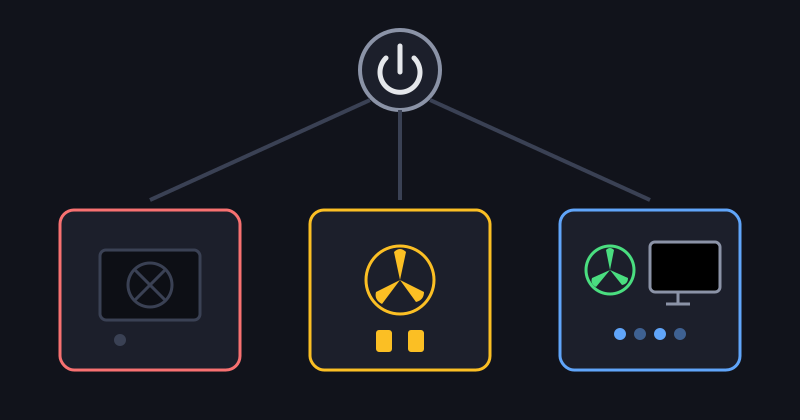
| What you see | Main suspects | Go to |
|---|---|---|
| Nothing: no lights, no fans, no sound | Socket, PSU switch, PSU, case button | "If it does nothing" |
| Starts for a second (fans spin) and shuts off | CPU connector, short circuit, RAM, weak PSU | "If it starts and shuts off" |
| Fans and lights work, but the monitor says "No signal" | Monitor cable, RAM, GPU, BIOS | "If it spins but shows no picture" |
First: drain the residual power
- Turn off the PSU switch (at the back, next to the cable, "O" position).
- Unplug the cable from the wall.
- Hold the case power button for 30 seconds.
- Disconnect everything except monitor and keyboard (USB devices, external drives, headphones).
- Plug in, set the switch to "I" and try.
It sounds too simple, but after a power cut or storm the PSU's protection can latch, and this releases it.
If it does nothing
- Socket and power strip: plug a lamp into the same place. Many strips with a switch or surge protection fail silently.
- PSU cable: swap it with the monitor's (they're usually the same) to rule it out.
- Case button: on the motherboard, find the front panel pins (marked PWR_SW or PWR). Remove that cable and briefly touch both pins together with a screwdriver. If it starts, the button or its cable is broken.
- Any light on the board? Many motherboards have an LED that lights even with the PC off. If there's no light at all with the PSU switch on "I", the PSU is the most likely culprit.
If it starts and shuts off
- CPU connector (8-pin, top left of the board): if it's missing or loose, the PC starts for a moment and shuts off. It's the number one oversight in freshly built PCs.
- 24-pin connector: unplug it and push it back in until the latch clicks.
- Short circuit: if you just built or moved parts, check there's no loose screw under the board or cable rubbing against it.
- RAM: leave a single stick in the slot the manual recommends (usually the second from the CPU) and test; then try the other stick.
- Insufficient or damaged PSU: if it shuts off at startup or when a game begins, the PSU may not deliver what the GPU needs.
If it spins but shows no picture
- Monitor cable on the graphics card, not the motherboard. Check the monitor's input and try another cable.
- Wait 1-2 minutes: after changing RAM or updating the BIOS, the first boot "trains" the memory and the screen stays black for a while.
- Motherboard debug LEDs (EZ Debug, Q-LED): four LEDs near the 24-pin connector labelled CPU, DRAM, VGA and BOOT. The one that stays lit tells you the part:
- CPU: processor or its 8-pin connector.
- DRAM: RAM: reseat it, try a single stick.
- VGA: graphics card: check its power cables and that it's fully seated.
- BOOT: it can't find the drive with Windows.
- Clear the CMOS: with the PC unplugged, remove the motherboard's coin battery for 5 minutes and put it back, or use the CLR_CMOS jumper shown in the manual. It restores factory BIOS settings if a tweak (overclock, XMP) left the PC unable to boot.
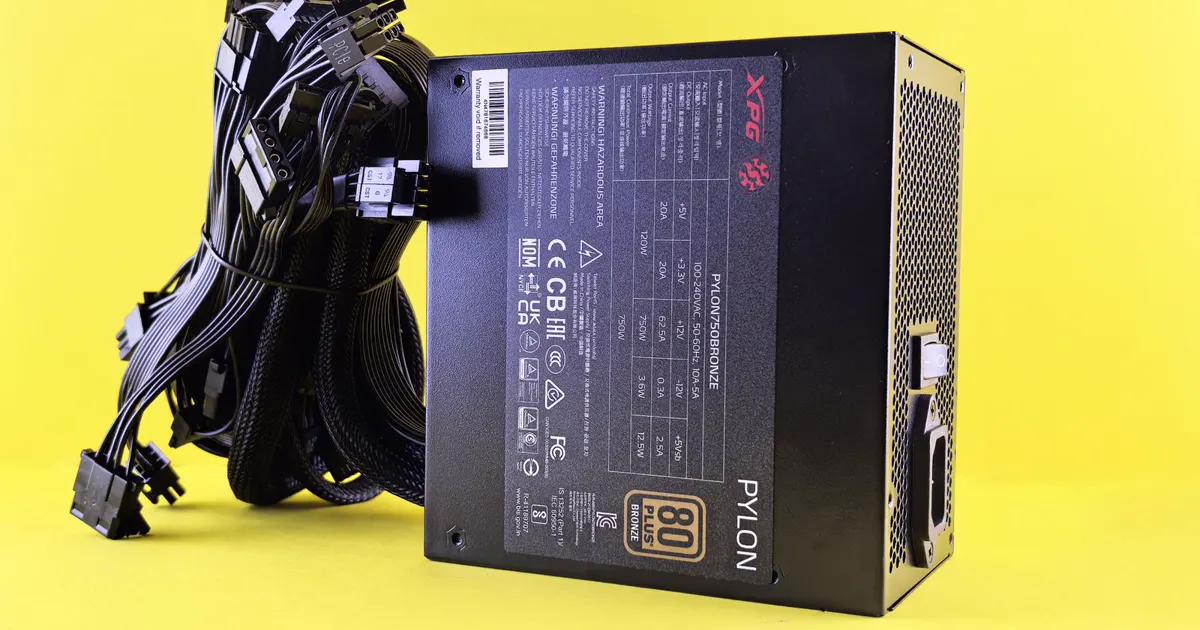
When to suspect the PSU
- It smells burnt or made a "click" when it died.
- The PC shuts off in demanding games but not on the desktop.
- It's many years old or a generic unit with no brand or 80 PLUS certification.
Never open a power supply: its capacitors hold a dangerous charge even when unplugged. If you suspect it, test with another PSU or take it to a technician.
Frequently asked questions
Do I lose anything by clearing the CMOS?
No files. Only the BIOS settings go back to factory: you'll need to re-enable the RAM's XMP/EXPO profile and check the date and boot order.
The PC won't turn on after a storm. What happened?
Most often the PSU's protection tripped (the 30-second drain fixes it). If not, the PSU may have died protecting the other parts.
What if it's a laptop?
Remove the charger, hold the power button for 30-60 seconds and try with just the charger. If there's a small "reset" pinhole on the bottom, press it with a paperclip.
If your motherboard has debug LEDs, tell us which one stays lit via the contact page and we'll tell you which part to check.
Still not fixed?
Email us at glitchfixesp@gmail.com with your device model, the exact error message and what you have already tried from this guide. We reply personally (in English or Spanish) and, if the issue keeps coming up, we add the new fix to the guide.