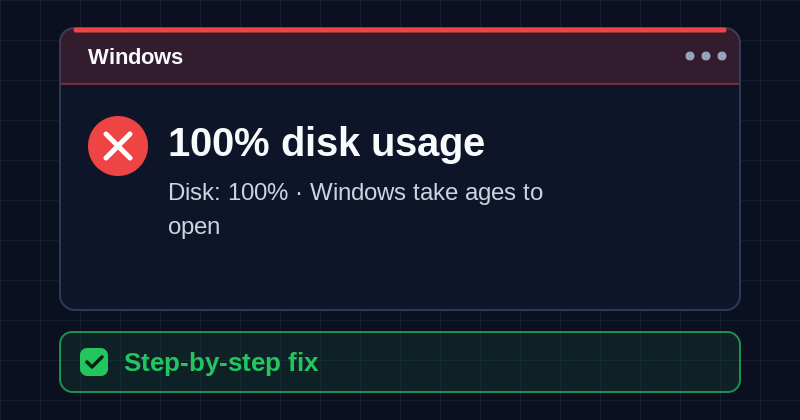
100% disk usage in Windows: find the culprit and stop it
Task Manager shows the disk at 100% and the PC crawls? See which process is using it and apply the fix for that culprit: Windows Update, SysMain, Windows Search, antivirus, OneDrive or a failing drive. And why an SSD fixes it for good.
In Task Manager's Processes tab, sort by the Disk column to see who's using it. If it's Windows Update or the antivirus, let it finish. If it's SysMain or Windows Search on a mechanical hard drive, disable them. Check the drive's health with CrystalDiskInfo. The permanent fix is having Windows on an SSD.
First: do you have an HDD or an SSD?
Task Manager → Performance → Disk 0. The type is shown at the top right:
- HDD (mechanical hard drive): 100% is very common, because an HDD can only do a few things at once. The tweaks below help, but moving to an SSD is what fixes it.
- SSD: an SSD stuck at 100% for long isn't normal. A process is out of control or the SSD is failing.

Find the culprit
- Press Ctrl + Shift + Esc → Processes → click the Disk column to sort.
- If the name means nothing to you, open Resource Monitor (Performance → bottom, "Open Resource Monitor") → Disk tab: it shows which files each process is reading or writing.
| Culprit | What it is | What to do |
|---|---|---|
| Windows Update, TiWorker, Windows Modules Installer | Installing updates | Let it finish with the PC plugged in. Happens after big updates |
| Antimalware Service Executable | Microsoft Defender scanning | Let it finish. If it's daily, schedule scans for another time |
| SysMain (Service Host: SysMain) | Preloads programs into memory | On HDD, disable it (below). On SSD, leave it |
| Windows Search (SearchIndexer) | Indexes files for search | On HDD, disable it or reduce indexed folders |
| OneDrive, Dropbox, Google Drive | Syncing files | Pause syncing while you game or work |
| Steam, Epic, Battle.net | Downloading or verifying games | Pause the download or schedule it overnight |
| System with constant high usage | Paging due to low RAM or disk driver | Close programs; check drive health |
Disable SysMain and Windows Search (HDD only)
- Press Win + R, type
services.mscand press Enter. - Find SysMain → double-click → Startup type: Disabled → Stop → OK.
- Do the same with Windows Search. Start menu search keeps working, just slower when searching inside files.
Is the drive dying?
- Download CrystalDiskInfo (free) and open it.
- Look at Health Status: "Good" is fine; "Caution" or "Bad" means back up now.
- Check "Reallocated Sectors" and "Current Pending Sectors": if they aren't zero and are rising, the drive is degrading.
If the drive shows "Caution" or "Bad", copy your important photos and documents before trying anything else. A failing drive can stop working completely at any moment.
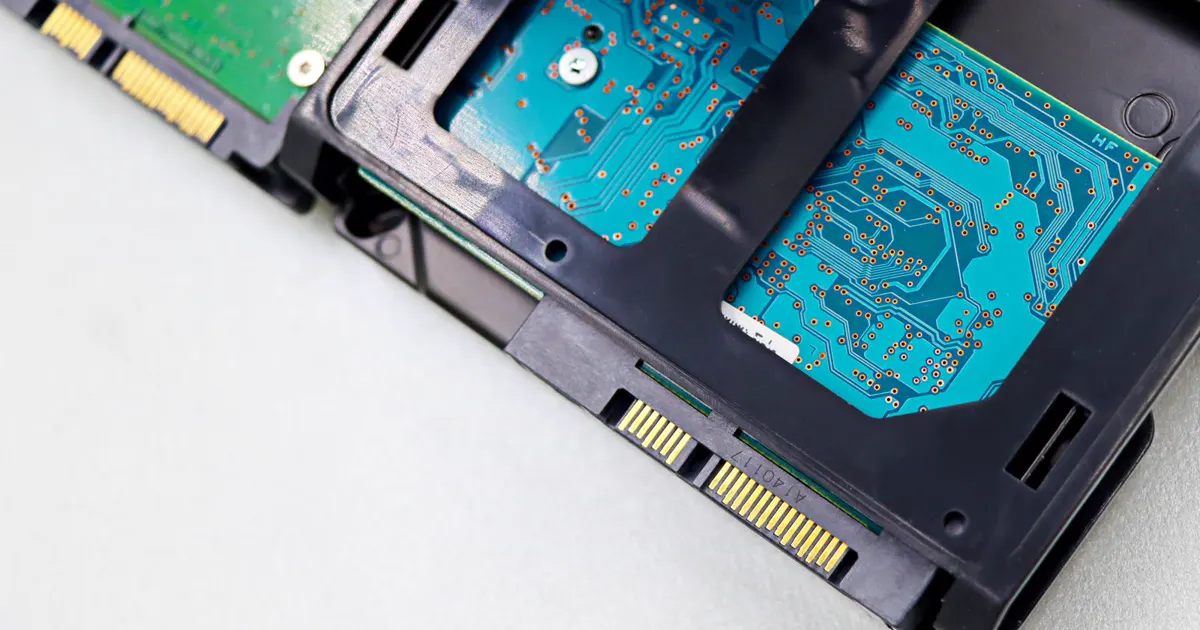
The permanent fix: an SSD
A SATA SSD is cheap and speeds up everything. No need to reinstall Windows: with a USB-SATA adapter and the SSD maker's tool (Samsung Magician, Crucial, WD…) you clone the drive as-is. In a desktop you can also add the SSD and keep the hard drive for storing files.
Frequently asked questions
Is disabling SysMain or Windows Search dangerous?
No. They're services for speeding things up and searching; Windows doesn't need them to work. You can turn them back on any time.
Why does the disk hit 100% only at startup?
In the first minutes, Windows, the antivirus, startup programs and updates all start at once. On an HDD that's normal; removing startup programs reduces it a lot.
Does more RAM help?
If you have 8 GB or less, yes: Windows uses the page file on disk less. But if the drive is an HDD, an SSD is still the biggest upgrade.
If you don't recognise the process using the disk, send us its name via the contact page.
Still not fixed?
Email us at glitchfixesp@gmail.com with your device model, the exact error message and what you have already tried from this guide. We reply personally (in English or Spanish) and, if the issue keeps coming up, we add the new fix to the guide.