DNS_PROBE_FINISHED_NXDOMAIN: fix it based on whether one site or all fail
Chrome shows DNS_PROBE_FINISHED_NXDOMAIN or "This site can't be reached"? Find out whether one site, one browser or everything fails, then apply the fix for that case: mistyped address, Chrome and Windows DNS cache, changing DNS, hosts file, VPN and extensions.
First check the address is spelled right and whether the site opens on your phone using mobile data. If every site fails: run ipconfig /flushdns, clear Chrome's cache at chrome://net-internals/#dns and change DNS to 1.1.1.1 and 8.8.8.8. If only one site fails on your PC, check the hosts file, VPN and extensions.
What it means
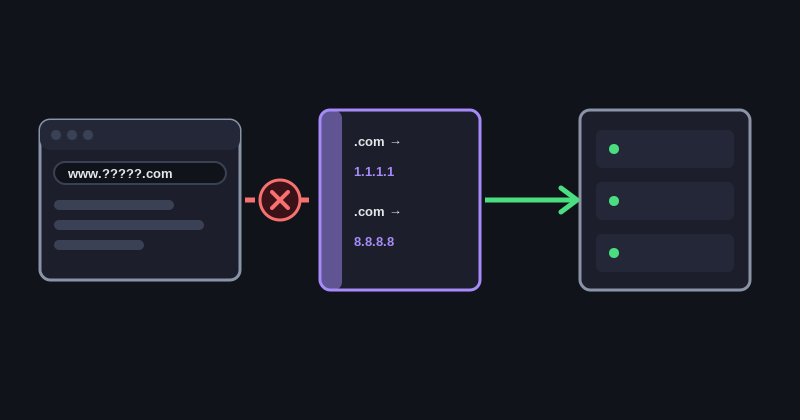
To open a website, the browser asks a DNS server which numeric address (IP) that name has. It's like looking up a name in a phone book to get the number. NXDOMAIN means "that name isn't in the book": either the name is wrong, or the phone book (DNS) isn't answering properly.
One site or all of them?
| Situation | Likely cause | What to do |
|---|---|---|
| Only one site, and it won't open on your phone's mobile data either | The address is wrong, or the site is down or changed domain | Check the spelling. If it's right, it's not your PC: wait |
| Only one site, but it opens on your phone | DNS cache, hosts file, VPN or extension | "If only one site fails on your PC" |
| Every site, in every browser | Your ISP's DNS or your PC's | "If everything fails" |
| Every site, but only in Chrome | Chrome's cache or settings | "If only Chrome fails" |
If everything fails
- Open Command Prompt as administrator and run:
ipconfig /flushdnsipconfig /releasethenipconfig /renew
- Change DNS: Settings → Network & internet → Wi-Fi or Ethernet → Hardware properties → DNS server assignment → Edit → Manual → IPv4: 1.1.1.1 and 8.8.8.8.
- Restart the router if your phone on the same Wi-Fi can't load sites either.
- If nothing changes, Settings → Network & internet → Advanced network settings → Network reset.
If only Chrome fails
- Type
chrome://net-internals/#dnsin the address bar and click Clear host cache. - Go to
chrome://net-internals/#socketsand click Flush socket pools. - In Settings → Privacy and security → Security, check Use secure DNS: try turning it off or choosing another provider (Cloudflare or Google).
- Open an incognito window: if it works there, an extension is to blame (blockers, browser VPNs). Disable them one by one.
If only one site fails on your PC
- Hosts file: open Notepad as administrator and open
C:\Windows\System32\drivers\etc\hosts. If there's a line with that site's name, delete it and save. Some programs and malware use it to block sites. - VPN or proxy: turn them off and try again.
- Antivirus web protection: it may be blocking the domain. Briefly turn off web protection to check.
Frequently asked questions
Is changing DNS dangerous?
No. 1.1.1.1 (Cloudflare) and 8.8.8.8 (Google) are public, free and often faster than your ISP's. You can switch back to "Automatic" any time.
What about DNS_PROBE_FINISHED_NO_INTERNET or BAD_CONFIG?
They're cousins of this error. NO_INTERNET means there's no connection at all (check Wi-Fi or cable); BAD_CONFIG means the network or DNS settings are wrong: the "If everything fails" steps fix it.
Why does it work on my phone but not my PC?
Each device keeps its own DNS cache and settings. The phone uses its own; the PC has something stale cached or a DNS server that isn't answering.
If the error continues, tell us whether one site or all fail and in which browsers via the contact page.
Still not fixed?
Email us at glitchfixesp@gmail.com with your device model, the exact error message and what you have already tried from this guide. We reply personally (in English or Spanish) and, if the issue keeps coming up, we add the new fix to the guide.