Connected to Wi-Fi but no internet: PC or router?
Windows says "No internet" or "No Internet access" even though you're connected to Wi-Fi? Your phone tells you in a minute whether the router or the PC is at fault. Then: restart the router, renew the IP, change DNS, reset the network and adapter settings.
Check whether your phone has internet on the same Wi-Fi. If it doesn't either, restart the router (unplugged for 30 seconds) or it's an ISP outage. If the phone works, the PC is at fault: run ipconfig /release, ipconfig /renew and ipconfig /flushdns, set DNS to 1.1.1.1 and 8.8.8.8 and, if that's not enough, do a network reset.
The phone test
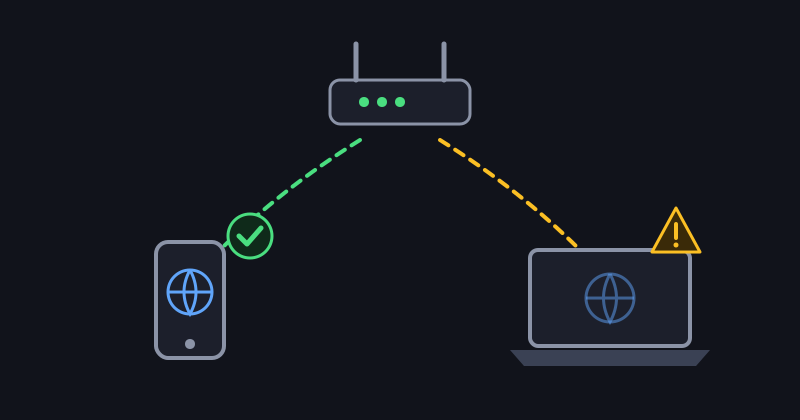
Turn off your phone's mobile data, connect it to the same Wi-Fi and open a website:
| Result | Where the fault is | Go to |
|---|---|---|
| The phone has no internet either | Router or ISP | "If the router is at fault" |
| The phone works, the PC doesn't | The PC | "If the PC is at fault" |
| Both work on and off | Weak signal or interference | "If it drops on and off" |
If the router is at fault
- Unplug the router (and the modem or fibre ONT, if separate) for 30 seconds and plug it back in. Wait 2-3 minutes.
- Check the lights: if Internet, WAN or PON/LOS is red or blinking oddly, the problem is outside your home.
- Check your ISP's app or website for an outage in your area.
- If there's no outage and it still doesn't work, call your ISP. Don't factory-reset the router without their help: you'd lose its settings.
If the PC is at fault
1. Renew the IP and flush the DNS cache
Open Command Prompt as administrator (search "cmd" in Start → Run as administrator) and type, one at a time:
ipconfig /releaseipconfig /renewipconfig /flushdns
If ipconfig shows an address starting with 169.254, the PC isn't getting an IP from the router: forget the network and reconnect.
2. Change DNS
Often "no internet" really means your ISP's DNS servers aren't answering. Settings → Network & internet → Wi-Fi → Hardware properties (Windows 11) → DNS server assignment → Edit → Manual, turn on IPv4 and enter:
- Preferred DNS: 1.1.1.1
- Alternate DNS: 8.8.8.8
3. Forget the network
Settings → Network & internet → Wi-Fi → Manage known networks → your network → Forget. Reconnect with the password.
4. Reset the network
Settings → Network & internet → Advanced network settings → Network reset → Reset now. The PC restarts and reinstalls the adapters. You'll need to re-enter Wi-Fi passwords and, if you use a VPN, reinstall it.
If it drops on and off
- Adapter power saving: Device Manager → Network adapters → your Wi-Fi → Properties → Power Management → untick "Allow the computer to turn off this device".
- 2.4 GHz or 5 GHz: 5 GHz is faster but gets through walls worse. If you're far from the router, 2.4 GHz may be more stable.
- Wi-Fi driver: download it from your laptop or Wi-Fi card maker's website (Intel, Realtek, MediaTek).
- For gaming: use a cable if you can. No Wi-Fi tweak matches the stability of an Ethernet cable.
Frequently asked questions
What does the globe with a yellow triangle mean?
That Windows is connected to the router but can't reach the internet. It doesn't say whose fault it is: that's why the phone test comes first.
Is it safe to change DNS?
Yes. 1.1.1.1 (Cloudflare) and 8.8.8.8 (Google) are public and free. To go back to your ISP's, set DNS assignment to Automatic.
It only happens after the laptop sleeps. Why?
It's the Wi-Fi adapter's power saving. Untick the option in Power Management and update the Wi-Fi driver.
If you still have no internet, tell us the result of the phone test and the IP ipconfig shows via the contact page.
Still not fixed?
Email us at glitchfixesp@gmail.com with your device model, the exact error message and what you have already tried from this guide. We reply personally (in English or Spanish) and, if the issue keeps coming up, we add the new fix to the guide.