MSVCP140.dll or VCRUNTIME140.dll missing: how to fix it properly
A game won't open because MSVCP140.dll, VCRUNTIME140.dll or VCRUNTIME140_1.dll is missing? Install or repair Visual C++ 2015-2022 (x64 and x86) from Microsoft. Why you shouldn't download the loose DLL and what to do with other DLLs.
Search for "Latest supported Visual C++ Redistributable downloads" on Microsoft's site (learn.microsoft.com), download VC_redist.x64.exe and VC_redist.x86.exe, install both (or click "Repair" if they were already there) and restart. If it continues, verify the game files. Don't download the loose DLL from any website.
What the error means
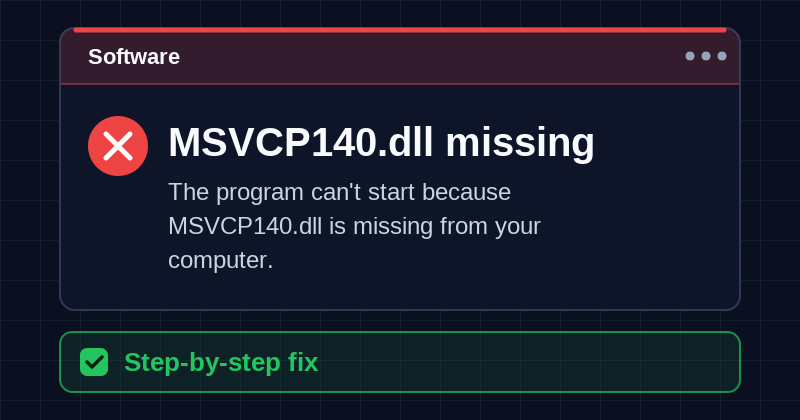
The message says something like "The program can't start because MSVCP140.dll is missing from your computer". That DLL isn't part of the game: it belongs to the Microsoft Visual C++ 2015-2022 package, libraries used by countless games and programs. If it's missing or damaged, the game won't start.
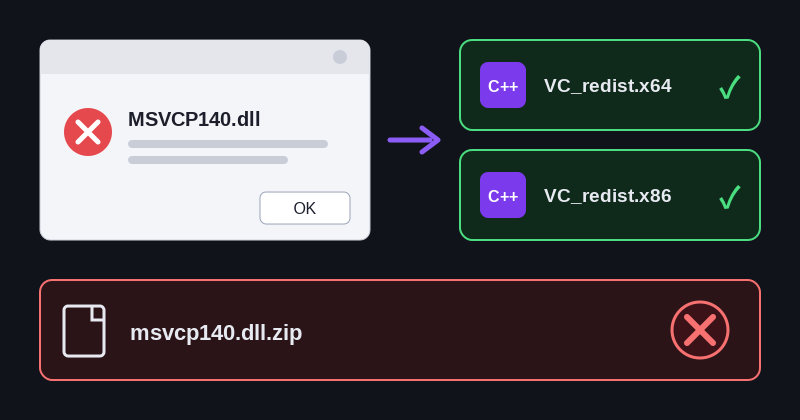
Step 1: install Visual C++ (both versions)
- In your browser, search "Latest supported Visual C++ Redistributable downloads" and open the page on learn.microsoft.com (Microsoft's official site).
- In the Visual Studio 2015, 2017, 2019 and 2022 section, download X64 (VC_redist.x64.exe) and X86 (VC_redist.x86.exe).
- Install both. Even on 64-bit Windows, many games use 32-bit parts and also need x86.
- Restart the PC and open the game.
If the installer says "another version is already installed", that's fine: go to step 2 and repair it.
Step 2: if it was already installed, repair it
- Go to Settings → Apps → Installed apps.
- Find Microsoft Visual C++ 2015-2022 Redistributable (x64), click the three dots → Modify → Repair.
- Do the same with the (x86) version.
- Restart.
Step 3: verify the game files
Some games carry their own copy of the DLL in their folder. If that copy is damaged, the error remains even with Visual C++ fine:
- Steam: right-click the game → Properties → Installed Files → Verify integrity of game files.
- Epic Games: three dots on the game → Manage → Verify.
- EA app, Ubisoft Connect, Battle.net: look for the game's "Repair" or "Scan and Repair" option.
- If you don't use a store, uninstall and reinstall the game.
Why you shouldn't download the loose DLL

- Viruses: "DLL download" sites aren't Microsoft. They're one of the most common ways to sneak in trojans and miners.
- Wrong version: they often give the 32-bit one when you need 64-bit (or vice versa), and another error appears, such as 0xc000007b.
- It's rarely just one: if MSVCP140.dll is missing, other files from the same package usually are too. The official installer puts them all in place.
Other similar DLLs
| If you're missing… | You need… |
|---|---|
| VCRUNTIME140.dll, VCRUNTIME140_1.dll, MSVCP140_1.dll, MSVCP140_2.dll, CONCRT140.dll, VCOMP140.dll | Visual C++ 2015-2022 (this guide) |
| MSVCR100.dll, MSVCP100.dll | Visual C++ 2010 (x64 and x86) |
| MSVCR120.dll, MSVCP120.dll | Visual C++ 2013 (x64 and x86) |
| d3dx9_43.dll, xinput1_3.dll, XAPOFX1_5.dll | DirectX End-User Runtime (Microsoft's DirectX web installer) |
Frequently asked questions
Do I need to install both x86 and x64?
Yes. 32-bit and 64-bit programs live side by side on 64-bit Windows, and each looks for its own version. Installing both causes no problems.
Can I copy the DLL from another PC?
Not a good idea: it may be a different version and the rest of the package would still be missing. The official installer is free and does it right.
Why does it still fail after installing?
Because the game carries its own damaged copy. Verify the game files from its store so it replaces it.
If the error mentions a DLL that isn't in the table, send us its exact name via the contact page.
Still not fixed?
Email us at glitchfixesp@gmail.com with your device model, the exact error message and what you have already tried from this guide. We reply personally (in English or Spanish) and, if the issue keeps coming up, we add the new fix to the guide.