Steam "Disk write error": the cause depends on when it fails
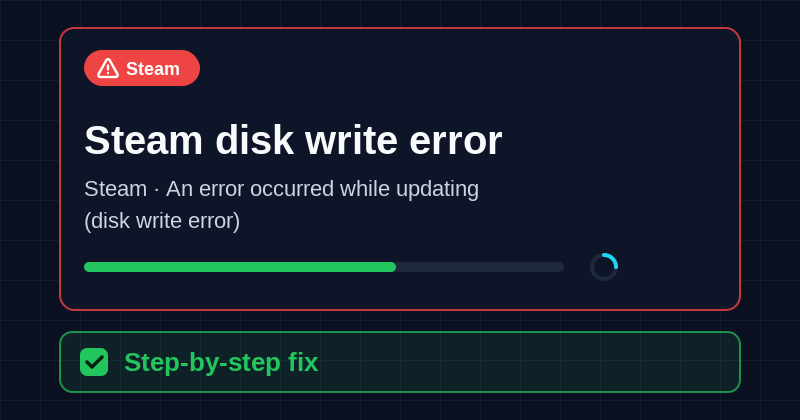
Steam shows "An error occurred while installing/updating (disk write error)". The cause changes with the moment: right at the start, halfway, in one game or in all of them. A table to pin it down and fixes in order: download cache, 0 KB file, antivirus, permissions and the drive itself.
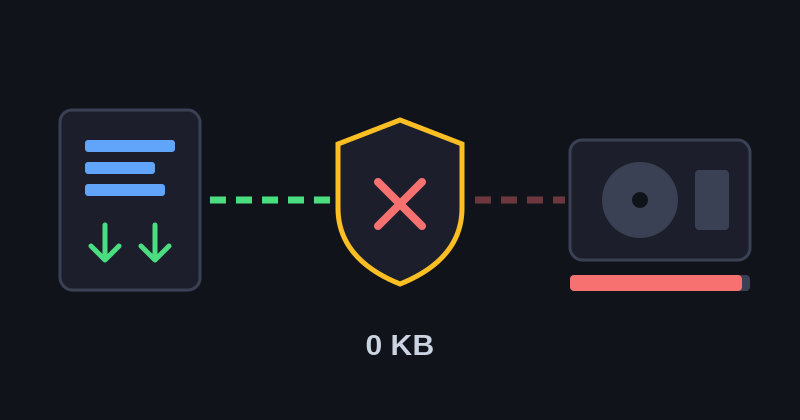
Steam can't write to the game's folder. Try in this order: Steam → Settings → Downloads → Clear Download Cache; then Settings → Storage → ⋯ → Repair Folder; if it persists, delete the 0 KB file in the game folder and verify the files. If you use an antivirus or "Controlled folder access", add Steam as an exception.
When does the error appear?
| When it fails | Most likely cause | Try first |
|---|---|---|
| Right as the download starts, in every game | Steam folder permissions or antivirus | Fixes 2 and 3 |
| Halfway, always at the same percentage | A specific blocked or damaged file | Fix 1 (0 KB file) |
| Only one game, when updating | That game's files are in use or damaged | Fix 1 |
| Every game on one drive but not on another | That drive has errors, is full or is read-only | Fix 4 |
| After a power cut or a hard shutdown | File system errors | Fix 4 (chkdsk) |
Fix 0: the usual two clicks
- Steam → Settings → Downloads → Clear Download Cache. Steam restarts and asks you to sign in.
- Settings → Storage, pick the drive, click the three dots ⋯ → Repair Folder.
Fix 1: the 0 KB file
When a download gets cut, it sometimes leaves an empty file that blocks the next ones.
- Go to
Steam\steamapps\common\and open the game's folder. - In Details view, sort by Size. If there's a 0 KB file, delete it.
- In Steam: right-click the game → Properties → Installed Files → Verify integrity of game files.
Fix 2: antivirus and "Controlled folder access"
- Windows Security → Virus & threat protection → Manage ransomware protection. If Controlled folder access is on, click "Allow an app" and add
steam.exe. - If you use another antivirus (Avast, AVG, Norton, McAfee…), add the Steam folder to its exclusions or disable it only while downloading.
Fix 3: folder permissions
- Close Steam. Right-click the Steam folder → Properties.
- If Read-only is ticked (actually ticked, not just grey), untick it and apply to all subfolders.
- Right-click Steam → Run as administrator once and try the download.
Fix 4: the drive
- Space: Steam needs the game's size plus extra room to unpack. If the drive is tight, see how to free up space.
- Errors: Command Prompt as administrator →
chkdsk D: /f(replace D: with the drive letter). If it's C:, it runs on the next restart. - External drive: plug it into a rear port on the PC, no hub. If it sometimes disappears, see external drive not recognised.
- Move the game: create a library folder on another drive (Settings → Storage → Add Drive) and move the game there. If it works on the other drive, the first one has a problem.
If chkdsk finds bad sectors or the drive makes noises, copy your important files as soon as possible: the drive may be failing.
Frequently asked questions
Do I need to reinstall Steam?
Hardly ever. If you do, don't delete the steamapps folder: that's where your games are.
Is it the same as error E87?
No. E87 is a sign-in error. It has its own guide: Steam error E87.
The drive is at 100% while downloading. Is that normal?
For a while, yes, because Steam unpacks files. If it stays at 100% even without downloading, see 100% disk usage.
If nothing works, tell us the game, which drive it's on and when the error appears via the contact page.
Still not fixed?
Email us at glitchfixesp@gmail.com with your device model, the exact error message and what you have already tried from this guide. We reply personally (in English or Spanish) and, if the issue keeps coming up, we add the new fix to the guide.