Steam Error E87: 4 ways to get back in
Steam shows error E87 when you sign in. Four ordered ways back in: check whether it's widespread, sync the clock, sign in with the QR code from your phone and clear the client cache without losing games. What to do if you suspect someone touched your account.
E87 appears when Steam can't validate your sign-in. What works best: set date and time to automatic and click "Sync now", then sign in with the QR code by scanning it in the Steam mobile app. If it persists, quit Steam and delete the appcache and htmlcache folders.
First: is it just you?
If lots of people get the same error at once (for example on Tuesday evening during Steam's weekly maintenance, or at a big game launch), don't change anything: wait half an hour. If your friends can sign in fine, carry on.
Way 1: your PC's clock (2 minutes)
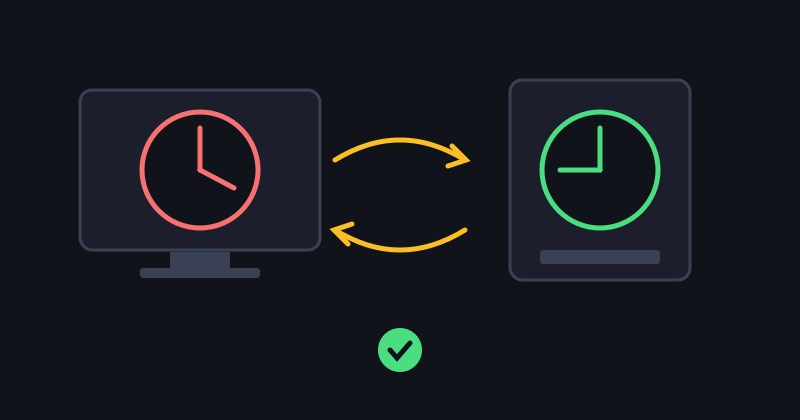
- Settings → Time & language → Date & time.
- Turn on Set time automatically and Set time zone automatically.
- Click Sync now and reopen Steam.
It's common on PCs unplugged at the wall or with a dead motherboard battery: the clock is behind at power-on.
Way 2: sign in with the QR code

- The Steam sign-in window shows a QR code on the right.
- Open the Steam app on your phone (already signed in), tap the Steam Guard shield and choose to scan.
- Point it at the QR and approve. This skips the step that usually fails with E87.
Way 3: clean up the network
- Turn off your VPN or proxy and try again.
- On a dorm, university or work network, try your phone's hotspot: some networks block sign-in.
- In Windows Firewall, make sure
steam.exeandsteamwebhelper.exeare allowed.
Way 4: clear the client cache
- Quit Steam completely: right-click the tray icon → Exit. Check Task Manager for any leftover
steamwebhelper. - Open the Steam folder (usually
C:\Program Files (x86)\Steam). - Delete appcache and, inside
config, the htmlcache folder if it exists. They're temporary files. - Open Steam: it updates and asks you to sign in.
If you end up reinstalling Steam, move the steamapps folder elsewhere first. After reinstalling, put it back and Steam will recognise your games without downloading them. If you then get errors when updating, see disk write error.
What if someone touched your account?
If you've also had unexpected Steam emails (email changes, codes you didn't request) or can't sign in on the Steam website either, go straight to Steam's official help page and choose "My account was stolen". Don't use links sent to you in messages.
Frequently asked questions
Does E87 mean I'm banned?
No. It's a sign-in failure. An account lock shows a different notice.
Do I lose games if I delete appcache?
No. Games are in steamapps; appcache only stores temporary client data.
Can I play offline meanwhile?
Only if you were already signed in on that PC and had enabled offline mode before. If Steam asks you to sign in, it's no longer available.
If none of the four ways works, tell us on the contact page exactly what you see when signing in (never send your password).
Still not fixed?
Email us at glitchfixesp@gmail.com with your device model, the exact error message and what you have already tried from this guide. We reply personally (in English or Spanish) and, if the issue keeps coming up, we add the new fix to the guide.