CS2 "VAC was unable to verify your game session": repair the chain
CS2 kicks you from matchmaking with "VAC was unable to verify your game session". Verification depends on three links: the game files, the Steam service and Windows. How to tell which one broke and fix it, with the /repair command, the list of interfering programs and launch options to remove.
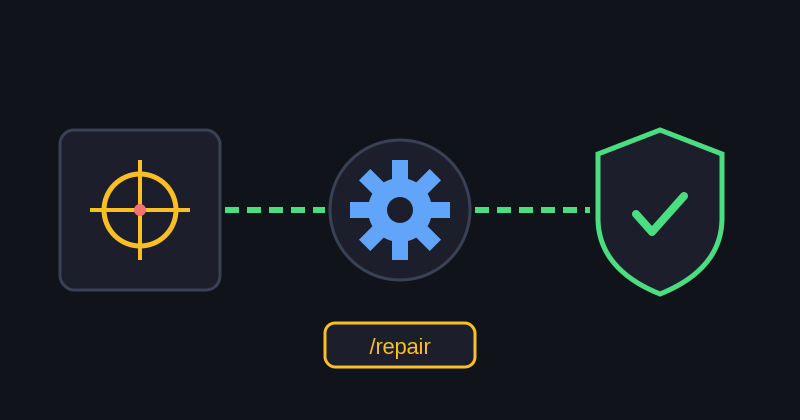
Quit Steam completely, open Command Prompt as administrator and run "C:\Program Files (x86)\Steam\bin\steamservice.exe" /repair. Then verify CS2's files and restart the PC. If it persists, close programs that hook into the game (overlays, recorders, RGB or FPS tools) and remove unusual launch options.
The chain VAC needs
| Link | Sign it's broken | Fix |
|---|---|---|
| CS2 files | Started after an update or after using other people's mods/configs | Verify files (below) |
| Steam service | Steam was installed elsewhere, moved, or blocked by antivirus | steamservice /repair |
| Injecting programs | Happens when something opens alongside CS2 (recorder, overlay, macro) | Close them or clean boot |
| Windows | You changed boot options (test mode, DEP) or used old single-player cheats | Restore with bcdedit |
Link 1: verify CS2
- Library → right-click Counter-Strike 2 → Properties → Installed Files → Verify integrity of game files.
- If you have a
cfgfolder with downloaded configs, move it out temporarily.
Link 2: repair the Steam service
- Quit Steam (tray icon → Exit).
- Open Command Prompt as administrator.
- Type the path in quotes followed by /repair:
"C:\Program Files (x86)\Steam\bin\steamservice.exe" /repair. If Steam is in a different folder, change the path. - Wait for it to finish (no message appears) and open Steam normally.
Link 3: things that hook into the game
- Close overlays and recorders: MSI Afterburner/RivaTuner, OBS game capture, Discord overlay, NVIDIA App.
- Close macro or RGB software that "reads" the game, external FPS limiters and resolution changers.
- If you can't tell which one, do a clean boot with
msconfig(Hide Microsoft services → Disable all) and leave only Steam Client Service enabled.
Link 4: Windows
Remove launch options in Properties → General → Launch Options (leave it empty to test). If you ever enabled "test mode" or changed DEP, restore the defaults in Command Prompt as admin:
bcdedit /deletevalue nointegritychecksbcdedit /deletevalue loadoptionsbcdedit /debug offbcdedit /deletevalue nx
It's normal for some to say the value doesn't exist. Restart when done.
If CS2 runs but stutters, that's a different guide: optimise CS2.
Still failing: reinstall CS2
Uninstall CS2, delete anything left in steamapps\common\Counter-Strike Global Offensive and reinstall. Slow, but it rules out any odd file.
Frequently asked questions
Can I get banned over this message?
No. It only says verification didn't complete. A VAC ban appears on your profile and CS2 tells you clearly.
Can I play meanwhile?
Against bots or on community servers without VAC, yes; in official matchmaking, no.
Does running Steam as administrator fix it?
It isn't needed and shouldn't be left that way. What needs permissions is the service, and /repair handles that.
If you find a program that causes the error, tell us via the contact page so we can add it to the list.
Still not fixed?
Email us at glitchfixesp@gmail.com with your device model, the exact error message and what you have already tried from this guide. We reply personally (in English or Spanish) and, if the issue keeps coming up, we add the new fix to the guide.