PS4 error CE-38706-4: check the 4 connection layers
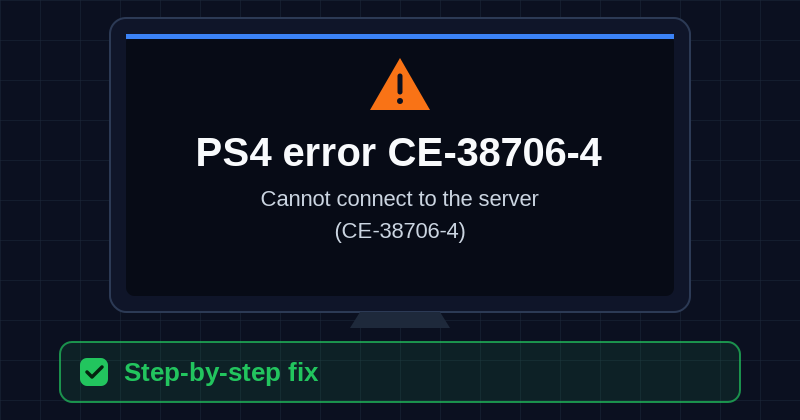
CE-38706-4 appears when the PS4 can't connect to the PlayStation or game server. A top-down check by layers: PlayStation Network, the game's server, your router and the console itself. With the connection test, manual DNS and a cable.
CE-38706-4 means the PS4 can't connect to the server. First check whether PlayStation Network or the game's server is down: if so, you have to wait. If everything works, restart the router and console, run Settings → Network → Test Internet Connection and, if it fails, set up the connection again with manual DNS or a cable.
The 4 layers, top to bottom
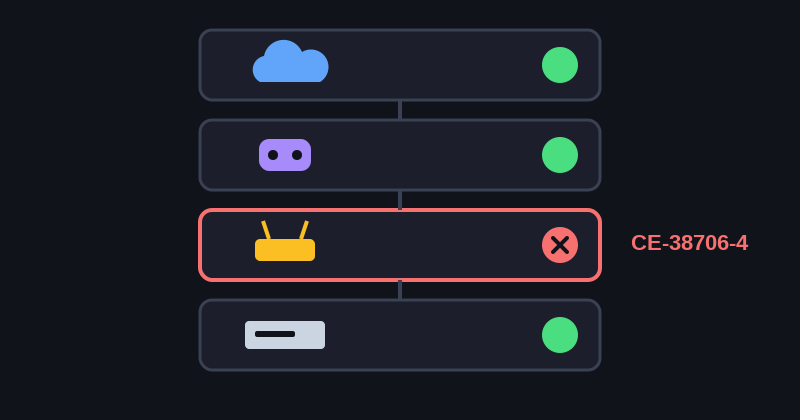
| Layer | How to check it | If it's red |
|---|---|---|
| 1. PlayStation Network | status.playstation.com | Wait for Sony to fix it |
| 2. Game server | The game's official site or social accounts | Wait or play something else |
| 3. Your router | Do internet and other games work at home? | Restart, cable, DNS |
| 4. The console | Settings → Network → Test Internet Connection | Set up the connection again |
Layers 1 and 2: is it down?
If lots of players get the same error at once, don't change anything at home: the problem is outside. It usually clears within hours.
Layer 3: your router
- Unplug the router for 30 seconds and plug it back in.
- If you can, connect the PS4 with an Ethernet cable. If not, move it closer to the router or use the 5 GHz band (PS4 Slim and Pro).
- Pause other downloads or streams at home while testing.
Layer 4: the console
- Settings → Network → Test Internet Connection. See whether "Obtain IP Address", "Internet Connection" or "PlayStation Network Sign-In" fails.
- Settings → Network → Set Up Internet Connection → Wi-Fi or LAN → Custom.
- IP Address: Automatic · DHCP Host Name: Do Not Specify · DNS: Manual → primary 1.1.1.1, secondary 8.8.8.8 · MTU: Automatic · Proxy: Do Not Use.
- Run the test again.
If the test passes but online play with friends fails, check your NAT type. For PS5, network problems are covered in PS5 won't connect.
Frequently asked questions
Do I need PS Plus to clear the error?
No. It's a connection error. PS Plus is only needed for online multiplayer in most games.
Is changing DNS safe?
Yes. 1.1.1.1 and 8.8.8.8 are widely used public DNS. You can go back to Automatic whenever you like.
What if it only happens with one game?
Then layer 2 (that game's server) is the suspect, or the game needs an update. Update it and check its official notices.
If the connection test fails at a specific point, tell us which via the contact page.
Still not fixed?
Email us at glitchfixesp@gmail.com with your device model, the exact error message and what you have already tried from this guide. We reply personally (in English or Spanish) and, if the issue keeps coming up, we add the new fix to the guide.