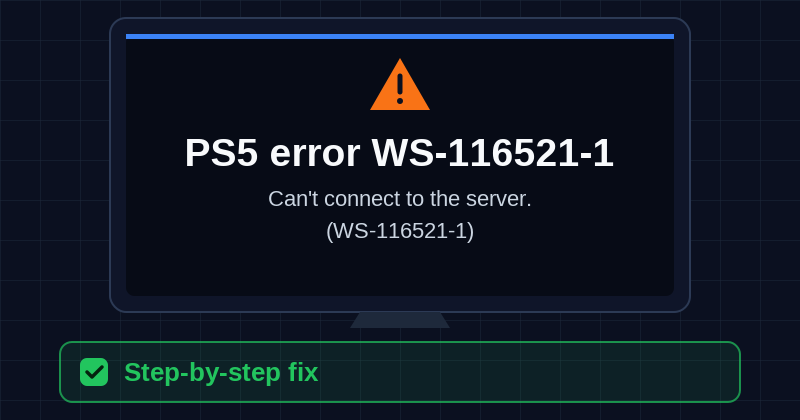
PS5 can't connect to PlayStation Network: errors WS-116521-1 and WS-116521-6
Is your PS5 showing error WS-116521-1 or WS-116521-6 and not connecting to PlayStation Network? How to tell if it's PSN, your router or the console, and how to fix it: DNS, date and time, MTU and Wi-Fi.
First check whether PlayStation Network is down (status.playstation.com). If it's fine, turn the router off for 1 minute, make sure the PS5's date and time are set automatically and set the DNS manually to 1.1.1.1 and 8.8.8.8. If it still fails, try a cable or your phone's hotspot to find out whether your router is the problem.
What WS errors mean
Codes starting with WS are not Wi-Fi faults: they mean the console does have internet but cannot communicate with PlayStation's servers. That's why they usually appear when signing in, opening the PlayStation Store or joining an online match.
The usual causes, from most to least common:
- PlayStation Network is down or under maintenance.
- Your provider's DNS can't find Sony's servers properly.
- The console's date and time are wrong and the servers reject the connection.
- The router blocks or drops the connection (busy Wi-Fi, filters, firewall).
Step 1: Check whether PlayStation Network is down
Before changing anything, rule out a problem on Sony's side:
- On your phone, go to status.playstation.com and choose your country.
- Check whether "Account management", "Gaming and social" or "PlayStation Store" show any warning.
- If there's an outage, there is nothing to do on your console: wait for Sony to fix it. If everything is green, go to step 2.
Quick tip: search for "PSN down" on social media. If lots of people are saying it in the last few minutes, it's an outage even if the status page doesn't show it yet.
Step 2: Restart the router and the console properly
- Turn the PS5 off completely (not rest mode): hold the power button until you hear two beeps.
- Turn the router off with its button or unplug it and wait 1 minute.
- Turn the router on and wait until all its lights are normal (2–3 minutes).
- Turn on the PS5 and try to connect again.
Step 3: Read the "Test Internet Connection" result
In Settings → Network → Connection Status → Test Internet Connection the PS5 checks each stage separately. Whatever fails tells you where the problem is:
| What fails | What it means | What to do |
|---|---|---|
| Obtain IP address | The console can't reach the router | Check the Wi-Fi password or the cable; move the console closer to the router |
| Internet connection | The router has no internet or the DNS isn't responding | Step 4 (DNS) and check other devices have internet |
| PlayStation Network sign-in | There is internet but PSN doesn't respond or rejects your session | Step 1 and step 5 (date and time) |
| All OK, but NAT Type 3 | It connects, but you'll have chat and matchmaking problems | Strict NAT guide |
Step 4: Change the DNS
This is what works most often when other devices at home have internet. DNS translates the names of Sony's servers into addresses, and your provider's sometimes fails:
- Go to Settings → Network → Settings → Set Up Internet Connection.
- Select your network (Wi-Fi or cable), press the Options button on the controller (the three lines) and choose Advanced Settings.
- In DNS Settings, change Automatic to Manual.
- Primary DNS: 1.1.1.1 (Cloudflare). Secondary DNS: 8.8.8.8 (Google).
- Press OK and run the connection test again.
If you already had those DNS servers set, try the opposite: go back to Automatic. Sometimes the problem is exactly an old manual DNS setting.
Step 5: Check the date, time and your sign-in
If the console has the wrong date (for example after being unplugged for a long time), PlayStation's servers reject the connection for security reasons:
- Go to Settings → System → Date and Time and turn on automatic setting via the internet.
- Check that the time zone is yours.
- If it still fails, go to Settings → Users and Accounts → Account, sign out and sign in again.
Step 6: Rule out the router
To find out whether the problem is your router or the console, do this 2-minute test:
- Turn on your phone's hotspot (share mobile data).
- Connect the PS5 to that network and try to sign in to PSN.
- If it works, the problem is your router or your provider. If it doesn't, the problem is the console or your account.
If it's the router:
- Connect the console with a cable if you can; it's the most stable option.
- In the router panel, turn off "parental control" or "security" filters that might block Sony domains.
- If nothing changes, in the connection's Advanced Settings set MTU to manual with the value 1473. It fixes PSN drops on some fibre connections.
If your Wi-Fi doesn't appear in the list
The PS5 connects to 2.4 GHz and 5 GHz, but some routers use special 5 GHz channels (called DFS, 52 to 144) that the console may not see. In the router settings:
- Choose a channel between 36 and 48 for the 5 GHz band.
- If your router merges both bands under one name ("band steering" or "Smart Connect"), split them with different names and connect the console to one of them.
- Otherwise, connect the console to the 2.4 GHz network, which reaches further although it's slower.
Frequently asked questions
How do I know if PSN is down?
status.playstation.com shows each service with its status. If there's a general problem, no setting on your console will fix it; you just have to wait.
Is it better to connect the PS5 with a cable?
Yes. It has fewer drops and less latency than Wi-Fi, and downloads are faster. If the router is far away, a good powerline adapter works better than a Wi-Fi repeater.
Does changing DNS improve ping?
No. DNS is only used to find the servers, so it can fix connection failures, but it doesn't lower latency during matches.
Could my account be banned?
If your account were suspended, the PS5 would tell you with a clear message when signing in, not with a generic WS error. Still, if it only fails with your user and another user on the same console works, contact PlayStation support.
If your PS5 still won't connect, tell us which stage fails in "Test Internet Connection" on the contact page and we'll take a look.
Still not fixed?
Email us at glitchfixesp@gmail.com with your device model, the exact error message and what you have already tried from this guide. We reply personally (in English or Spanish) and, if the issue keeps coming up, we add the new fix to the guide.