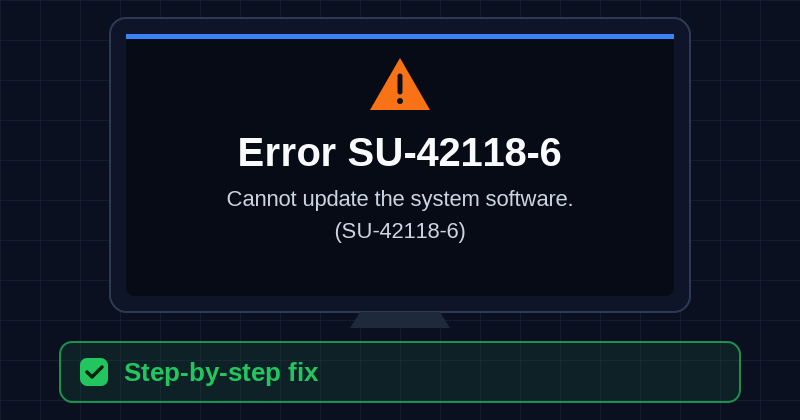
Error SU-42118-6 on PlayStation: update via USB and what to do if it returns
Your PlayStation shows error SU-42118-6 and gets stuck in an update loop? How to prepare the USB correctly (exact folders and file name), install from Safe Mode and what it means if the error comes back.
Download the update from the official PlayStation website, save it on a USB as PS5\UPDATE\PS5UPDATE.PUP (or PS4\UPDATE\PS4UPDATE.PUP), boot into Safe Mode and choose Update System Software. If the error comes back even then, a hardware fault is likely: contact PlayStation support.
What's happening
The console downloads the update, starts installing it and, halfway through, restarts with SU-42118-6. When it turns on, it asks for the update again and the loop repeats.
There are two possible causes, and the USB tells them apart:
| If the USB update… | The cause was… | What to do |
|---|---|---|
| Works | A file downloaded over the internet that got corrupted | Nothing else: it's fixed |
| Shows SU-42118-6 again | Probably hardware (disc drive, storage or board) | Repair service |
Step 1: prepare the USB (no mistakes)
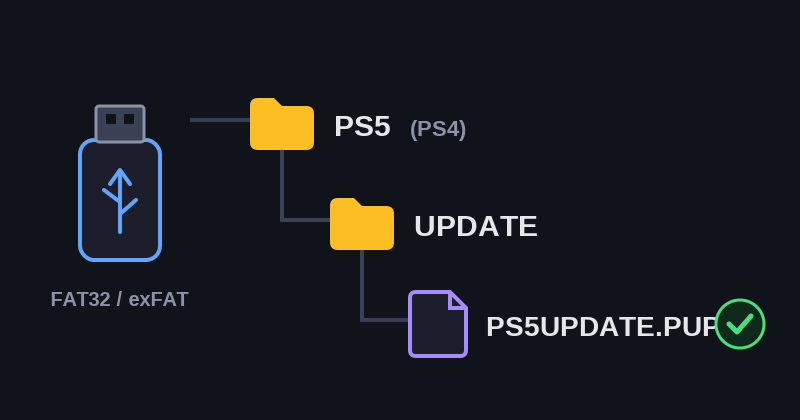
- Use a USB drive of at least 8 GB and format it as FAT32 or exFAT on a PC (right-click → Format). NTFS won't work.
- Create a folder called
PS5(orPS4) and, inside it, another calledUPDATE. In capitals. - On the official PlayStation website, search for "PS5 system software update" (or PS4) and download the update file, not the reinstallation one.
- Save it inside
UPDATEwith the exact namePS5UPDATE.PUP(orPS4UPDATE.PUP). If the browser saved it as "PS5UPDATE(1).PUP", rename it.
In Windows, turn on View → Show → File name extensions to make sure it isn't secretly called "PS5UPDATE.PUP.PUP".
Step 2: install from Safe Mode
- Turn the console fully off (the light must be off, not orange).
- Plug the USB drive into a USB-A port on the console.
- Hold the power button until you hear two beeps (the second after 7 seconds).
- Connect the controller with a cable and press the PS button.
- Choose Update System Software → Update from USB Storage Device.
- Don't turn anything off or unplug it until it finishes and the console restarts by itself.
If the error returns with the USB
If SU-42118-6 appears even when installing via USB, something physical inside the console is making the install fail. On PS4 it's often linked to the disc drive; on both consoles it can also be the internal storage.
- Under warranty: contact official PlayStation support. The repair is free and opening it yourself would void the warranty.
- Out of warranty: get a quote from Sony and from a console repair shop. Checking the drive cable or a board fuse is a technician's job, not DIY.
- Last resort: the full reinstallation file ("Reset PS5 (Reinstall System Software)" in Safe Mode) erases everything. Only use it if your saves are in the cloud (PS Plus) or you don't mind losing them.
Don't unplug the console while it's installing. A power cut at that moment can leave it unable to boot.
Frequently asked questions
Does the USB update erase my games?
No. The normal update file erases nothing. Only the full reinstallation file erases everything.
The console doesn't recognise the USB drive. What now?
Check it's FAT32 or exFAT, the folders are in capitals and the file has the exact name. Try another port and, if nothing changes, another drive: some very old ones don't work.
Can I keep playing without updating?
Not online or games that require the latest system version. The console keeps insisting until the update installs.
If your console still loops after the USB update, tell us whether it's a PS4 or PS5 and if it's under warranty via the contact page.
Still not fixed?
Email us at glitchfixesp@gmail.com with your device model, the exact error message and what you have already tried from this guide. We reply personally (in English or Spanish) and, if the issue keeps coming up, we add the new fix to the guide.