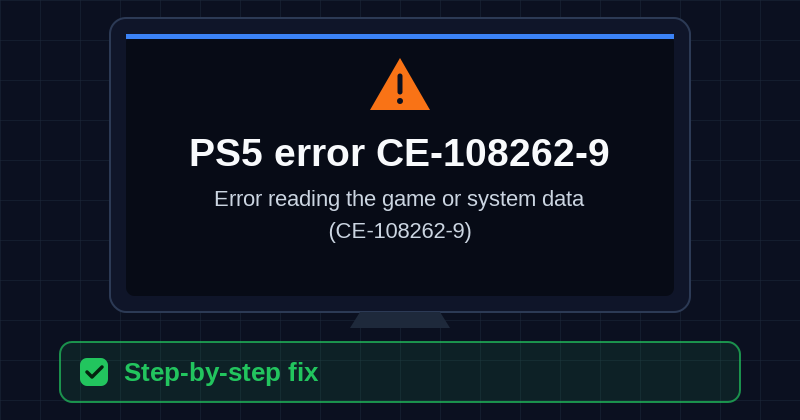
PS5 error CE-108262-9: when does the game close?
CE-108262-9 appears when a PS5 game closes suddenly because of an error reading its data or the system's. When it closes says a lot: at launch, always at the same point, or at random. What to do for each pattern, including heat and the M.2 SSD.
CE-108262-9 means the PS5 couldn't read the game's or system's data properly and closed it. First update the system and the game. If it always closes, delete and reinstall it. If it closes at random across several games, check the console's ventilation and, if you have an added M.2 SSD, move the game to internal storage. Then rebuild the database.
Notice when it closes
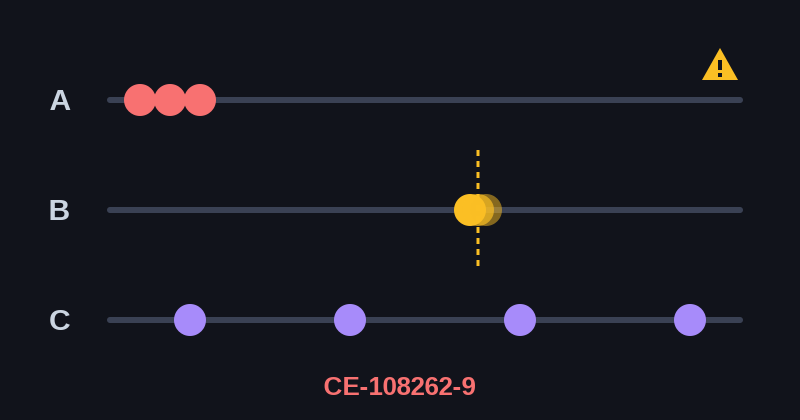
| Pattern | Likely cause | What to do |
|---|---|---|
| A. Closes at launch | Damaged install or update | Update → delete and reinstall |
| B. Always at the same point (a mission, an area) | Game bug or one damaged file | Reinstall; if it persists, wait for the game's patch |
| C. At random, in several games | Heat, M.2 SSD or database | Ventilation, move games, rebuild database |
For patterns A and B
- Settings → System → System Software → Update. Then on the game: Options button → Check for Update.
- If it continues: Settings → Storage → Console Storage → Games and Apps → select the game → Delete, and reinstall.
- For pattern B, check whether other players crash at that point: if it's a known bug, the studio usually patches it.
For pattern C: heat, SSD and database
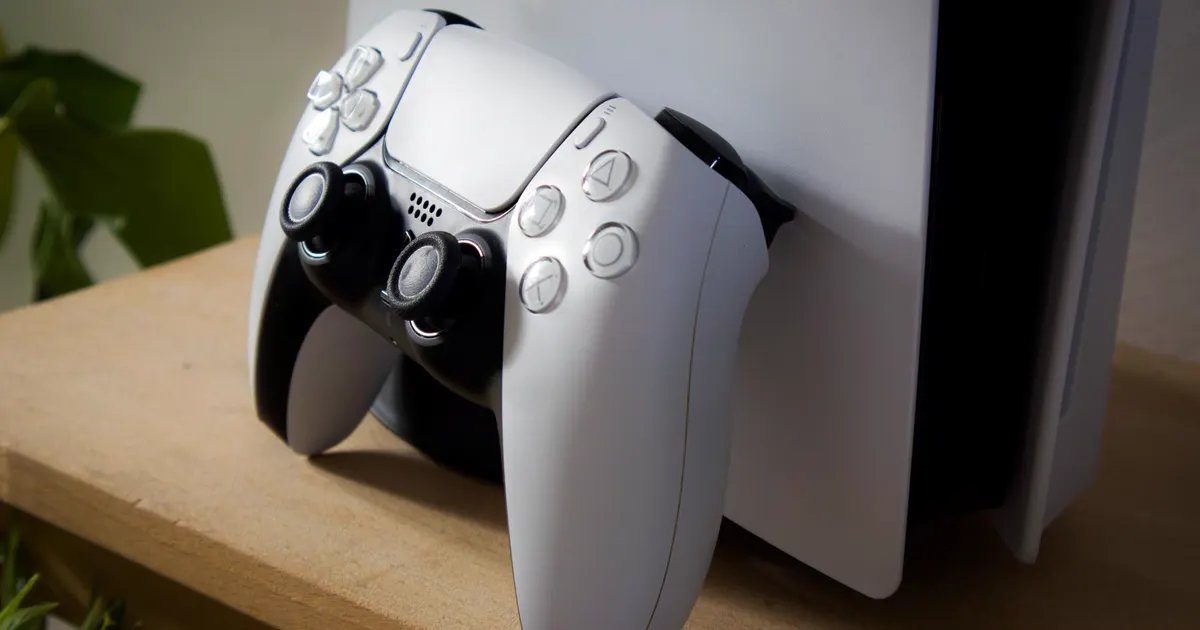
- Ventilation: leave space around it and vacuum the vents with the console off. If the exhaust air feels very hot or the fan is very loud, this is the first suspect.
- Added M.2 SSD: move the game to internal storage (Settings → Storage → select → Move). If it doesn't close there, the SSD or its heatsink is the problem.
- Database: with the PS5 off, hold the power button until the second beep, connect the controller by USB and choose Clear Cache and Rebuild Database → Rebuild Database.
Last resort: reset the PS5
Resetting erases everything on the console. First back up your saves to the cloud (PS Plus) or a USB drive, and note which games you have installed.
Settings → System → System Software → Reset Options → Reset Your Console. If crashes continue after that, contact PlayStation support.
If the game doesn't even open, see CE-100005-6. If the problem began after a cut-off update, CE-107938-8.
Frequently asked questions
Do I lose progress when it closes?
You lose whatever wasn't saved. Save often while you fix it.
Which M.2 SSD is PS5-compatible?
A PCIe Gen4 drive of at least 5,500 MB/s with a heatsink. Without a heatsink it can overheat and cause crashes.
Does vertical or horizontal matter?
Not by itself: what matters is that the vents have free air in either position.
If crashes continue after all this, tell us which games close and when via the contact page.
Still not fixed?
Email us at glitchfixesp@gmail.com with your device model, the exact error message and what you have already tried from this guide. We reply personally (in English or Spanish) and, if the issue keeps coming up, we add the new fix to the guide.