PS5 error CE-107938-8: the update was cut off
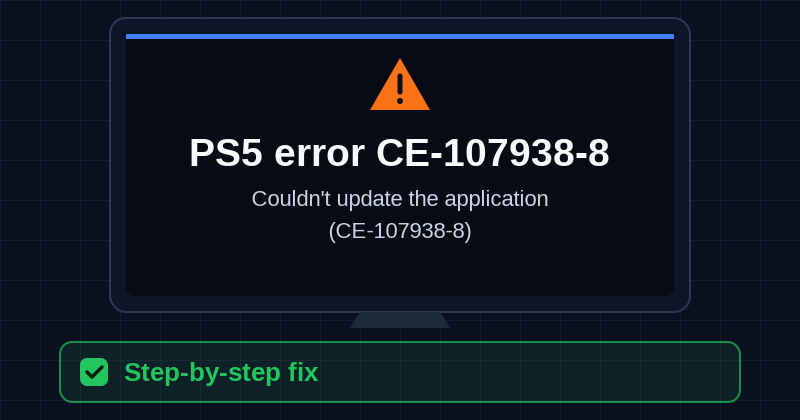
CE-107938-8 appears when the PS5 couldn't update a game, almost always because the console turned off, ran out of space or the download got stuck. What to do in each case: delete the failed download, free space, retry and, if not, reinstall.
CE-107938-8 means the PS5 couldn't update a game. Open Control centre → Downloads, delete any download showing an error, make sure you have free space (twice the update's size) and select Check for Update on the game again. If that doesn't work, delete and reinstall it.
Why was it cut off?
| What happened | How you know | Fix |
|---|---|---|
| Power cut or unplugged in rest mode | The error appeared on power-on | Steps 1 and 3 |
| Not enough space | Storage is almost full | Step 2 |
| The download got stuck | It's paused or erroring in Downloads | Steps 1 and 3 |
| The game is on a USB drive | You moved it there to save space | Step 4 |
Step 1: restart and clear the download queue
- Fully turn off the PS5 (Control centre → Power → Turn Off) and power on.
- Control centre → Downloads. If the update shows an error, select it and delete it.
Step 2: make room

- Settings → Storage → Console Storage. Keep at least twice the update's size free.
- Delete games you don't play and captures or videos: Media Gallery → select → Delete.
- If you're often short on space, a compatible M.2 SSD is the lasting fix.
Step 3: check for the update again
- Home screen → highlight the game → Options button → Check for Update.
- Leave the console on, or in rest mode with Supply Power to USB Ports and Stay Connected to the Internet enabled (Settings → System → Power Saving).
- If it keeps failing, delete the game and reinstall it from your Library or the disc.
Step 4: if the game is on a USB drive
PS5 games can't be played or updated from a USB drive: they can only be stored there. Move it to internal storage (Settings → Storage → Extended Storage → select → Move) and update.
To stop this happening again, don't unplug the PS5 while the orange rest-mode light is pulsing: it's downloading or installing.
If the game won't load even when updated, see CE-107857-8 or CE-100005-6.
Frequently asked questions
Can I play without the update?
Sometimes, offline. But online play almost always requires the latest version.
Does deleting the failed download delete the game?
No. It only removes the half-finished update. The game and saves stay.
What if the download is painfully slow?
Connect the PS5 by cable or see PS5 connection problems.
If the update always fails at the same point, tell us which game via the contact page.
Still not fixed?
Email us at glitchfixesp@gmail.com with your device model, the exact error message and what you have already tried from this guide. We reply personally (in English or Spanish) and, if the issue keeps coming up, we add the new fix to the guide.