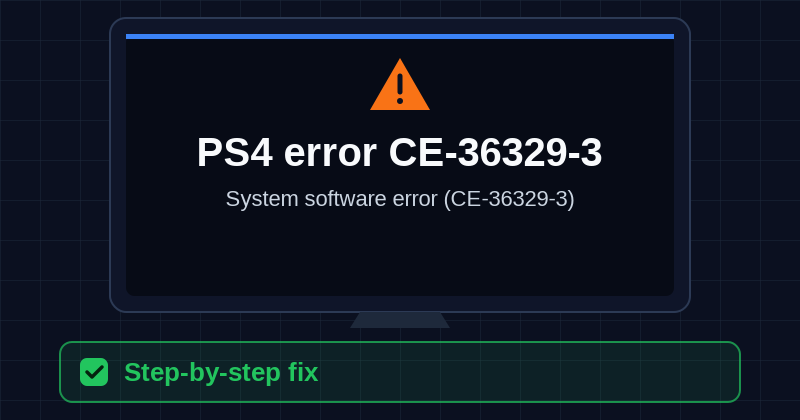
PS4 error CE-36329-3: Safe Mode, option by option
CE-36329-3 is a PS4 system software error. It's almost always fixed from Safe Mode, but its options aren't all alike: some touch nothing and others erase everything. A map of the 7 options, which order to use them in and how to back up before the last one.
CE-36329-3 is a PS4 system software error. Install the latest version in Settings → System Software Update. If you can't reach Settings, enter Safe Mode (power button until the second beep) and choose 3. Update System Software. If it returns, try 5. Rebuild Database.
The Safe Mode map
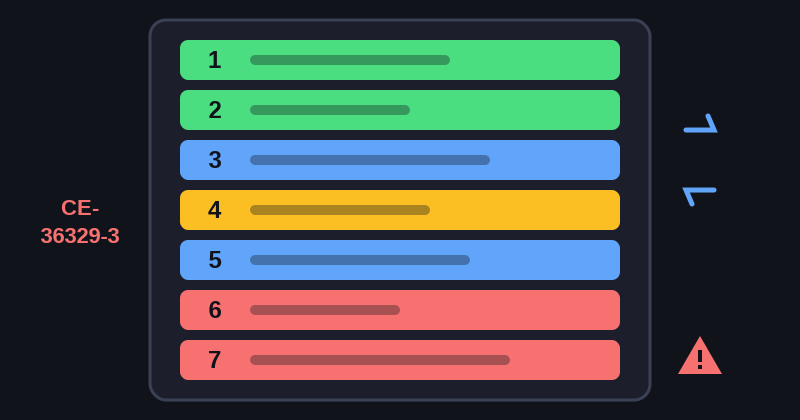
To enter: fully turn off the PS4, hold the power button until the second beep (about 7 seconds), connect the controller with a USB cable and press the PS button.
| Option | What it does | Erases anything? | Use it for this error? |
|---|---|---|---|
| 1. Restart PS4 | Leaves Safe Mode | No | To exit |
| 2. Change Resolution | Boots at 480p | No | Only if you can't see the picture |
| 3. Update System Software | Installs the latest version (internet or USB) | No | Yes, first |
| 4. Restore Default Settings | Returns settings to factory | Settings only | If settings got corrupted |
| 5. Rebuild Database | Reorganises the hard drive | No | Yes, second |
| 6. Initialize PS4 | Erases everything except the system | Everything | Last resort |
| 7. Initialize PS4 (Reinstall System Software) | Erases everything including the system | Everything | Only with a USB prepared |
Step 1: update (option 3)

- Choose 3. Update System Software → Update Using Internet.
- With no connection: on a PC, create the folders
PS4\UPDATEon a USB drive (FAT32 or exFAT), copy thePS4UPDATE.PUPfile from the official PlayStation website into it and choose Update from USB Storage Device.
Step 2: if it only happens with one game
Delete it (on the game, OPTIONS → Delete) and install it again. If the issue was corrupted game data, also see CE-30002-5.
Step 3: rebuild the database (option 5)
It takes minutes to an hour and erases nothing. It helps when the system and the drive's data don't match.
Step 4: last resort — back up and initialise (option 6)
Initialising erases games, saves, captures and users. Before: upload saves to the cloud (Settings → Application Saved Data Management, with PS Plus) or copy them to a USB drive, and do a full backup in Settings → System → Back Up and Restore.
After initialising, install the latest system version and restore the backup. If the error returns even then, the hard drive may be failing: see CE-30005-8 or contact PlayStation support.
Frequently asked questions
Does option 3 delete my saves?
No. Updating the system software doesn't touch games or saves.
What's the difference between 6 and 7?
6 erases everything but leaves the system installed. 7 also erases the system and you need a USB drive with the full installer to put it back.
The controller doesn't respond in Safe Mode
Connect it with a USB data cable (not charge-only) and press the PS button to pair it.
If Safe Mode shows a different code when updating, send it to us via the contact page.
Still not fixed?
Email us at glitchfixesp@gmail.com with your device model, the exact error message and what you have already tried from this guide. We reply personally (in English or Spanish) and, if the issue keeps coming up, we add the new fix to the guide.