Switch won't read the microSD: the right card and the fixes
The Switch doesn't recognise the microSD, asks you to restart, or games on the card won't open. Which card each model accepts (Switch, and Switch 2, which only uses microSD Express), what the card stores, how to check for corrupt data, test it on a PC and format it without losing saves.
Check your model first: the Switch (original, Lite and OLED) uses microSD/SDHC/SDXC, but the Switch 2 only takes microSD Express. If the card is right: power off fully (power button 3 s → Power Options → Turn Off), remove and reinsert the card, power on and update the console. If it persists, check for corrupt data or format the card from the console.
Does your card suit your console?
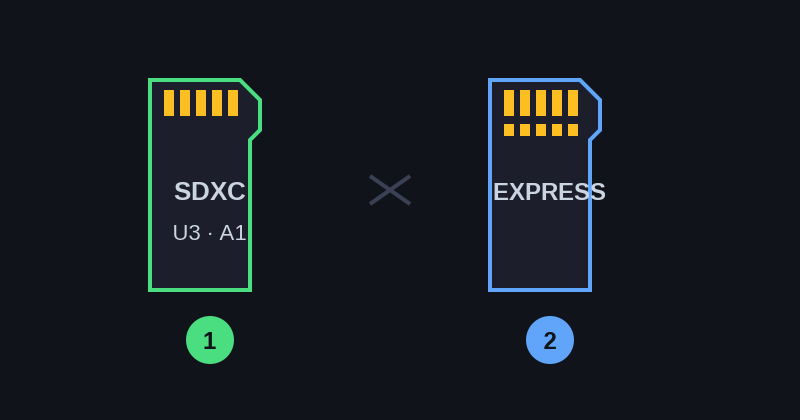
| Console | Cards it accepts | What to buy |
|---|---|---|
| Switch, Switch Lite, Switch OLED | microSD, microSDHC and microSDXC (exFAT after updating) | microSDXC UHS-I, U3 class, 128–512 GB |
| Switch 2 | microSD Express only | microSD Express with the "EX" logo |
A normal microSD in a Switch 2 can't be used for games: it only lets you copy screenshots. An Express card in the original Switch works as a normal card.
What the card stores (and what it doesn't)
- Yes: downloaded games, updates, DLC, screenshots and videos.
- No: save data. It lives in the console's system memory, so formatting the card doesn't delete it.
Step 1: full power-off and reseat the card
- Hold the power button 3 seconds → Power Options → Turn Off (not "Sleep Mode").
- Remove the card. On the original and OLED it's under the rear stand; on the Lite, on the right side by the cover; on the Switch 2, by the rear stand.
- Check the contacts are clean and push it fully back in. Power on.
Step 2: update the console
System Settings → System → System Update. Cards over 32 GB (SDXC) need an exFAT component the console downloads the first time it detects one: accept the download and restart.
Step 3: check for corrupt data
- System Settings → Data Management → Manage Software → pick the game that won't open.
- Select Check for Corrupt Data. If it finds anything, the console downloads what's needed again.
Step 4: test the card on a PC
- If the PC can't see it either, the card or its adapter is damaged.
- If it can, right-click → Properties → Tools → Check. To rule out fake cards (claiming more capacity than they have), run H2testw.
- Don't copy Switch games between cards by hand to "move" them: that's not how it works. Copy the whole
Nintendofolder if you're changing cards.
Step 5: format from the console
Formatting erases the games, updates and screenshots on the card (not saves). Purchased games can be downloaded again for free from the eShop.
System Settings → System → Formatting Options → Format microSD Card. Always format from the console, not from a PC.
If the console also gets stuck on a black screen, see Switch black screen.
Frequently asked questions
Do I lose my saves if the card dies?
No. Saves are in the console's memory (and in the cloud with Nintendo Switch Online). You only lose downloaded games, which you can re-download.
What size should I buy?
For Switch, 256 GB is usually enough; 512 GB if you buy lots of digital games. Switch 2 games are bigger, so a microSD Express of 256 GB or more is sensible.
Can I move the card from one Switch to another?
Games on a card only run on the console that downloaded them. On another console you'll need to re-download them with the same account.
If the console shows an error code when reading the card, send it to us via the contact page.
Still not fixed?
Email us at glitchfixesp@gmail.com with your device model, the exact error message and what you have already tried from this guide. We reply personally (in English or Spanish) and, if the issue keeps coming up, we add the new fix to the guide.