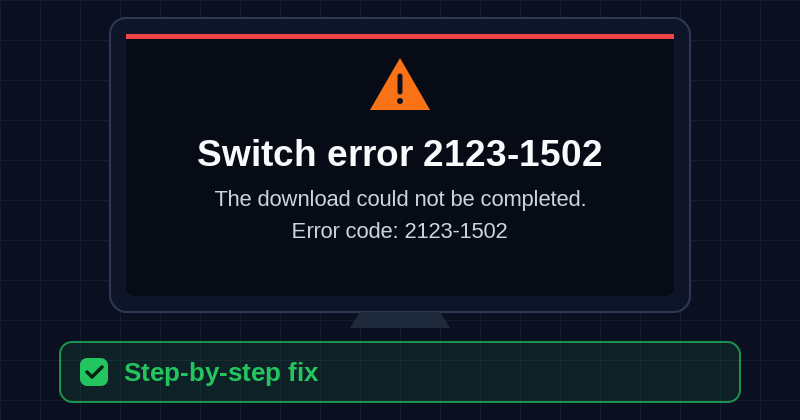
Switch error 2123-1502: downloads that cut out
Error 2123-1502 appears when an eShop download or update doesn't finish on Nintendo Switch. Why retrying usually works (the download resumes where it stopped), how to improve the connection so it doesn't cut out, and what to do if the icon stays on "Error".
Retry the download: the Switch resumes where it stopped, so each try gets further. To stop it cutting out, move the console closer to the router or use the 5 GHz network, set manual DNS (8.8.8.8 and 8.8.4.4) and avoid peak hours. If the icon stays on "Error", delete it and download again from the eShop.
Why retrying works
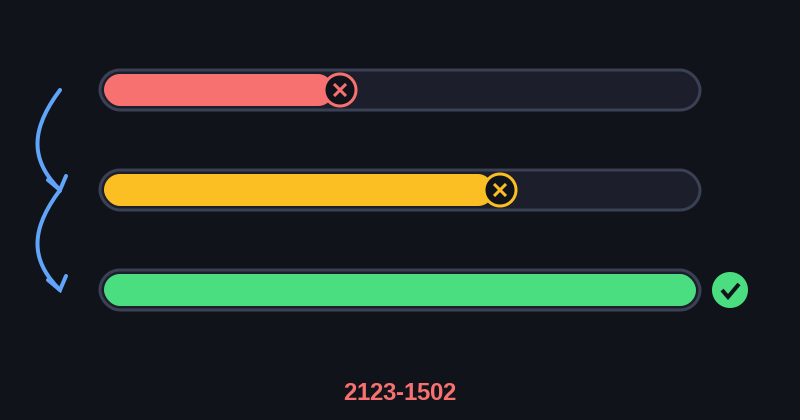
The console keeps what's already downloaded. If the cut was a one-off (a Wi-Fi micro-drop or a busy server), the next try usually finishes. If it always cuts out, the problem is the connection: see below.
Step 1: check whether it's Nintendo
On big release days or events, eShop servers get overloaded. Check Nintendo's network status page. If there's an incident, pause the download and come back in a few hours.
Step 2: retry properly
- Full restart: power button 3 s → Power Options → Restart.
- On the HOME menu, select the game icon and choose Resume Download, or find it in the eShop and select Download.
- Leave the console docked or plugged in: in sleep mode, the download continues.
Step 3: keep the connection from dropping
| Change | Why it helps |
|---|---|
| Console near the router or on 5 GHz | Fewer micro-drops. The Switch has a small antenna. |
| Manual DNS 8.8.8.8 / 8.8.4.4 | Avoids router DNS failures when reaching the servers. |
| Ethernet cable on the dock (LAN adapter) | Stable connection for big downloads. |
| Download late at night or in the morning | Fewer people using your network and the servers. |
| Pause other downloads at home | More free bandwidth. |
To change DNS: System Settings → Internet → Internet Settings → your network → Change Settings → DNS Settings → Manual. If the connection test shows 2110-3127, follow its guide.
If the icon stays on "Error" on the HOME menu
- Select the icon → + button (Options) → Manage Software → Delete Software. Your saves aren't deleted.
- Restart the console.
- Download again from the eShop (Profile → Redownload).
If the error turns into 2005-0003 when downloading to the microSD, the card is the problem: see 2005-0003.
Frequently asked questions
Do I lose what's already downloaded?
No, unless you delete the software. When you retry, the console resumes where it left off.
Am I charged again if I delete and redownload?
No. Purchases stay on your Nintendo Account and download for free as many times as needed.
Are saves deleted when I delete the software?
No. "Delete Software" leaves save data untouched. Only "Delete Save Data" removes it.
If the download always fails at the same percentage, tell us which game via the contact page.
Still not fixed?
Email us at glitchfixesp@gmail.com with your device model, the exact error message and what you have already tried from this guide. We reply personally (in English or Spanish) and, if the issue keeps coming up, we add the new fix to the guide.