Nintendo Switch won't turn on or stays black: fix based on what you see
Switch won't turn on, stays black or gets stuck on the logo? The 12-second hard reset, a deep charge, the torch test, Maintenance Mode and what to do if it only fails on the TV.
Hold the power button for 12 seconds, let go and press it once. If it doesn't respond, connect the official charger directly to the console (not the dock) and wait 30 minutes before trying again. If it gets stuck on the logo, enter Maintenance Mode (volume − and + together, then power).
What exactly do you see?
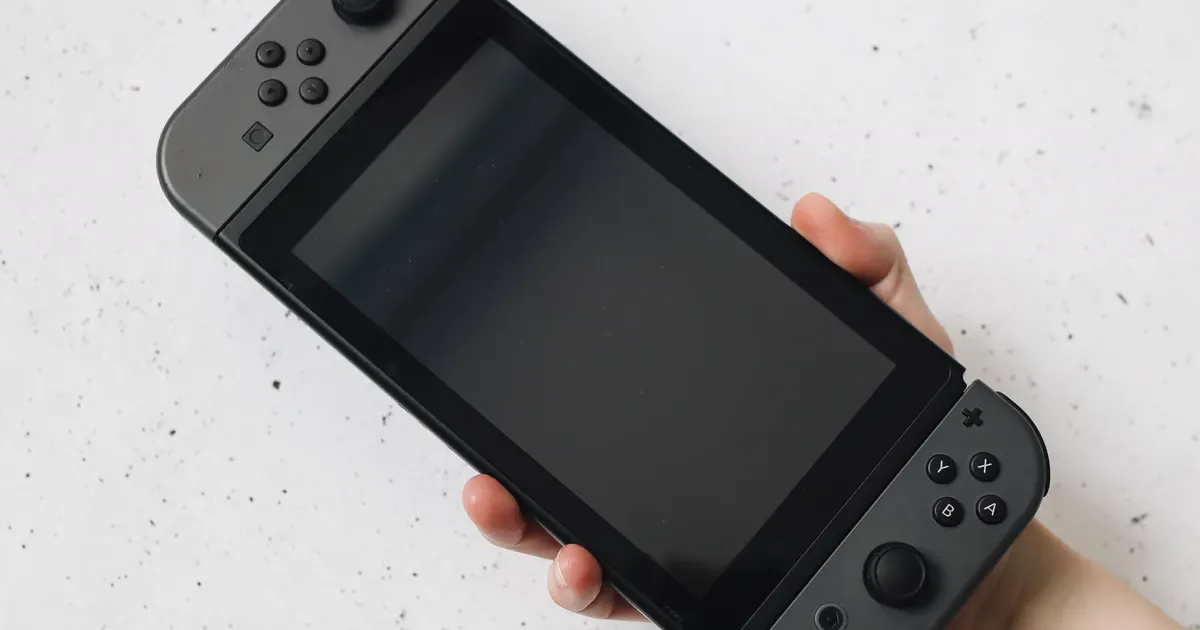
| What happens | What it usually is | Start with |
|---|---|---|
| Nothing happens when you press the button | Frozen system or flat battery | Hard reset, then charge |
| When plugged in, an empty battery icon appears and nothing else | Battery very low | 30-minute charge |
| It makes sounds or vibrates, but the screen stays black | Screen or backlight fault | The torch test |
| The Nintendo logo appears and it stays there | Half-finished update or damaged data | Maintenance Mode |
| Works in handheld mode, but no picture on the TV | The dock, cable or charger | "If it only fails on the TV" |
The 12-second hard reset
The Switch works like a tablet: when the system freezes in sleep mode, the screen stays off but the console is still "on" inside. You have to force it off:
- Take the console out of the dock.
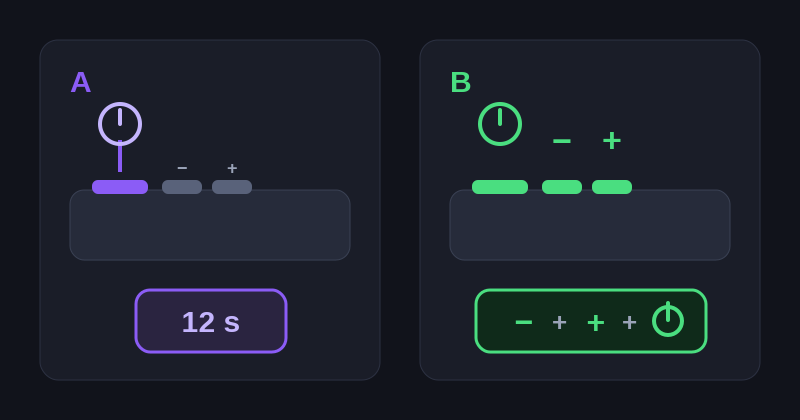
- Hold the power button (top left, next to the volume buttons) for 12 seconds. If something appears on screen meanwhile, don't let go.
- Let go, wait 5 seconds and press the button once, normally. The logo should appear.
This works the same on Switch, Switch OLED, Switch Lite and Switch 2.
If it doesn't respond: 30-minute charge
If the battery has hit zero completely (for example after months in a drawer), the console won't start until it has a minimum charge, to protect the battery:
- Use the official Nintendo charger, plugged straight into the wall.
- Connect it to the USB-C port at the bottom of the console, not the dock. That rules out a faulty dock.
- Leave it charging for 30 minutes without touching it (1 hour if it hadn't been used for months).
- Repeat the 12-second hard reset.
If a battery icon appears on screen for a few seconds when you plug it in, the console is alive and charging. Be patient and wait out the time.
The torch test
If the Switch makes sounds when it starts, vibrates or beeps when you press buttons, but the screen is black, the picture may be there and the screen's backlight is what's failing:
- Turn the console on in a dark room.
- Hold your phone's torch very close to the screen, at a slight angle.
- If you can see the menu icons very faintly, the console works and the backlight has failed. That's a screen repair.
- To confirm, put it in the dock: if the TV shows it fine, only the console screen is failing.
If it gets stuck on the logo: Maintenance Mode
If the console turns on but doesn't get past the Nintendo logo, an update has usually been left half done. Maintenance Mode lets you fix it without losing your saves:
- With the console off, hold volume − and volume + together.
- Without letting go, press the power button. Release everything when the menu appears.
- Try in this order:
- Update System: installs the latest system version (needs Wi-Fi).
- Initialize Console Without Deleting Save Data: deletes downloaded games but keeps saves, screenshots and users. You then re-download the games for free from the eShop.
The Initialize Console option (on its own) deletes everything, including saves that aren't in Nintendo Switch Online cloud storage. Use it only as a last resort.
If it only fails on the TV
If it works in handheld mode but the TV gets no picture when docked:
- Use the official charger on the dock. Many generic USB-C chargers can charge, but don't give the dock enough power to send video.
- Unplug everything and reconnect in this order: 1) HDMI cable to the TV, 2) charger to the dock, 3) console into the dock.
- Select the right HDMI input on the TV and try another HDMI cable.
Frequently asked questions
Can the battery drain so much it won't turn on?
Yes. If the console spends many months unused, the battery can take a while to react. Leave it on the official charger for an hour before assuming it's broken.
Can I charge it with a phone charger?
In handheld mode, many USB-C PD chargers work, though more slowly. For the dock and TV you need the official charger or a certified compatible one.
Does initializing without deleting save data delete my saves?
No. It keeps saves, screenshots and users. It only deletes downloaded games, which you can re-download for free from the eShop.
If your Switch still won't turn on after the 30-minute charge, tell us which model it is and what happens when you plug it in via the contact page.
Still not fixed?
Email us at glitchfixesp@gmail.com with your device model, the exact error message and what you have already tried from this guide. We reply personally (in English or Spanish) and, if the issue keeps coming up, we add the new fix to the guide.