Console on but "No signal" on the TV: fix it for your console
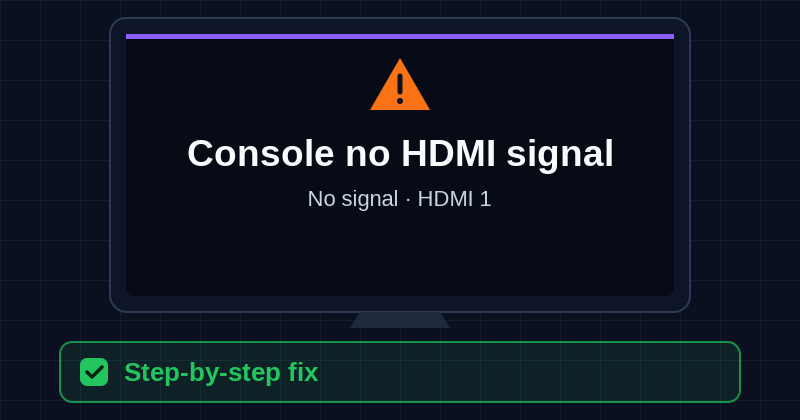
PS5, PS4, Xbox or Switch powers on but the TV shows "No signal" over HDMI? Power-on order, cable and port, each console's own video reset, HDCP, HDR, 4K/120 Hz and soundbars or AV receivers.
Turn on the TV first and then the console, try another HDMI cable and port and check the TV's input/source. If there's still no picture, force a safe resolution: on PS5/PS4, Safe Mode → Change Resolution; on Xbox, hold the Xbox button + eject while powering on; on Switch, in the dock, TV Output → TV Resolution set to Automatic or 720p.
Why it happens
At power-on, the console and TV "negotiate" over HDMI: resolution, refresh rate, HDR and a copy protection called HDCP. If that negotiation fails (loose cable, TV that switched mode, resolution the TV doesn't support), the console is working but the TV receives nothing it understands.
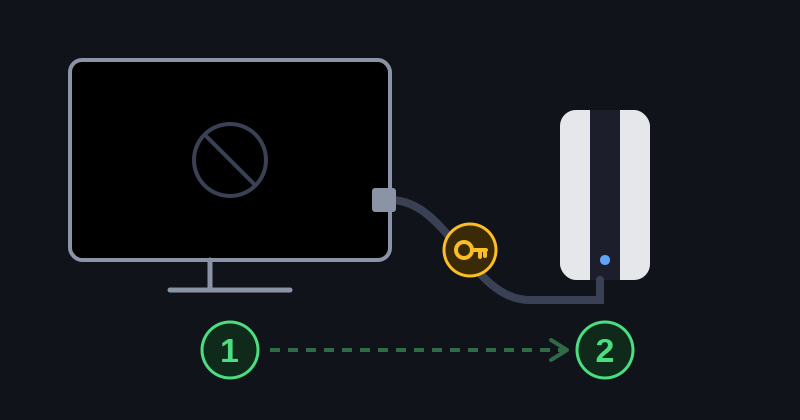
Common to all consoles
- Power-on order: turn both off, turn on the TV, wait until it shows its menu, then turn on the console.
- Correct input: with the TV remote, press Input/Source and choose the HDMI the console is on.
- Another HDMI port on the TV and another cable. Use the cable that came with the console: many old cables can't handle 4K reliably.
- Direct connection: if it goes through a soundbar, AV receiver or HDMI switch, connect the console straight to the TV to rule it out.
- Unplug the TV from power for 60 seconds. Some TVs get "stuck" in a mode.
Each console's trick
| Console | How to force a safe picture |
|---|---|
| PS5 | Turn it fully off. Hold the power button until the second beep (7 s). Connect the controller with a cable, press PS and choose 2. Change Resolution. It boots at 480p and you raise it later in Settings |
| PS4 | Same as PS5: second beep → Safe Mode → Change Resolution |
| Xbox Series X|S / One | With the console off, hold the Xbox button + the eject button (on Series S and One S All-Digital, Xbox + pair) until the second beep. It boots at 640×480 |
| Nintendo Switch / OLED | Take the console out of the dock, wait, and put it back. In System Settings → TV Output, set TV Resolution to Automatic or 720p. Make sure the power cable goes into the dock (HDMI alone isn't enough) |
If you have a 4K or 120 Hz TV, or a soundbar
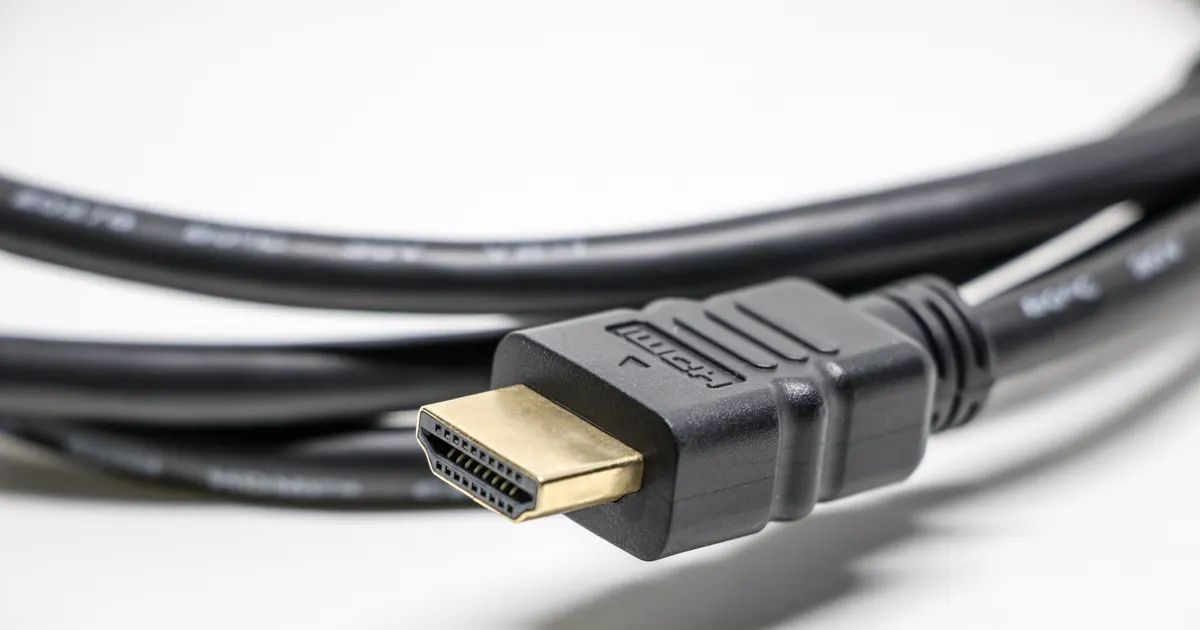
- 4K/120 ports: on many TVs only one or two HDMI ports are 2.1. Look at the port label ("4K@120", "eARC" or "HDMI 2.1").
- Enhanced HDMI: on the TV, enable the enhanced signal mode for that port (called Input Signal Plus, HDMI UHD Color or HDMI Ultra HD Deep Colour depending on the brand). If it causes trouble, turn it off to test.
- HDCP: on PS5/PS4, Settings → System → HDMI → Enable HDCP: turning it off briefly helps when testing with capture cards or switches (video apps won't work that way).
- HDR and 120 Hz: once you get a picture at low resolution, turn off HDR and 120 Hz and raise settings until you find which one breaks the signal.
Frequently asked questions
How do I know the console is really on?
Look at the light and listen for the fan. On PS5, a solid white light means it's on; if it pulses blue and stays that way, see our PS5 blue light guide. If the light is fine, the problem is the video signal.
Could the console's HDMI port be broken?
Yes, especially if the cable was yanked. If there's still no picture with another cable and TV and Safe Mode doesn't show either, it may be the port: a common repair at service centres.
It works on a PC monitor but not on the TV. Why?
The console has saved a resolution or HDR setting that the TV won't accept on that port. Change the resolution from Safe Mode and turn on the TV's enhanced HDMI for that port.
If there's still no picture, tell us your console, your TV and whether there's a soundbar in between via the contact page.
Still not fixed?
Email us at glitchfixesp@gmail.com with your device model, the exact error message and what you have already tried from this guide. We reply personally (in English or Spanish) and, if the issue keeps coming up, we add the new fix to the guide.