The Sims 4 won't start after a patch: cache, mods and the 50/50 method
The Sims 4 is stuck on the loading screen, shows an initialisation error or closes after an update. What to delete without losing saves, how to find the broken mod in a few tries with the 50/50 method and how to repair the game in the EA app or Steam.
First copy the Documents\Electronic Arts\The Sims 4 folder. Then delete localthumbcache.package and move the Mods folder to the desktop. If the game starts, it's a mod: put them back in halves (the 50/50 method) until you find the broken one. If it still won't start without mods, repair the game in the EA app or Steam.
Before anything: back up
Copy the whole Documents\Electronic Arts\The Sims 4 folder somewhere else (another drive or a desktop folder). It holds your saves (Saves), your gallery houses and Sims (Tray) and your mods. With a backup, you can test without fear.
What's in that folder and what you can delete
| File or folder | What it is | Safe to delete? |
|---|---|---|
localthumbcache.package | Saved thumbnails | Yes, it's rebuilt |
cache, cachestr, onlinethumbnailcache | Temporary caches | Yes |
lastException.txt / lastUIException.txt | Error logs | Yes (after reading them) |
Mods | Mods and custom content | No: move it to test |
Saves, Tray | Saves, houses and Sims | Never |
Options.ini | Game settings | Yes, if you suspect settings (recreated with defaults) |
Step 1: clear the cache
With the game closed, delete localthumbcache.package and the contents of the cache folders in the table. Open the game. After many updates, that alone gets it starting again.
Step 2: the 50/50 method to find the broken mod
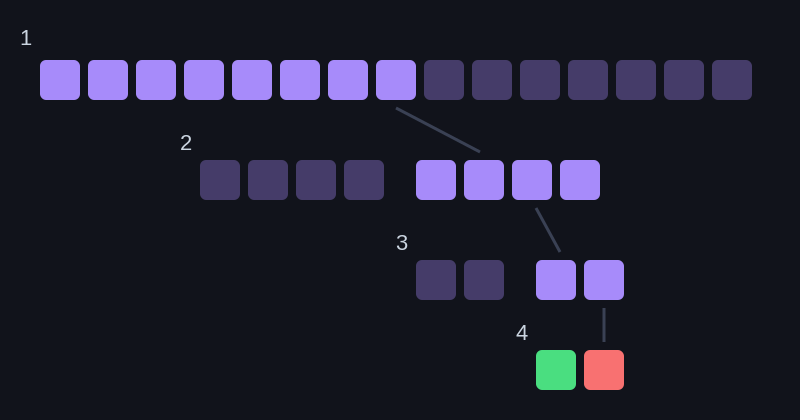
- Move the
Modsfolder to the desktop and open the game. If it starts, the problem is in the mods. - Create an empty
Modsfolder and copy half your mods into it. Open the game. - If it fails, the broken one is in that half. If it works, it's in the other half.
- Repeat with only the guilty half until one mod is left. Update it or delete it.
Start with script mods (.ts4script files): they break most with patches. Clothing and object mods (.package) rarely stop the game from starting.
Big, popular mods (MC Command Center, UI Cheats, WickedWhims) usually release a new version within days of each patch. Check their page before deleting them.
Step 3: if it still fails without mods, repair
- EA app: Library → three dots on The Sims 4 → Repair.
- Steam: Properties → Installed Files → Verify integrity.
- If you use the EA app, quit it completely and run it as administrator once: sometimes it doesn't finish applying the update.
- Last resort: let the game create a fresh folder. Rename the Documents one to "The Sims 4 old", open the game and, if it works, copy only
SavesandTrayfrom the old one.
The same halving method works for other modded games: there's another example in Minecraft Exit Code 0.
Frequently asked questions
Do I lose my saves if I clear the cache?
No. Saves are in Saves. The cache is just thumbnails and temporary data.
How do I stop this happening next patch?
Before updating, disable script mods in Options → Other, or move the Mods folder out. Re-enable them when their authors release compatible versions.
The game opens but mods don't work. What now?
After each patch, the game disables mods for safety. Go to Options → Other, enable "Enable Custom Content and Mods" and "Script Mods Allowed", and restart the game.
If you have lastException.txt and can't make sense of it, send us its first lines via the contact page.
Still not fixed?
Email us at glitchfixesp@gmail.com with your device model, the exact error message and what you have already tried from this guide. We reply personally (in English or Spanish) and, if the issue keeps coming up, we add the new fix to the guide.