EA Sports FC: disconnections and delay, how to find the cause and fix it
EA FC disconnecting you in Rivals or Champions, or players responding late? How to tell a disconnection from input delay, and fix it: cable, NAT, TV game mode, settings and EA servers.
If you get kicked to the menu, it's the connection or the servers: check whether EA has problems, play on a cable, stop downloads and make sure your NAT isn't strict. If players respond late without disconnecting, check the TV first: turn on game mode and turn off motion smoothing. On Friday evenings and reward days, failures are usually EA's.
Disconnection or delay?
They're two different problems with different fixes. Find yours:
| What happens | What it usually is | Go to |
|---|---|---|
| "You have been disconnected from the EA servers" and you're back at the menu | Your network or EA's servers | "If it disconnects you" |
| It happens to lots of people at once (Champions weekend, new promo, Friday evening) | Overloaded EA servers | "Check whether it's EA" |
| Players react late to buttons, but you're not disconnected | The TV, or latency to the server | "If you notice delay" |
| Only on PC and the game closes when opening | EA Javelin anti-cheat or files | "On PC" |
Check whether it's EA
Before touching your network, search "EA FC server status" or check EA's official help accounts. If there's an incident, you can only wait. If it coincides with busy moments (a promo drops, Champions, rewards), that's a clear sign the problem isn't yours.
If it disconnects you
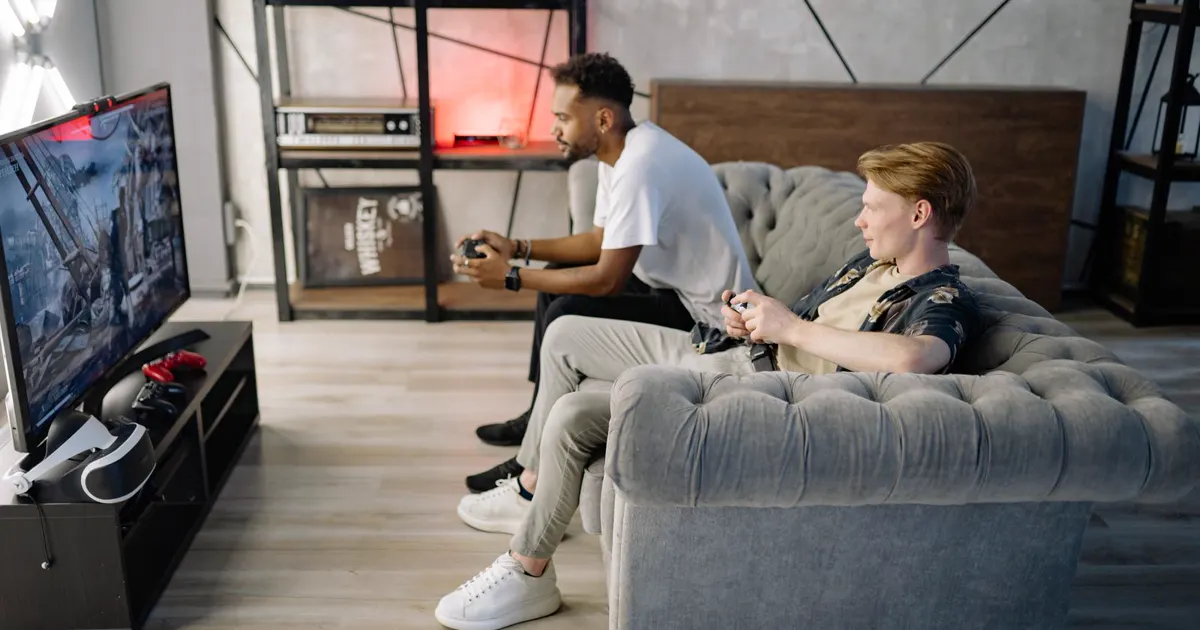
- Network cable. EA FC is very sensitive to the millisecond drops Wi-Fi has. A cable straight to the router makes the biggest difference. Powerline adapters can also cause micro-drops.
- Nothing downloading. Pause downloads on the console or PC and ask others at home not to stream 4K during an important match.
- NAT. Check the NAT type in the console's network settings. If it's Type 3 or Strict, follow our strict NAT guide (turn on UPnP or put the console in the DMZ). Open NAT reduces disconnections when matchmaking.
- Restart the router by turning it off for 1 minute, especially if it's been on for weeks.
- On PC, try without IPv6: in your network connection's properties, untick "Internet Protocol Version 6". It's reversible and stops silent disconnections for some players.
If you notice delay
If you're not disconnected but players are slow to respond, the TV is often to blame, not the internet. Many TVs process the picture to make it look "better" and add delay:
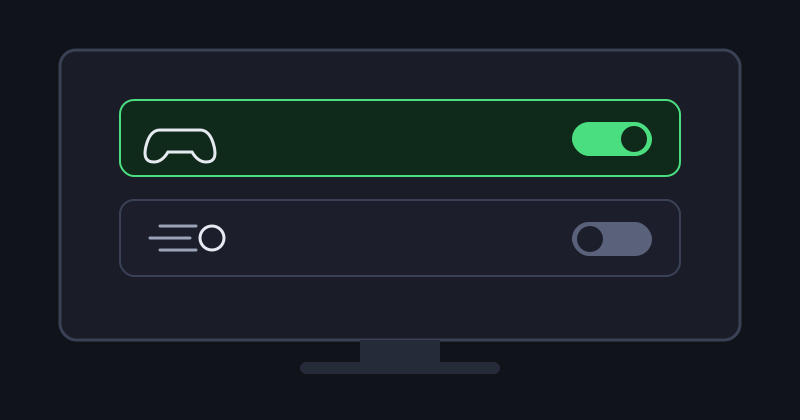
- In the TV's picture settings, turn on Game Mode (or ALLM).
- Turn off motion smoothing (MotionFlow, TruMotion, Motion Plus, Auto Motion…).
- Connect the console to the TV's HDMI port marked 4K@120 or "Game", if it has one.
- In the game, if the menu lets you pick a server or shows connection quality, make sure the bar is green.
Only turn on the console's 120 Hz mode if your TV really supports it on that HDMI port. Otherwise it can add delay instead of removing it.
On PC
- Play in fullscreen and cap FPS to your monitor's refresh rate. Turn on NVIDIA Reflex or AMD Anti-Lag if available.
- EA FC on PC uses the EA Javelin anti-cheat. If the game closes on launch, repair it from the EA app (or verify files on Steam).
- Close programs that draw over the game (overlays, recorders) if you notice stutter.
Frequently asked questions
Does opening ports remove delay?
No. Opening ports or turning on UPnP improves NAT and reduces disconnections when matchmaking, but it doesn't change the distance to the server, which is what sets your ping.
Is there less delay on PC or console?
The servers are the same. What matters more is playing on a cable, having the TV or monitor set up properly and the distance to the server.
Why does it only disconnect me in Champions?
At peak times the servers are busier and any drop in your network shows more. If it matches weekends or events, it's usually EA's side.
If it always disconnects you even on a cable, tell us your platform, provider and NAT type via the contact page.
Still not fixed?
Email us at glitchfixesp@gmail.com with your device model, the exact error message and what you have already tried from this guide. We reply personally (in English or Spanish) and, if the issue keeps coming up, we add the new fix to the guide.