Error FFFFFFFF in RDR2: rule out the 3 usual suspects
RDR2 closes with "Unknown Error FFFFFFFF"? Rule out the three usual culprits in order: extra audio devices, the graphics API (Vulkan or DirectX 12, even without reaching the menu) and the settings cache. Plus mods, overlays and overclocking.
Try in this order: 1) disable every audio device in the sound panel except the one you use; 2) switch the graphics API from Vulkan to DirectX 12 (or the other way), editing system.xml if you can't reach the menu; 3) delete the sga_ files in the Settings folder. If you use mods, update ScriptHookRDR2.
What it looks like
The game freezes for a few seconds and a grey box appears: "Unknown Error: FFFFFFFF". It sends you back to the desktop. It can happen at launch, when entering camp or in the middle of a mission.
Rockstar hasn't explained what it means, but the cases repeat a lot: it's almost always one of these three. Try them in order, easiest first, and play for a while after each so you know which it was.
Suspect 1: audio devices the game can't handle
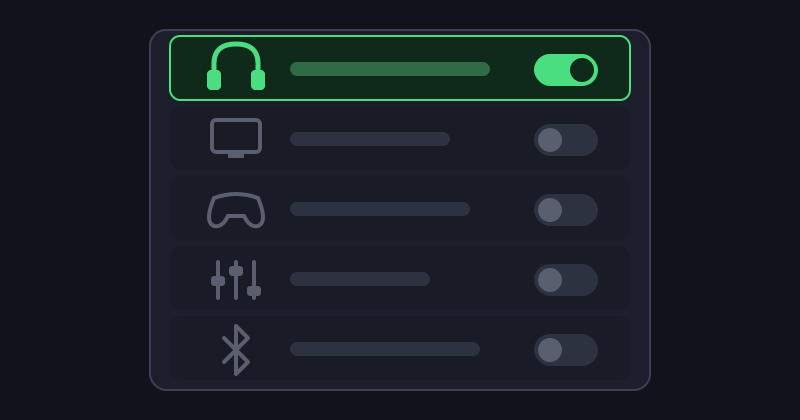
Surprising, but one of the most common causes. The game gets confused by extra audio outputs: the monitor's speaker over HDMI, connected controllers, virtual cables (VoiceMeeter, VB-Cable) or Bluetooth headphones that keep connecting and disconnecting.
- Press Win + R and type
mmsys.cplto open the classic sound panel. - In Playback, right-click each device you don't use → Disable. Keep only your headphones or speakers.
- Do the same in Recording: keep only your real microphone.
- Open the game.
When you're done playing, re-enable them with right-click → Show Disabled Devices.
Suspect 2: the graphics API
RDR2 can use Vulkan or DirectX 12. Depending on your GPU and driver, one of them may be unstable. Switching is quick:
- If you reach the menu: Settings → Graphics → scroll down to Advanced Settings (unlock them if needed) → Graphics API → switch to the other → apply and restart the game.
- If it closes before the menu: edit the config file:
- Go to
Documents\Rockstar Games\Red Dead Redemption 2\Settings. - Copy
system.xmlsomewhere else as a backup. - Open it with Notepad and find
<API>. - Change
kSettingAPI_VulkantokSettingAPI_DX12(or the other way) and save.
- Go to
If the game still won't start, delete system.xml completely: a new one is created with default settings.
Suspect 3: the settings cache
In the same Settings folder there are files starting with sga_. They're a cache the game generates, and when they get damaged they cause crashes in specific areas (camp is the classic case).
- Close the game and the Rockstar Games Launcher.
- Delete all the
sga_files in theSettingsfolder. Don't touch theProfilesfolder: your saves are there. - Open the game: it recreates them clean. The first launch takes a bit longer.
If it wasn't any of the three
- Mods: if you use mods, update ScriptHookRDR2 after every game patch. With an old version, FFFFFFFF appears instantly. Otherwise, try removing the mods folder.
- Overlays and background programs: close RGB, monitoring or recording tools before playing.
- Overclocking: RDR2 is very sensitive to GPU or memory overclocks. Go back to factory settings to test.
- Verify the files: in Rockstar Games Launcher → Settings → My installed games → Red Dead Redemption 2 → Verify Integrity. On Steam or Epic, from the library.
- Username with unusual characters: if your Windows user folder has accents or symbols, the game may fail to save its settings.
Frequently asked questions
Vulkan or DirectX 12, which is better?
It depends on the PC. Vulkan often gives slightly more FPS, but DirectX 12 is sometimes more stable. Stick with whichever gives you no errors.
Will I lose my saves if I delete files in Settings?
No. Saves live in the Profiles folder and in Rockstar's cloud. Settings only holds settings and cache.
Why did it start after updating my graphics driver?
Some driver versions have problems with specific games. Switch API or install the previous driver version.
If the error persists, tell us when it crashes and which GPU you have via the contact page.
Still not fixed?
Email us at glitchfixesp@gmail.com with your device model, the exact error message and what you have already tried from this guide. We reply personally (in English or Spanish) and, if the issue keeps coming up, we add the new fix to the guide.