Genshin Impact stuck on the loading screen or at the door: fix
Genshin Impact freezing on the white elements loading screen or not getting past the door? What each case means and how to fix it: repair with HoYoPlay, graphics, anti-cheat, network and mobile.
On PC, close the game and use Repair Game in the HoYoPlay launcher. If it freezes on the white elements screen, update your graphics driver and force the dedicated GPU on laptops. If it gets stuck at the door or shows a network error, it's the connection: turn off your VPN, switch networks and check for maintenance. On mobile, free up space and let the resources download on Wi-Fi.
First: where exactly does it get stuck?
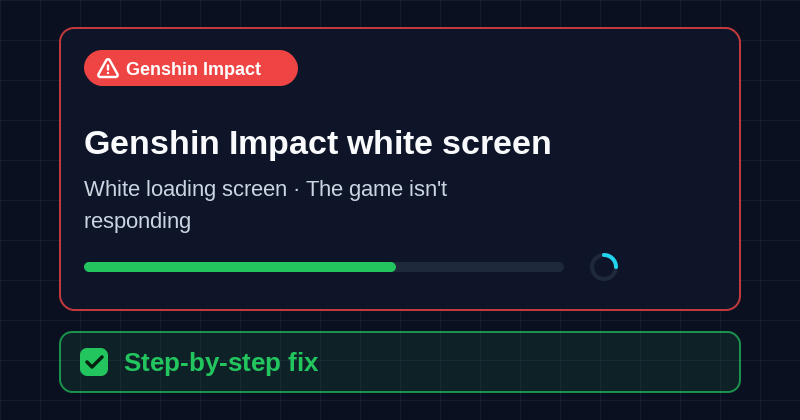
| What you see | What it usually is | Start with |
|---|---|---|
| White screen with the 7 elements, the music stops and the game is "not responding" | Damaged files after an update or a graphics problem | Steps 1 and 2 |
| It closes right after opening or shows an anti-cheat error | Antivirus, permissions or programs clashing with the anti-cheat | Step 3 |
| It reaches the door, you click and it keeps loading or shows a "network error" | Connection to the servers (VPN, network, maintenance) | Step 4 |
| Resource download bar that doesn't move (mostly on mobile) | Not enough space or unstable network | Mobile section |
Step 1: Repair the game from HoYoPlay
Genshin is now installed and updated through the HoYoPlay launcher. After every big update it's common for a file to be badly downloaded, and that alone can freeze the game on the white screen:
- Close the game completely. If it isn't responding, close it from Task Manager (Ctrl + Shift + Esc).
- Open HoYoPlay and select Genshin Impact, but don't click Start Game.
- Click the three dots or lines button next to "Start Game" and choose Repair Game.
- Wait until it finishes. It checks every game file (tens of GB), so it can take 10 to 30 minutes depending on your drive.
Before repairing, make sure you have at least 30 GB free on the game's drive. Without enough space, repairs and updates fail without a clear warning.
Step 2: Check the graphics
If it still freezes on the white screen after repairing, the next suspect is the graphics card:
- Update the driver from your GPU's website or app (NVIDIA App, AMD Adrenalin or Intel Driver & Support Assistant). On basic laptops with integrated Intel or AMD graphics, this fixes many cases.
- On laptops with two GPUs, the game may start on the integrated one and hang. Go to Settings → System → Display → Graphics, add
GenshinImpact.exewith "Browse" and choose High performance. - If you use programs that draw over the game (MSI Afterburner, RivaTuner, the Discord overlay or recorders), close them and try again.
GenshinImpact.exe is usually in C:\Program Files\HoYoPlay\games\Genshin Impact game. If you installed it on another drive, HoYoPlay can show you the folder from the same three-dots menu.
Step 3: Antivirus, permissions and anti-cheat
Genshin uses an anti-cheat system that loads right at startup. If something blocks it, the game closes or freezes on the first screen:
- Add the game folder as an exclusion in your antivirus (in Windows: Windows Security → Virus & threat protection → Exclusions). It's better than turning the antivirus off.
- Right-click
GenshinImpact.exe→ Properties → Compatibility and tick Run this program as an administrator. - Close cheat programs, macros, game "optimisers" and tools that read memory (such as Cheat Engine). Even if you don't use them in Genshin, the anti-cheat can block the game if they're open.
- Restart the PC after a Windows update before playing again.
Step 4: If it gets stuck at the door or shows a network error
If the game starts, you see the door on the start screen and it keeps loading when you click, the problem is no longer your PC but the connection:
- Check whether maintenance has been announced on the game's official social accounts. Every new version brings a few hours without servers.
- Turn off your VPN or any "ping booster" program.
- Try another network, for example your phone's shared data. If it works, restart the router or change DNS to 1.1.1.1 and 8.8.8.8.
- Make sure you choose your server (Europe, America or Asia) on the start screen. A distant server takes much longer to load.
On mobile (Android and iPhone)
- Keep plenty of free space. Genshin is big and needs extra room to unpack each update; if the phone fills up, the download stops.
- Download resources on stable Wi-Fi and don't close the app or lock the screen meanwhile.
- Close other apps and restart the phone if it has got very hot.
- If nothing works, uninstall and reinstall. Your progress is stored in your HoYoverse account, not on the phone.
Frequently asked questions
Does HoYoPlay replace the old Genshin launcher?
Yes. HoYoverse merged its games into HoYoPlay. If you still have the old launcher, uninstall it and install HoYoPlay; you can point it to the folder where the game already is so you don't download it all again.
Will I lose my progress if I reinstall?
No. Progress, characters and items are stored in your HoYoverse account. Sign in again and you get everything back.
Does Genshin work on hard drives (HDD)?
It works, but loading is much slower and there's stutter while exploring. If it spends ages on loading screens and you have an HDD, moving it to an SSD improves things enormously.
If it still won't load, tell us which screen it gets stuck on and which device you play on via the contact page.
Still not fixed?
Email us at glitchfixesp@gmail.com with your device model, the exact error message and what you have already tried from this guide. We reply personally (in English or Spanish) and, if the issue keeps coming up, we add the new fix to the guide.