Xbox stuck on the green screen: the fix ladder
The Xbox stays on the green startup screen and goes no further. A ladder of fixes from least to most drastic: full restart, Startup Troubleshooter, reset keeping games, and an offline system update from an NTFS USB drive.
Hold the console's power button for 10 seconds, unplug it for 2 minutes and turn it back on. If it's still green, open the Startup Troubleshooter (Pair + Eject + Xbox buttons) and choose Reset this Xbox → Keep games & apps. Last resort: an offline system update from an NTFS USB drive.
What the green screen means
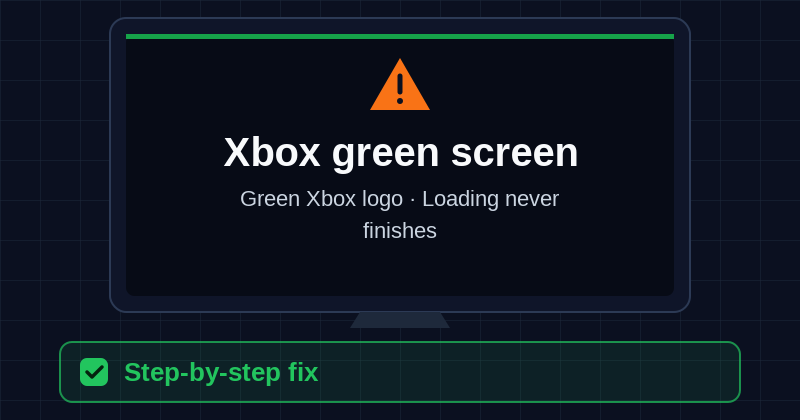
It's the Xbox boot screen. If it gets stuck there (with or without the logo, sometimes with a frozen progress bar), the system can't finish loading. The usual cause is an interrupted update from a power cut or a shutdown during the download. It's rarely an internal drive failure.
Step 1: full restart (2 minutes)
- Hold the Xbox button on the console for about 10 seconds until it turns off.
- Unplug the power cable for 2 minutes (this clears the boot cache).
- Plug back in and power on. It can take several minutes to get past green: wait up to 10 minutes.
Step 2: the Startup Troubleshooter
- With the console off and unplugged for 30 seconds, plug it back in.
- Hold Pair (the small button on the side or front) and Eject (on consoles with a disc drive) and press the Xbox button on the console. On Series S and drive-less models, just Pair + Xbox.
- Keep holding Pair and Eject for 10–15 seconds until you hear two beeps. The Troubleshooter appears.
From there, try Restart this Xbox first. If it goes back to green, move to step 3.
Step 3: reset keeping games
In the Troubleshooter, choose Reset this Xbox → Keep games & apps. It reinstalls the operating system without deleting games. Your saves are in the cloud and come back when you sign in.
Don't choose "Remove everything" except as a last resort: it deletes games and data on the console, and saves that aren't synced to the cloud are lost.
Step 4: offline update via USB
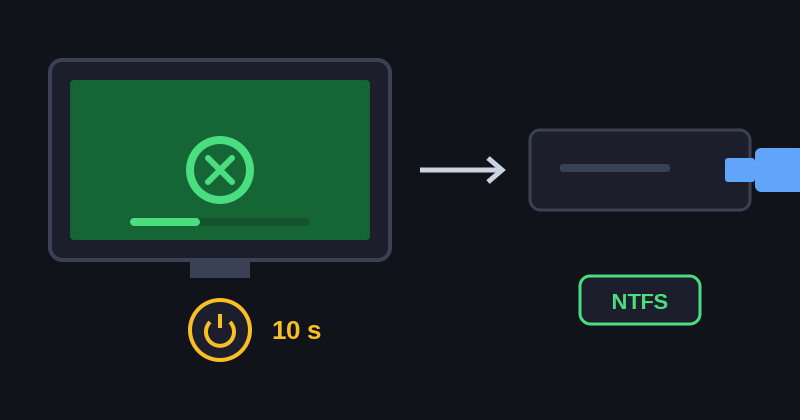
- On a PC, format a USB drive of at least 6 GB as NTFS (right-click → Format).
- Download the Offline System Update file (OSU1) from the Xbox support website and unzip it.
- Copy the
$SystemUpdatefolder to the root of the drive (not inside another folder). - Plug the drive into the Xbox, open the Startup Troubleshooter and choose Offline system update.
If nothing works
If it's still green after the offline update, or the Troubleshooter never appears, the internal drive may be damaged. Request a repair from Xbox support. If the console also turns itself off, see Xbox turns itself off.
Frequently asked questions
Will I lose my saves?
With "Keep games & apps", no. And synced saves are in the cloud even if you fully reset.
I don't hear the two beeps
Make sure you press the console's buttons (not the controller's), keep Pair and Eject held the whole time and that the console was unplugged first. Try several times: the timing is tricky.
Will a FAT32 or exFAT drive work?
No. For the offline update it must be NTFS.
If you get stuck on a step, tell us your Xbox model via the contact page.
Still not fixed?
Email us at glitchfixesp@gmail.com with your device model, the exact error message and what you have already tried from this guide. We reply personally (in English or Spanish) and, if the issue keeps coming up, we add the new fix to the guide.