PS5 flashing blue light, no display or turning off by itself: fix
PS5 stuck on a pulsing blue light, no picture on the TV or turning off by itself? What each case means and how to fix it: power drain, HDMI, Safe Mode and USB reinstall.
Unplug the PS5 for 5 minutes to drain the power. If the light then turns white but the TV shows nothing, it is a picture problem: switch HDMI port and lower the resolution from Safe Mode. If the light stays blue and the console shuts down, it is a boot problem: enter Safe Mode, clear the cache and rebuild the database. If none of that works, reinstall the system software from a USB drive.
First: what exactly is happening?
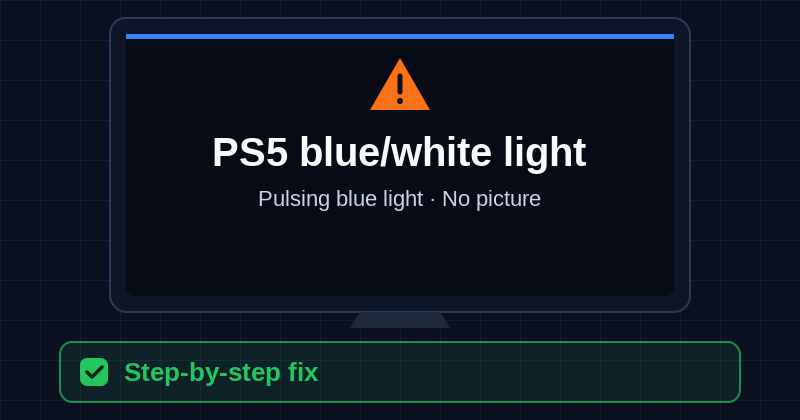
"Blue light" can mean three different problems, and each one has a different fix. Watch the console's light bar for a couple of minutes and find your case in the table:
| What you see | What it usually is | Start with |
|---|---|---|
| Pulsing blue, then solid white, but the TV says "no signal" | The console works; the picture fails (cable, HDMI port or resolution) | Step 2 |
| Pulsing blue the whole time and then it turns off | The system freezes while booting (the "blue light of death") | Steps 1 and 3 |
| Pulsing blue when it should be in rest mode (orange) | Fault entering or leaving rest mode | Rest mode section |
| No beep and no light at all | No power reaching it (cable, socket or power supply) | Step 1 and the hardware section |
Step 1: Drain the power completely
After a power cut or a long time in rest mode, the console can get stuck in a strange state that turning it off with the button does not fix. You need to cut the power completely:
- If it is on, hold the power button until it beeps twice and turns off.
- Unplug the power cable from the back of the PS5 (not just from the power strip).
- With the console unplugged, hold the power button for 30 seconds.
- Leave it unplugged for 5 minutes.
- Plug the cable straight into a wall socket, without a power strip, and turn it on.
If you use a power strip with lots of devices or a cheap extension lead, try without it. A socket that delivers too little power can make the PS5 turn off while booting.
Step 2: Rule out the TV and the HDMI cable
If the light does turn white, the console has booted fine and the problem is the picture. This is the most common case and the easiest to fix:
- Use the HDMI cable that came with the PS5. Many older cables cannot handle 4K at 120 Hz and the TV stays black.
- Plug it into a different HDMI port on the TV and change the input with the TV remote.
- In the TV settings, turn off HDMI control (called HDMI-CEC, Anynet+, Bravia Sync or SimpLink depending on the brand). Sometimes the TV and the console "fight" when they turn on.
- If there is still no picture, enter Safe Mode (step 3) and choose Change Video Output → Change Resolution. The PS5 restarts at a low resolution that any TV accepts. You can raise it later in Settings → Screen and Video.
- In the same menu, try HDCP Mode → HDCP 1.4 Only if you have a capture card, an AV receiver or an old monitor between the console and the screen.
Step 3: Safe Mode: clear the cache and rebuild the database
If the light stays blue and the console turns off, a system file is most likely damaged. Safe Mode starts the PS5 with the bare minimum so you can repair it:
- With the console completely off (no lights at all), press and hold the power button.
- You will hear one beep. Keep holding until you hear the second one, about 7 seconds later.
- Connect the DualSense controller with a USB cable (Bluetooth does not work here) and press the PS button.
You will see this menu. The options at the top do not delete anything; the ones at the bottom do:
| Option | What it is for | Deletes data? |
|---|---|---|
| Restart PS5 | Leaves Safe Mode and boots normally | No |
| Change Video Output | Fixing a missing picture (step 2) | No |
| Update System Software | Installs the latest version via internet or USB | No |
| Restore Default Settings | Returns settings to factory values | Settings only |
| Clear Cache and Rebuild Database | Repairs the index of games and files | No |
| Reset PS5 | Leaves the console as new | Yes, everything |
| Reset PS5 (Reinstall System Software) | Reinstalls the system from USB (step 4) | Yes, everything |
Choose Clear Cache and Rebuild Database → Clear System Software Cache and restart. If nothing changes, go back in and choose Rebuild Database. It can take from a few minutes to half an hour if you have many games; do not turn it off in the meantime.
Also try Update System Software: some boot freezes are fixed by the latest version.
Step 4: Reinstall the system software from a USB drive
This deletes everything on the console: games, captures and saved data. You will only keep saves that are in PlayStation Plus cloud storage or on a USB backup. Only do it if the previous steps have not worked.
You need a computer and a USB drive with at least 12 GB free.
- Format the USB drive as FAT32 or exFAT on the computer.
- Create a folder called PS5 on it and, inside it, another one called UPDATE (in capitals).
- On the official PlayStation website, search for "reinstall PS5 system software" and download the reinstallation file. Careful: it is not the same as the normal update file and it is much larger.
- Save the file in the UPDATE folder with the name PS5UPDATE.PUP. If your browser adds "(1)" to the name, remove it.
- Plug the USB drive into one of the PS5's USB ports, enter Safe Mode and choose Reset PS5 (Reinstall System Software) → Update from USB Storage Device.
If the console says it cannot find the file, it is almost always because of the folder or file names, or because the drive uses another format (for example NTFS).
If it flashes blue in rest mode
In rest mode the light should be solid orange. If it starts pulsing blue or the console will not wake up, the problem is usually rest mode itself:
- Do step 1 and step 3 (clear the cache).
- Once it works again, go to Settings → System → Power Saving → Set Time Until PS5 Enters Rest Mode and choose not to enter rest mode for a few days.
- In Features Available in Rest Mode, turn off "Supply Power to USB Ports" and "Stay Connected to the Internet". If the fault stops, you know what was causing it.
- Turn it off completely instead of using rest mode until a new system update comes out.
What each PS5 light colour means
| Light | Status |
|---|---|
| Solid white | On and working normally. |
| Pulsing blue | Starting up. If it stays like that for several minutes, the boot has frozen. |
| Solid orange | Rest mode. |
| Pulsing orange | Entering rest mode. |
| Pulsing white | Turning off. |
| Pulsing red | Overheating. Turn it off and let it cool down somewhere well ventilated. |
If it turns off while you are playing
If it boots fine but turns off in the middle of a game, the most common cause is heat:
- Leave at least 10 cm of free space on each side and behind it. No closed cabinets.
- Remove the side covers (they slide off by gently pulling the corner) and carefully vacuum the two dust catcher holes next to the fan.
- If you added an M.2 SSD, check that it has a heatsink. An SSD without one can get so hot that the console turns off. To rule it out, remove it and try playing without it.
- Check the power cable: if it is bent, frayed or loose in the connector, replace it. Many TVs use the same cable and it is cheap.
When it is a hardware fault
If it is still the same after reinstalling the software from USB, or if the console does not beep or light up at all with another cable and another socket, the problem is physical: usually the power supply or the motherboard. That cannot be fixed at home.
- In the European Union you have at least 2 years of legal guarantee from the shop where you bought it (3 years in Spain for purchases since 2022). In other countries, check the warranty with PlayStation support.
- Do not open it beyond the side covers while it is under warranty: opening it can void it.
Frequently asked questions
Will I lose my data if I rebuild the database?
No. Rebuilding the database reorganises the storage index without deleting games or saves. At most you may have to sort your library again.
And if I reinstall the system software?
Yes, everything is deleted. Before doing it, if the console still boots now and then, upload your saves to the cloud (Settings → Saved Data and Game/App Settings) or copy them to a USB drive.
Why does the controller not work in Safe Mode?
Because in Safe Mode the controller only works with a cable. Use a USB cable that carries data; some cheap charging cables only provide power and the console does not detect the controller.
Can I use the PS5 horizontally?
Yes, with the included stand. Horizontal or vertical, cooling is just as good as long as the vents have free space.
If none of this worked or you are not sure which case you are in, tell us what the light does and when it turns off on the contact page.
Still not fixed?
Email us at glitchfixesp@gmail.com with your device model, the exact error message and what you have already tried from this guide. We reply personally (in English or Spanish) and, if the issue keeps coming up, we add the new fix to the guide.