Xbox error 0x803F8001: where your licence lives
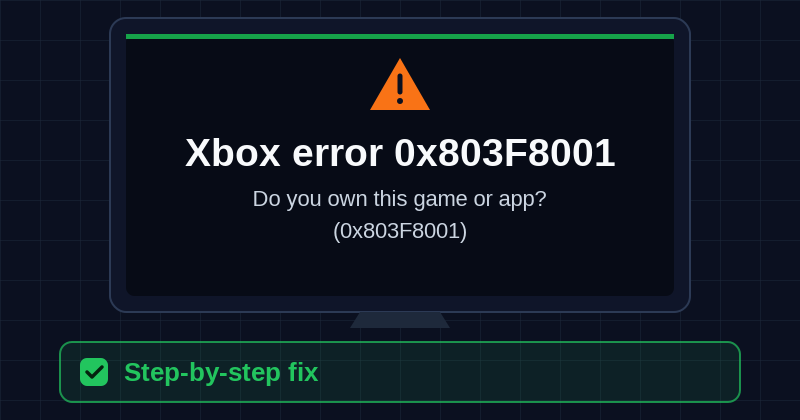
Xbox shows 0x803F8001 when it can't verify a game's licence. How licences work on your Home Xbox and other consoles, how to force a sync, when to change your Home Xbox and what to do with disc or Game Pass games.
The console can't confirm you're allowed to play. Launch the game with the account that bought it or has Game Pass. Go to Settings → General → Personalisation → My home Xbox and set this console. If it's a disc game, insert the disc. If Xbox Live is down, wait: without servers, only your Home Xbox works.
How the licence works (and why it fails)
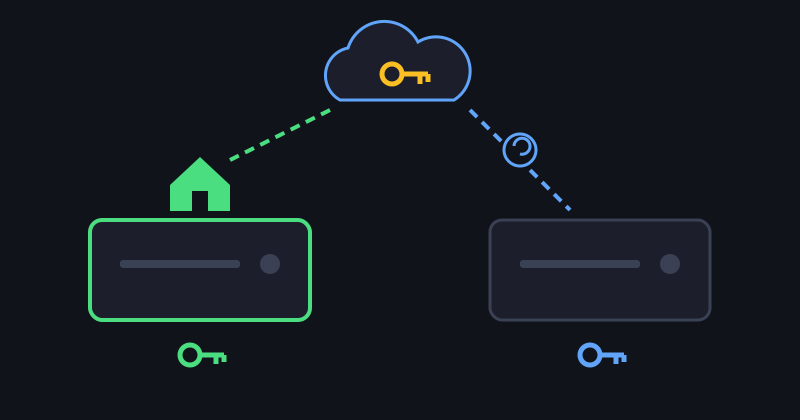
| Situation | Where the licence is checked | What breaks it |
|---|---|---|
| Playing on your Home Xbox | On the console itself | Having changed your Home Xbox on another console |
| Playing on another console (a friend's, a second Xbox) | On the servers, when the game starts | No internet, Xbox Live outage, another account signed in |
| Disc game | On the disc | Dirty, scratched or missing disc |
| Game Pass | On your subscription | Expired subscription or game left the catalogue |
Step 1: which account?
Press the Xbox button and check which profile is active. If the console has several users, the game must be launched by the one who bought it, unless this is their Home Xbox (then anyone can play it). With Game Pass, the subscription must be active on the account launching the game.
Step 2: check Xbox Live and sync
- Check Xbox Live status on the Xbox support website. If "Store & purchases" has problems, all you can do is wait.
- Settings → General → Network settings → Test network connection.
- Open the Store, find the game and open its page: this forces the console to reload your licences.
- Full restart: hold the power button 10 seconds, unplug for 30 seconds and power on again.
Step 3: set this console as your Home Xbox
- Settings → General → Personalisation → My home Xbox.
- Select Make this my home Xbox.
You can only have one Home Xbox and change it 5 times a year. When you change it, the previous console stops sharing your games with other profiles: keep that in mind if someone else at home uses it.
If it's a disc game
- Insert the disc even if the game is installed: the console needs it to confirm you own it.
- Clean it with a soft cloth, from the centre outwards. If it won't read, try another console.
- Xbox Series S and Series X Digital have no drive: disc games don't work on them.
If the console also turns itself off or restarts, that's a different problem: see Xbox turns itself off. If multiplayer won't connect, check your NAT.
Frequently asked questions
Do I lose my saves when I change Home Xbox?
No. Saves are in your account's cloud and sync on any console.
Can I play offline?
Only on your Home Xbox (or with the disc inserted). On other consoles the licence is checked online each time.
It happens with a Game Pass game that used to work
Check the subscription is still active and the game hasn't left the catalogue. If it has, you'll need to buy it (often at a discount) to keep playing.
If the error persists with the right account and the console set as Home, tell us about it via the contact page.
Still not fixed?
Email us at glitchfixesp@gmail.com with your device model, the exact error message and what you have already tried from this guide. We reply personally (in English or Spanish) and, if the issue keeps coming up, we add the new fix to the guide.